Tuesday, October 9, 2018

EA Financial reporting and granular access to data through the Enterprise

This series of articles describes how to customize the way that Azure does its billing, to meet the requirements of the accounts and budgeting of a typical business. In the previous article, we saw how to set up a centralized storage (Azure SQL Database) to use as a repository for the EA billing data. We created a Web App in Azure and a Web Job under it, so as to import new data as it comes to the EA portal. This is an easy way to get access to the EA billing data and gives us the opportunity to query and mine it.

In this article, we will focus on giving granular access. By this, I mean that each user role, whether per department or by a Subscription / Resource group combination, can access only their own data, whereas a Billing Manager can access it all. We will also explore the reporting possibilities and the composing of the Financial reporting for the Enterprise.

Many organizations benefit from purchasing an EA agreement for their Azure accounts in order to get benefits such as better pricing, easier procurement, internal cross-charges tagging.

To get the best use of this EA agreement, you will need to

  • control the resources added to the cloud
  • get a holistic view of all of the Azure resources being used
  • be able to check that the enterprise is getting good value for money
  • ensure that the resources are being used effectively

In the previous article we built a solution to poll and store data from the EA API, and now we are going to rely on that data to actually achieve these goals. This won’t be easy, because a typical organization will not have a single source of knowledge about the requirements, and there will be several Azure subscriptions for various departments, which are likely to run their own completely independent projects in Azure.

In order to account for costs optimization and resource utilization in such cases, the organization admins would have assigned access rights to different resource groups, based on projects. Each project would have a cost center number in the Finance department, and the costs for running the project will usually have to be billed to the specific department or team at the end of the monthly billing cycle.

Because of this project-ownership, it is important to give control of the resources and the cost management to each project / team, so they can bear informed responsibility for the way that they use these resources.

There are several challenges in doing this, and there are several ways to solve these challenges. As mentioned in the previous article, there are several ways to gather information about billing and spending patterns such as third party tools or Azure tools. These Azure tools include Cloudyn, the Billing Reader RBAC per Resource Group or PowerBI reports directly from EA portal

These options are great in general, but they are very weak contenders when it comes to the security concerns of the third party tools and the flexibility of the Azure built-in tools. The advantage with having a customized solution to store and mine the EA data is that we can use the Row Level Security feature of Azure SQL to give granular access only to certain users and only to their own resources: Also, we can automate the daily notifications of overspending patterns, and the creation of new resources.

Here are the topics covered in the article:

  • Automate the chargeback reporting sent to Finance by using a mapping table for each Department or Subscription / ResourceGroup
  • Give access to the appropriate EA billing data only to authorized users, Each user should see its own data and nothing more.
  • A Manager should be able to see reports on all data
  • A report with common costs should be produced. Express Route costs, for example, can be accumulated from different entities across the organization.
  • A list of newly created resources should be visible daily
  • Alarms should be sent as soon as possible for resources which incur costs over a certain rate

The cost of the home-brew solution should be minimal and the reporting should, preferably, be free in order to cut costs on the billing solution itself. For this purpose, we will optimize the solution resources and use Excel templates for users to explore their own data.

Automate the chargeback reporting sent to Finance by using a mapping table per Department or Subscription / ResourceGroup

Here is the solution roadmap we discussed earlier:
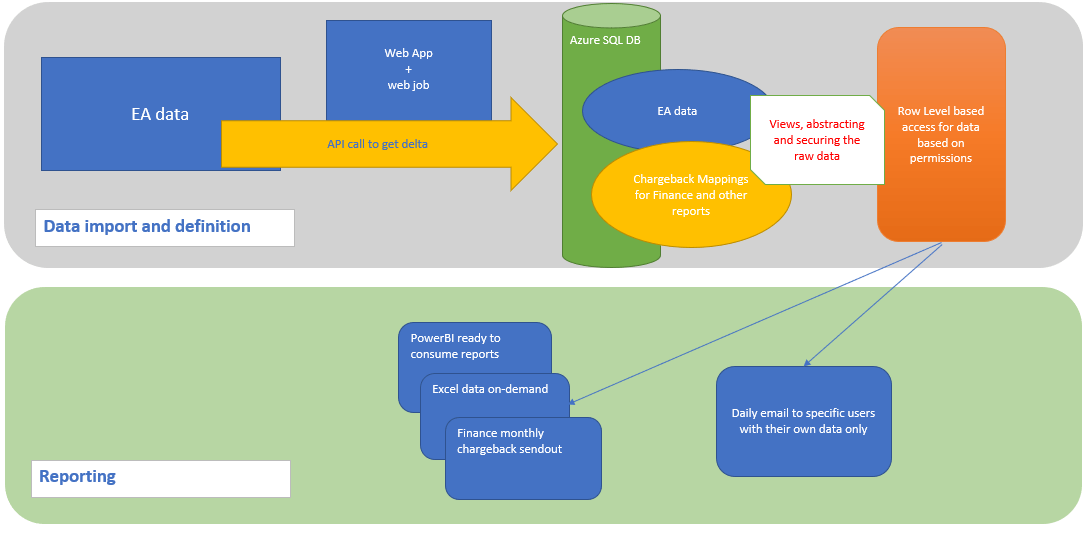
For charge distribution we need to create a mapping table that contains the data about which entities belong to what cost centers.

For the purpose of giving granular access to the organizational entities to view their own expenditure, we will build a Row Level Access functionality in the Azure SQL Database, so a specific login is mapped to a specific subset of the EA data, I.e. only their own. Only a Manager login will have access to the entire dataset.

To do this, we will create a table like this:

CREATE TABLE [dbo].[Billing_MappingList]
  ([BusinessUnit] [NVARCHAR](20) NULL,
[AppOrProject] [NVARCHAR](255) NULL,
[ResponsibleContactEmail] [NVARCHAR](255) NULL,
[DepartmentName] [NVARCHAR](255) NULL,
[Subscription] [NVARCHAR](255) NULL,
[ResourceGroup] [NVARCHAR](255) NULL,
[CostCenter] [NVARCHAR](255) NULL,
[RowLevelSecurityLogin] [VARCHAR](20) NULL);

There are a few things to notice:

  • The CostCenter column is used by the Finance department to indicate where to send the bill
  • The BusinessUnit, AppOrProject and ResponsibleContactEmail columns are filled in during the introduction of new enterprise entities in Azure
  • The DepartmentName, Subscription and ResourceGroup are used for joining the data to the EA raw data
  • The RowLevelSecurityLogin column is used later on to map which SQL login has access to what subset of data

After creating the mapping table, and after inserting some data into it, we will be using the following stored procedure to get the monthly chargeback report:

CREATE PROCEDURE [dbo].[GetBillingReport]
  (
@startDate DATE = NULL, @endDate DATE = NULL)
AS
IF @startDate IS NULL
  -- this gets the first day of the mosst recent finished month
  SET @startDate = DateAdd(DAY, 1, EOMonth(GetDate(), -2));
-- this gets the last day of the most recent finished month
IF @endDate IS NULL SET @endDate = EOMonth(@startDate);
PRINT @startDate;
PRINT @endDate;
-- dptmnt
SELECT m.BusinessUnit AS [Business Unit],
  m.AppOrProject AS [Application/Project],
  m.ResponsibleContactEmail AS [Responsible DM/SM/PM],
  'Microsoft' AS [Software Vendor], -- always
  'Azure' AS [Product], -- always
  Convert(DECIMAL(18, 2), Sum(ea.ExtendedCost)) AS [Cost],
  'EUR' AS [Currency], -- always
  '' AS [Cost in SEK], -- always
  @startDate AS [Effective Date(MM/YYYY)],
  ea.AccountOwnerId AS [Network/Cost Center Owner],
  IsNull(
    CASE WHEN CharIndex('&', m.CostCenter) > 0 THEN
           Substring(m.CostCenter, 0, CharIndex('&', m.CostCenter))
      WHEN CharIndex('-', m.CostCenter) > 0 THEN
        Substring(m.CostCenter, 0, CharIndex('-', m.CostCenter)) ELSE
                                                                   m.CostCenter END,
    CASE WHEN CharIndex('&', ea.CostCenter) > 0 THEN
           Substring(ea.CostCenter, 0, CharIndex('&', ea.CostCenter))
      WHEN CharIndex('-', ea.CostCenter) > 0 THEN
        Substring(ea.CostCenter, 0, CharIndex('-', ea.CostCenter)) ELSE
                                                                     ea.CostCenter END) AS [Network/Cost Center],
  IsNull(
    CASE WHEN CharIndex('&', m.CostCenter) > 0 THEN
           Substring(
             m.CostCenter,
             CharIndex('&', m.CostCenter) + 1,
             Len(m.CostCenter))
      WHEN CharIndex('-', m.CostCenter) > 0 THEN
        Substring(
          m.CostCenter,
          CharIndex('-', m.CostCenter) + 1,
          Len(m.CostCenter)) ELSE NULL END,
    CASE WHEN CharIndex('&', ea.CostCenter) > 0 THEN
           Substring(
             ea.CostCenter,
             CharIndex('&', ea.CostCenter) + 1,
             Len(ea.CostCenter))
      WHEN CharIndex('-', ea.CostCenter) > 0 THEN
        Substring(
          ea.CostCenter,
          CharIndex('-', ea.CostCenter) + 1,
          Len(ea.CostCenter)) ELSE '' END) AS [Activity Code],
  'N/A' AS [Customer Account],
  'q' + Convert(CHAR(1), DatePart(QUARTER, @startDate)) AS [Month to be invoiced],
  'Report from ' + Convert(VARCHAR(20), @startDate) + ' to '
  + Convert(VARCHAR(20), @endDate) AS Report_StartDate_EndDate
  FROM [dbo].[EaBillingData] ea
    LEFT OUTER JOIN dbo.Billing_MappingList m
      ON m.DepartmentName = ea.DepartmentName
  WHERE ea.[Date] BETWEEN @startDate AND @endDate
    AND m.DepartmentName IS NOT NULL
  GROUP BY IsNull(
             CASE WHEN CharIndex('&', m.CostCenter) > 0 THEN
                    Substring(
                      m.CostCenter, 0, CharIndex('&', m.CostCenter))
               WHEN CharIndex('-', m.CostCenter) > 0 THEN
                 Substring(
                   m.CostCenter, 0, CharIndex('-', m.CostCenter)) ELSE
                                                                    m.CostCenter END,
             CASE WHEN CharIndex('&', ea.CostCenter) > 0 THEN
                    Substring(
                      ea.CostCenter, 0, CharIndex('&', ea.CostCenter))
               WHEN CharIndex('-', ea.CostCenter) > 0 THEN
                 Substring(
                   ea.CostCenter, 0, CharIndex('-', ea.CostCenter)) ELSE
                                                                      ea.CostCenter END),
  IsNull(
    CASE WHEN CharIndex('&', m.CostCenter) > 0 THEN
           Substring(
             m.CostCenter,
             CharIndex('&', m.CostCenter) + 1,
             Len(m.CostCenter))
      WHEN CharIndex('-', m.CostCenter) > 0 THEN
        Substring(
          m.CostCenter,
          CharIndex('-', m.CostCenter) + 1,
          Len(m.CostCenter)) ELSE NULL END,
    CASE WHEN CharIndex('&', ea.CostCenter) > 0 THEN
           Substring(
             ea.CostCenter,
             CharIndex('&', ea.CostCenter) + 1,
             Len(ea.CostCenter))
      WHEN CharIndex('-', ea.CostCenter) > 0 THEN
        Substring(
          ea.CostCenter,
          CharIndex('-', ea.CostCenter) + 1,
          Len(ea.CostCenter)) ELSE '' END), m.BusinessUnit,
  m.AppOrProject, m.ResponsibleContactEmail, ea.AccountOwnerId
UNION ALL
-- Subscr and RG
SELECT m.BusinessUnit AS [Business Unit],
  m.AppOrProject AS [Application/Project],
  m.ResponsibleContactEmail AS [Responsible DM/SM/PM],
  'Microsoft' AS [Software Vendor], -- always
  'Azure' AS [Product], -- always
  Convert(DECIMAL(18, 2), Sum(ea.ExtendedCost)) AS [Cost],
  'EUR' AS [Currency], -- always
  '' AS [Cost in SEK], -- always
  @startDate AS [Effective Date(MM/YYYY)],
  ea.AccountOwnerId AS [Network/Cost Center Owner],
  IsNull(
    CASE WHEN CharIndex('&', m.CostCenter) > 0 THEN
           Substring(m.CostCenter, 0, CharIndex('&', m.CostCenter))
      WHEN CharIndex('-', m.CostCenter) > 0 THEN
        Substring(m.CostCenter, 0, CharIndex('-', m.CostCenter)) ELSE
                                                                   m.CostCenter END,
    CASE WHEN CharIndex('&', ea.CostCenter) > 0 THEN
           Substring(ea.CostCenter, 0, CharIndex('&', ea.CostCenter))
      WHEN CharIndex('-', ea.CostCenter) > 0 THEN
        Substring(ea.CostCenter, 0, CharIndex('-', ea.CostCenter)) ELSE
                                                                     ea.CostCenter END) AS [Network/Cost Center],
  IsNull(
    CASE WHEN CharIndex('&', m.CostCenter) > 0 THEN
           Substring(
             m.CostCenter,
             CharIndex('&', m.CostCenter) + 1,
             Len(m.CostCenter))
      WHEN CharIndex('-', m.CostCenter) > 0 THEN
        Substring(
          m.CostCenter,
          CharIndex('-', m.CostCenter) + 1,
          Len(m.CostCenter)) ELSE NULL END,
    CASE WHEN CharIndex('&', ea.CostCenter) > 0 THEN
           Substring(
             ea.CostCenter,
             CharIndex('&', ea.CostCenter) + 1,
             Len(ea.CostCenter))
      WHEN CharIndex('-', ea.CostCenter) > 0 THEN
        Substring(
          ea.CostCenter,
          CharIndex('-', ea.CostCenter) + 1,
          Len(ea.CostCenter)) ELSE '' END) AS [Activity Code],
  'N/A' AS [Customer Account],
  'q' + Convert(CHAR(1), DatePart(QUARTER, @startDate)) AS [Month to be invoiced],
  'Report from ' + Convert(VARCHAR(20), @startDate) + ' to '
  + Convert(VARCHAR(20), @endDate) AS Report_StartDate_EndDate
  FROM [dbo].[EaBillingData] ea
    LEFT OUTER JOIN dbo.Billing_MappingList m
      ON ea.SubscriptionName = m.Subscription
     AND ea.ResourceGroup = m.ResourceGroup
  WHERE ea.[Date] BETWEEN @startDate AND @endDate
    AND m.DepartmentName IS NULL
    AND m.Subscription IS NOT NULL
    AND m.ResourceGroup IS NOT NULL
  GROUP BY IsNull(
             CASE WHEN CharIndex('&', m.CostCenter) > 0 THEN
                    Substring(
                      m.CostCenter, 0, CharIndex('&', m.CostCenter))
               WHEN CharIndex('-', m.CostCenter) > 0 THEN
                 Substring(
                   m.CostCenter, 0, CharIndex('-', m.CostCenter)) ELSE
                                                                    m.CostCenter END,
             CASE WHEN CharIndex('&', ea.CostCenter) > 0 THEN
                    Substring(
                      ea.CostCenter, 0, CharIndex('&', ea.CostCenter))
               WHEN CharIndex('-', ea.CostCenter) > 0 THEN
                 Substring(
                   ea.CostCenter, 0, CharIndex('-', ea.CostCenter)) ELSE
                                                                      ea.CostCenter END),
  IsNull(
    CASE WHEN CharIndex('&', m.CostCenter) > 0 THEN
           Substring(
             m.CostCenter,
             CharIndex('&', m.CostCenter) + 1,
             Len(m.CostCenter))
      WHEN CharIndex('-', m.CostCenter) > 0 THEN
        Substring(
          m.CostCenter,
          CharIndex('-', m.CostCenter) + 1,
          Len(m.CostCenter)) ELSE NULL END,
    CASE WHEN CharIndex('&', ea.CostCenter) > 0 THEN
           Substring(
             ea.CostCenter,
             CharIndex('&', ea.CostCenter) + 1,
             Len(ea.CostCenter))
      WHEN CharIndex('-', ea.CostCenter) > 0 THEN
        Substring(
          ea.CostCenter,
          CharIndex('-', ea.CostCenter) + 1,
          Len(ea.CostCenter)) ELSE '' END), m.BusinessUnit,
  m.AppOrProject, m.ResponsibleContactEmail, ea.AccountOwnerId
UNION ALL
-- all shared costs that are unallocated AND all classsic resources
SELECT '' AS [Business Unit],
  'shared costs (ExpressRoute, VPN etc) that are unallocated AND all classsic resources' AS [Application/Project],
  '' AS [Responsible DM/SM/PM],
  'Microsoft' AS [Software Vendor], -- always
  'Azure' AS [Product], -- always
  Convert(DECIMAL(18, 2), Sum(ea.ExtendedCost)) AS [Cost],
  'EUR' AS [Currency], -- always
  '' AS [Cost in SEK], -- always
  @startDate AS [Effective Date(MM/YYYY)],
  ea.AccountOwnerId AS [Network/Cost Center Owner],
  NULL AS [Network/Cost Center], NULL AS [Activity Code],
  'N/A' AS [Customer Account],
  'q' + Convert(CHAR(1), DatePart(QUARTER, @startDate)) AS [Month to be invoiced],
  'Report from ' + Convert(VARCHAR(20), @startDate) + ' to '
  + Convert(VARCHAR(20), @endDate) AS Report_StartDate_EndDate
  --,ea.SubscriptionName,ea.ResourceGroup
  FROM [dbo].[EaBillingData] ea
    LEFT OUTER JOIN dbo.Billing_MappingList m2
      ON ea.SubscriptionName = m2.Subscription
     AND ea.ResourceGroup = m2.ResourceGroup
  WHERE(ea.[Date] BETWEEN @startDate AND @endDate)
   AND (ea.DepartmentName NOT IN
          (SELECT DISTINCT DepartmentName
             FROM dbo.Billing_MappingList
             WHERE DepartmentName IS NOT NULL))
   AND
     (m2.Subscription IS NULL AND m2.ResourceGroup IS NULL)
   AND
     (ea.SubscriptionName IS NOT NULL AND ea.ResourceGroup = '')
  GROUP BY ea.AccountOwnerId
UNION ALL
-- everything else
SELECT '' AS [Business Unit], 'For review' AS [Application/Project],
  '' AS [Responsible DM/SM/PM],
  'Microsoft' AS [Software Vendor], -- always
  'Azure' AS [Product], -- always
  Convert(DECIMAL(18, 2), Sum(ea.ExtendedCost)) AS [Cost],
  'EUR' AS [Currency], -- always
  '' AS [Cost in SEK], -- always
  @startDate AS [Effective Date(MM/YYYY)],
  ea.AccountOwnerId AS [Network/Cost Center Owner],
  NULL AS [Network/Cost Center], NULL AS [Activity Code],
  'N/A' AS [Customer Account],
  'q' + Convert(CHAR(1), DatePart(QUARTER, @startDate)) AS [Month to be invoiced],
  'Report from ' + Convert(VARCHAR(20), @startDate) + ' to '
  + Convert(VARCHAR(20), @endDate) AS Report_StartDate_EndDate
  FROM [dbo].[EaBillingData] ea
    LEFT OUTER JOIN dbo.Billing_MappingList m2
      ON ea.SubscriptionName = m2.Subscription
     AND ea.ResourceGroup = m2.ResourceGroup
  WHERE(ea.[Date] BETWEEN @startDate AND @endDate)
   AND (ea.DepartmentName NOT IN
          (SELECT DISTINCT DepartmentName
             FROM dbo.Billing_MappingList
             WHERE DepartmentName IS NOT NULL))
   AND
     (m2.Subscription IS NULL AND m2.ResourceGroup IS NULL)
   AND
     (ea.SubscriptionName IS NOT NULL AND ea.ResourceGroup <> '')
  GROUP BY ea.AccountOwnerId;

There are four sections in the above procedure:

  • first we get all costs that are per department,
  • then we get all costs that are per Subscription and ResourceGreoup,
  • then we get the costs that are not in the mapping table yet and the shared resources
  • and finally, we get everything else which is not part of the subsets above

A report with common costs should be produced (for example Express Route costs can be accumulated from different entities across the organization)

There are several challenges remaining: there are certain resources in Azure which incur costs, but they are shared. For example, if the organization is using Express Route, the cost for it is a bulk number in the EA data, but this cost can be generated by several organizational entities. This challenge has to be tackled internally in each enterprise, but from the point of view of the Finance department, all numbers should add up in the end. In other words, the Financial reporting has to point to a common shared cost (whether the cost is divided equally between entities or not). Here is the query for the report:

CREATE PROCEDURE [dbo].[GetRecordsForReviewReport]
  (
@startDate DATE = NULL, @endDate DATE = NULL)
AS
IF @startDate IS NULL
  -- this gets the first day of the mosst recent finished month
  SET @startDate = DateAdd(DAY, 1, EOMonth(GetDate(), -2));
-- this gets the last day of the most recent finished month
IF @endDate IS NULL SET @endDate = EOMonth(@startDate);
PRINT @startDate;
PRINT @endDate;
SELECT DISTINCT ea.DepartmentName, ea.SubscriptionName,
  ea.ResourceGroup,
  Convert(DECIMAL(18, 2), Sum(ea.ExtendedCost)) AS TotalCost,
  Min(Convert(DATE, ea.Date)) AS FirstTimeSeen,
  'Report from ' + Convert(VARCHAR(20), @startDate) + ' to '
  + Convert(VARCHAR(20), @endDate) AS Report_StartDate_EndDate
  FROM [dbo].[EaBillingData] ea
    LEFT OUTER JOIN dbo.Billing_MappingList m2
      ON ea.SubscriptionName = m2.Subscription
     AND ea.ResourceGroup = m2.ResourceGroup
  WHERE(ea.[Date] BETWEEN @startDate AND @endDate)
   AND (ea.DepartmentName NOT IN
          (SELECT DISTINCT DepartmentName
             FROM dbo.Billing_MappingList
             WHERE DepartmentName IS NOT NULL))
   AND
     (m2.Subscription IS NULL AND m2.ResourceGroup IS NULL)
   AND
     (ea.SubscriptionName IS NOT NULL AND ea.ResourceGroup <> '')
  GROUP BY ea.DepartmentName, ea.SubscriptionName, ea.ResourceGroup;
GO
CREATE PROCEDURE [dbo].[GetUnmappedSharedCostsAndClassicResourcesReport]
  (
@startDate DATE = NULL, @endDate DATE = NULL)
AS
IF @startDate IS NULL
  -- this gets the first day of the mosst recent finished month
  SET @startDate = DateAdd(DAY, 1, EOMonth(GetDate(), -2));
-- this gets the last day of the most recent finished month
IF @endDate IS NULL SET @endDate = EOMonth(@startDate);
PRINT @startDate;
PRINT @endDate;
-- all shared costs that are unallocated AND all classsic resources
SELECT ea.DepartmentName, ea.SubscriptionName, ea.ResourceGroup,
  ea.Product, ea.Service, ea.ServiceType,
  Convert(DECIMAL(18, 2), Sum(ea.ExtendedCost)) AS TotalCost,
  Min(Convert(DATE, ea.Date)) AS FirstTimeSeen,
  'Report from ' + Convert(VARCHAR(20), @startDate) + ' to '
  + Convert(VARCHAR(20), @endDate) AS Report_StartDate_EndDate
  FROM [dbo].[EaBillingData] ea
    LEFT OUTER JOIN dbo.Billing_MappingList m2
      ON ea.SubscriptionName = m2.Subscription
     AND ea.ResourceGroup = m2.ResourceGroup
  WHERE(ea.[Date] BETWEEN @startDate AND @endDate)
   AND (ea.DepartmentName NOT IN
          (SELECT DISTINCT DepartmentName
             FROM dbo.Billing_MappingList
             WHERE DepartmentName IS NOT NULL))
   AND
     (m2.Subscription IS NULL AND m2.ResourceGroup IS NULL)
   AND
     (ea.SubscriptionName IS NOT NULL AND ea.ResourceGroup = '')
  GROUP BY ea.DepartmentName, ea.SubscriptionName, ea.ResourceGroup,
  ea.Product, ea.Service, ea.ServiceType;

Notice that the procedures are written in a way that if no parameters are supplied, they always return the data for the most recent month that has finished. Otherwise, if a start date parameter is supplied, then the procedures return data for time between the start date and the last date of the month the start date is in.

Give access to the EA billing data only to authorized users

Now that we have the Mapping table ready and the Financial summary reports ready, we can move on to giving access to the specific Departments / Project users to their own data. Each user should see its own data and nothing more, and a Manager should be able to see reports on all data

In Azure SQL there is a functionality called Row Level Security and we will use it for creating a row level access functionality.

1. Create logins

CREATE LOGIN [Manager] WITH PASSWORD = 'AbcAbc123b@!';
GO
CREATE LOGIN [ABC] WITH PASSWORD = 'Abc123Abck@!';
GO

2. Create users

CREATE USER Manager FROM LOGIN Manager;
GO
GRANT CONNECT TO [Manager]
GO
CREATE USER ABC FROM LOGIN ABC;
GO
GRANT CONNECT TO [ABC]
GO

3. Create a security function

CREATE SCHEMA [Security]
    AUTHORIZATION [dbo];
CREATE FUNCTION [Security].[fn_securitypredicate](@login AS sysname)  
    RETURNS TABLE  
WITH SCHEMABINDING  
AS  
    RETURN SELECT 1 AS fn_securitypredicate_result   
WHERE @login = USER_NAME() OR USER_NAME() = 'Manager';
IF EXISTS
(
    SELECT 1
    FROM sys.security_policies sp
    WHERE OBJECT_ID('LoginFilter') = sp.object_id
)
    DROP SECURITY POLICY [dbo].[LoginFilter];

4. Create the views

CREATE VIEW [dbo].[vFlattenedData]
WITH SCHEMABINDING
AS
SELECT ea.AccountOwnerId, ea.AccountName, ea.ServiceAdministratorId,
  ea.Id AS AzureSubscriptionID, ea.SubscriptionId,
  ea.SubscriptionGuid, ea.SubscriptionName, ea.Service,
  ea.ServiceType, ea.ServiceResource, ea.ServiceInfo, ea.Component,
  ea.ServiceInfo1, ea.ServiceInfo2, ea.ResourceKey, ea.Date,
  ea.Product, ea.ResourceGUID, ea.ResourceGroup, ea.ServiceRegion,
  ea.ResourceQtyConsumed, ea.ServiceSubRegion, ea.AdditionalInfo,
  ea.Tags, ea.DepartmentName, ea.CostCenter, ea.ExtendedCost,
  ea.ResourceRate, m.RowLevelSecurityLogin
  FROM dbo.EaBillingData ea
    LEFT OUTER JOIN dbo.Billing_MappingList m
      ON ea.SubscriptionName = m.Subscription
     AND m.ResourceGroup = ea.ResourceGroup;
GO
CREATE VIEW [dbo].[vGetBillingReport]
WITH SCHEMABINDING
AS
-- dptmnt
SELECT m.BusinessUnit AS [Business Unit],
  m.AppOrProject AS [Application/Project],
  m.ResponsibleContactEmail AS [Responsible DM/SM/PM],
  'Microsoft' AS [Software Vendor], -- always
  'Azure' AS [Product], -- always
  Convert(DECIMAL(18, 2), Sum(ea.ExtendedCost)) AS [Cost],
  'EUR' AS [Currency], -- always
  '' AS [Cost in SEK], -- always
  DateAdd(DAY, 1, EOMonth(GetDate(), -1)) AS [Effective Date(MM/YYYY)],
  ea.AccountOwnerId AS [Network/Cost Center Owner],
  IsNull(
    CASE WHEN CharIndex('&', m.CostCenter) > 0 THEN
           Substring(m.CostCenter, 0, CharIndex('&', m.CostCenter))
      WHEN CharIndex('-', m.CostCenter) > 0 THEN
        Substring(m.CostCenter, 0, CharIndex('-', m.CostCenter)) ELSE
                                                                   m.CostCenter END,
    CASE WHEN CharIndex('&', ea.CostCenter) > 0 THEN
           Substring(ea.CostCenter, 0, CharIndex('&', ea.CostCenter))
      WHEN CharIndex('-', ea.CostCenter) > 0 THEN
        Substring(ea.CostCenter, 0, CharIndex('-', ea.CostCenter)) ELSE
                                                                     ea.CostCenter END) AS [Network/Cost Center],
  IsNull(
    CASE WHEN CharIndex('&', m.CostCenter) > 0 THEN
           Substring(
             m.CostCenter,
             CharIndex('&', m.CostCenter) + 1,
             Len(m.CostCenter))
      WHEN CharIndex('-', m.CostCenter) > 0 THEN
        Substring(
          m.CostCenter,
          CharIndex('-', m.CostCenter) + 1,
          Len(m.CostCenter)) ELSE NULL END,
    CASE WHEN CharIndex('&', ea.CostCenter) > 0 THEN
           Substring(
             ea.CostCenter,
             CharIndex('&', ea.CostCenter) + 1,
             Len(ea.CostCenter))
      WHEN CharIndex('-', ea.CostCenter) > 0 THEN
        Substring(
          ea.CostCenter,
          CharIndex('-', ea.CostCenter) + 1,
          Len(ea.CostCenter)) ELSE '' END) AS [Activity Code],
  'N/A' AS [Customer Account],
  'q'
  + Convert(
      CHAR(1),
      DatePart(QUARTER, DateAdd(DAY, 1, EOMonth(GetDate(), -1)))) AS [Month to be invoiced],
  'Report from '
  + Convert(VARCHAR(20), DateAdd(DAY, 1, EOMonth(GetDate(), -1)))
  + ' to '
  + Convert(
      VARCHAR(20), EOMonth(DateAdd(DAY, 1, EOMonth(GetDate(), -1)))) AS Report_StartDate_EndDate,
  m.RowLevelSecurityLogin
  FROM [dbo].[EaBillingData] ea
    LEFT OUTER JOIN dbo.Billing_MappingList m
      ON m.DepartmentName = ea.DepartmentName
  WHERE ea.[Date] BETWEEN DateAdd(DAY, 1, EOMonth(GetDate(), -1)) AND EOMonth(
                                                                        DateAdd(
                                                                          DAY,
                                                                          1,
                                                                          EOMonth(
                                                                            GetDate(),
                                                                            -1)))
    AND m.DepartmentName IS NOT NULL
  GROUP BY IsNull(
             CASE WHEN CharIndex('&', m.CostCenter) > 0 THEN
                    Substring(
                      m.CostCenter, 0, CharIndex('&', m.CostCenter))
               WHEN CharIndex('-', m.CostCenter) > 0 THEN
                 Substring(
                   m.CostCenter, 0, CharIndex('-', m.CostCenter)) ELSE
                                                                    m.CostCenter END,
             CASE WHEN CharIndex('&', ea.CostCenter) > 0 THEN
                    Substring(
                      ea.CostCenter, 0, CharIndex('&', ea.CostCenter))
               WHEN CharIndex('-', ea.CostCenter) > 0 THEN
                 Substring(
                   ea.CostCenter, 0, CharIndex('-', ea.CostCenter)) ELSE
                                                                      ea.CostCenter END),
  IsNull(
    CASE WHEN CharIndex('&', m.CostCenter) > 0 THEN
           Substring(
             m.CostCenter,
             CharIndex('&', m.CostCenter) + 1,
             Len(m.CostCenter))
      WHEN CharIndex('-', m.CostCenter) > 0 THEN
        Substring(
          m.CostCenter,
          CharIndex('-', m.CostCenter) + 1,
          Len(m.CostCenter)) ELSE NULL END,
    CASE WHEN CharIndex('&', ea.CostCenter) > 0 THEN
           Substring(
             ea.CostCenter,
             CharIndex('&', ea.CostCenter) + 1,
             Len(ea.CostCenter))
      WHEN CharIndex('-', ea.CostCenter) > 0 THEN
        Substring(
          ea.CostCenter,
          CharIndex('-', ea.CostCenter) + 1,
          Len(ea.CostCenter)) ELSE '' END), m.BusinessUnit,
  m.AppOrProject, m.ResponsibleContactEmail, ea.AccountOwnerId,
  m.RowLevelSecurityLogin
UNION ALL
-- Subscr and RG
SELECT m.BusinessUnit AS [Business Unit],
  m.AppOrProject AS [Application/Project],
  m.ResponsibleContactEmail AS [Responsible DM/SM/PM],
  'Microsoft' AS [Software Vendor], -- always
  'Azure' AS [Product], -- always
  Convert(DECIMAL(18, 2), Sum(ea.ExtendedCost)) AS [Cost],
  'EUR' AS [Currency], -- always
  '' AS [Cost in SEK], -- always
  DateAdd(DAY, 1, EOMonth(GetDate(), -1)) AS [Effective Date(MM/YYYY)],
  ea.AccountOwnerId AS [Network/Cost Center Owner],
  IsNull(
    CASE WHEN CharIndex('&', m.CostCenter) > 0 THEN
           Substring(m.CostCenter, 0, CharIndex('&', m.CostCenter))
      WHEN CharIndex('-', m.CostCenter) > 0 THEN
        Substring(m.CostCenter, 0, CharIndex('-', m.CostCenter)) ELSE
                                                                   m.CostCenter END,
    CASE WHEN CharIndex('&', ea.CostCenter) > 0 THEN
           Substring(ea.CostCenter, 0, CharIndex('&', ea.CostCenter))
      WHEN CharIndex('-', ea.CostCenter) > 0 THEN
        Substring(ea.CostCenter, 0, CharIndex('-', ea.CostCenter)) ELSE
                                                                     ea.CostCenter END) AS [Network/Cost Center],
  IsNull(
    CASE WHEN CharIndex('&', m.CostCenter) > 0 THEN
           Substring(
             m.CostCenter,
             CharIndex('&', m.CostCenter) + 1,
             Len(m.CostCenter))
      WHEN CharIndex('-', m.CostCenter) > 0 THEN
        Substring(
          m.CostCenter,
          CharIndex('-', m.CostCenter) + 1,
          Len(m.CostCenter)) ELSE NULL END,
    CASE WHEN CharIndex('&', ea.CostCenter) > 0 THEN
           Substring(
             ea.CostCenter,
             CharIndex('&', ea.CostCenter) + 1,
             Len(ea.CostCenter))
      WHEN CharIndex('-', ea.CostCenter) > 0 THEN
        Substring(
          ea.CostCenter,
          CharIndex('-', ea.CostCenter) + 1,
          Len(ea.CostCenter)) ELSE '' END) AS [Activity Code],
  'N/A' AS [Customer Account],
  'q'
  + Convert(
      CHAR(1),
      DatePart(QUARTER, DateAdd(DAY, 1, EOMonth(GetDate(), -1)))) AS [Month to be invoiced],
  'Report from '
  + Convert(VARCHAR(20), DateAdd(DAY, 1, EOMonth(GetDate(), -1)))
  + ' to '
  + Convert(
      VARCHAR(20), EOMonth(DateAdd(DAY, 1, EOMonth(GetDate(), -1)))) AS Report_StartDate_EndDate,
  m.RowLevelSecurityLogin
  FROM [dbo].[EaBillingData] ea
    LEFT OUTER JOIN dbo.Billing_MappingList m
      ON ea.SubscriptionName = m.Subscription
     AND ea.ResourceGroup = m.ResourceGroup
  WHERE ea.[Date] BETWEEN DateAdd(DAY, 1, EOMonth(GetDate(), -1)) AND EOMonth(
                                                                        DateAdd(
                                                                          DAY,
                                                                          1,
                                                                          EOMonth(
                                                                            GetDate(),
                                                                            -1)))
    AND m.DepartmentName IS NULL
    AND m.Subscription IS NOT NULL
    AND m.ResourceGroup IS NOT NULL
  GROUP BY IsNull(
             CASE WHEN CharIndex('&', m.CostCenter) > 0 THEN
                    Substring(
                      m.CostCenter, 0, CharIndex('&', m.CostCenter))
               WHEN CharIndex('-', m.CostCenter) > 0 THEN
                 Substring(
                   m.CostCenter, 0, CharIndex('-', m.CostCenter)) ELSE
                                                                    m.CostCenter END,
             CASE WHEN CharIndex('&', ea.CostCenter) > 0 THEN
                    Substring(
                      ea.CostCenter, 0, CharIndex('&', ea.CostCenter))
               WHEN CharIndex('-', ea.CostCenter) > 0 THEN
                 Substring(
                   ea.CostCenter, 0, CharIndex('-', ea.CostCenter)) ELSE
                                                                      ea.CostCenter END),
  IsNull(
    CASE WHEN CharIndex('&', m.CostCenter) > 0 THEN
           Substring(
             m.CostCenter,
             CharIndex('&', m.CostCenter) + 1,
             Len(m.CostCenter))
      WHEN CharIndex('-', m.CostCenter) > 0 THEN
        Substring(
          m.CostCenter,
          CharIndex('-', m.CostCenter) + 1,
          Len(m.CostCenter)) ELSE NULL END,
    CASE WHEN CharIndex('&', ea.CostCenter) > 0 THEN
           Substring(
             ea.CostCenter,
             CharIndex('&', ea.CostCenter) + 1,
             Len(ea.CostCenter))
      WHEN CharIndex('-', ea.CostCenter) > 0 THEN
        Substring(
          ea.CostCenter,
          CharIndex('-', ea.CostCenter) + 1,
          Len(ea.CostCenter)) ELSE '' END), m.BusinessUnit,
  m.AppOrProject, m.ResponsibleContactEmail, ea.AccountOwnerId,
  m.RowLevelSecurityLogin
UNION ALL
-- all shared costs that are unallocated AND all classsic resources
SELECT '' AS [Business Unit],
  'shared costs (ExpressRoute, VPN etc) that are unallocated AND all classsic resources' AS [Application/Project],
  '' AS [Responsible DM/SM/PM],
  'Microsoft' AS [Software Vendor], -- always
  'Azure' AS [Product], -- always
  Convert(DECIMAL(18, 2), Sum(ea.ExtendedCost)) AS [Cost],
  'EUR' AS [Currency], -- always
  '' AS [Cost in SEK], -- always
  DateAdd(DAY, 1, EOMonth(GetDate(), -1)) AS [Effective Date(MM/YYYY)],
  ea.AccountOwnerId AS [Network/Cost Center Owner],
  NULL AS [Network/Cost Center], NULL AS [Activity Code],
  'N/A' AS [Customer Account],
  'q'
  + Convert(
      CHAR(1),
      DatePart(QUARTER, DateAdd(DAY, 1, EOMonth(GetDate(), -1)))) AS [Month to be invoiced],
  'Report from '
  + Convert(VARCHAR(20), DateAdd(DAY, 1, EOMonth(GetDate(), -1)))
  + ' to '
  + Convert(
      VARCHAR(20), EOMonth(DateAdd(DAY, 1, EOMonth(GetDate(), -1)))) AS Report_StartDate_EndDate,
  m2.RowLevelSecurityLogin
  FROM [dbo].[EaBillingData] ea
    LEFT OUTER JOIN dbo.Billing_MappingList m2
      ON ea.SubscriptionName = m2.Subscription
     AND ea.ResourceGroup = m2.ResourceGroup
  WHERE(ea.[Date] BETWEEN DateAdd(DAY, 1, EOMonth(GetDate(), -1)) AND EOMonth(
                                                                        DateAdd(
                                                                          DAY,
                                                                          1,
                                                                          EOMonth(
                                                                            GetDate(),
                                                                            -1))))
   AND (ea.DepartmentName NOT IN
          (SELECT DISTINCT DepartmentName
             FROM dbo.Billing_MappingList
             WHERE DepartmentName IS NOT NULL))
   AND
     (m2.Subscription IS NULL AND m2.ResourceGroup IS NULL)
   AND
     (ea.SubscriptionName IS NOT NULL AND ea.ResourceGroup = '')
  GROUP BY ea.AccountOwnerId, m2.RowLevelSecurityLogin
UNION ALL
-- everything else
SELECT '' AS [Business Unit], 'For review' AS [Application/Project],
  '' AS [Responsible DM/SM/PM],
  'Microsoft' AS [Software Vendor], -- always
  'Azure' AS [Product], -- always
  Convert(DECIMAL(18, 2), Sum(ea.ExtendedCost)) AS [Cost],
  'EUR' AS [Currency], -- always
  '' AS [Cost in SEK], -- always
  DateAdd(DAY, 1, EOMonth(GetDate(), -1)) AS [Effective Date(MM/YYYY)],
  ea.AccountOwnerId AS [Network/Cost Center Owner],
  NULL AS [Network/Cost Center], NULL AS [Activity Code],
  'N/A' AS [Customer Account],
  'q'
  + Convert(
      CHAR(1),
      DatePart(QUARTER, DateAdd(DAY, 1, EOMonth(GetDate(), -1)))) AS [Month to be invoiced],
  'Report from '
  + Convert(VARCHAR(20), DateAdd(DAY, 1, EOMonth(GetDate(), -1)))
  + ' to '
  + Convert(
      VARCHAR(20), EOMonth(DateAdd(DAY, 1, EOMonth(GetDate(), -1)))) AS Report_StartDate_EndDate,
  m2.RowLevelSecurityLogin
  FROM [dbo].[EaBillingData] ea
    LEFT OUTER JOIN dbo.Billing_MappingList m2
      ON ea.SubscriptionName = m2.Subscription
     AND ea.ResourceGroup = m2.ResourceGroup
  WHERE(ea.[Date] BETWEEN DateAdd(DAY, 1, EOMonth(GetDate(), -1)) AND EOMonth(
                                                                        DateAdd(
                                                                          DAY,
                                                                          1,
                                                                          EOMonth(
                                                                            GetDate(),
                                                                            -1))))
   AND (ea.DepartmentName NOT IN
          (SELECT DISTINCT DepartmentName
             FROM dbo.Billing_MappingList
             WHERE DepartmentName IS NOT NULL))
   AND
     (m2.Subscription IS NULL AND m2.ResourceGroup IS NULL)
   AND
     (ea.SubscriptionName IS NOT NULL AND ea.ResourceGroup <> '')
  GROUP BY ea.AccountOwnerId, m2.RowLevelSecurityLogin;

5. Create the Security Policy

This will deliver the datasets, based on the login function

CREATE SECURITY POLICY [dbo].[LoginFilter] 
ADD FILTER PREDICATE [Security].[fn_securitypredicate]([RowLevelSecurityLogin]) ON [dbo].[vGetBillingReport],
ADD FILTER PREDICATE [Security].[fn_securitypredicate]([RowLevelSecurityLogin]) ON [dbo].[vFlattenedData]
WITH (STATE = ON, SCHEMABINDING = ON)
GO

Note that the Mapping table needs to have the appropriate login name for a specific row. The Manager login can see all data.

6. Give SELECT access to the users

GRANT SELECT ON OBJECT::[dbo].[vFlattenedData] TO [Manager] AS [dbo];
GRANT SELECT ON OBJECT::[dbo].[vGetBillingReport] TO [Manager] AS [dbo];
GRANT SELECT ON OBJECT::[dbo].[vFlattenedData] TO [ABC] AS [dbo];
GRANT SELECT ON OBJECT::[dbo].[vGetBillingReport] TO [ABC] AS [dbo];

A list of newly created resources should be visible daily, and alarms should be sent as soon as possible for resources which incur costs over a certain rate

It is essential for the cost optimization purposes to be able to audit the newly created resources in the Azure environment. This is fairly easy to do with a Common Table Expression query like this:

CREATE PROCEDURE [dbo].[AuditResourceCreation]
(
    @startDate DATE = NULL,
    @endDate DATE = NULL
)
AS
IF @startDate IS NULL
    SET @startDate = DATEADD(DAY, 1, EOMONTH(GETDATE(), -1));
IF @endDate IS NULL
    SET @endDate = EOMONTH(@startDate);
PRINT @startDate;
PRINT @endDate;
WITH cte
AS (SELECT ROW_NUMBER() OVER (PARTITION BY SubscriptionName, ResourceGroup ORDER BY Date) AS RowNo,
           SubscriptionName,
           ResourceGroup,
           Date AS DateFirstSeen
    FROM dbo.EaBillingData)
SELECT SubscriptionName,
       ResourceGroup,
       cte.DateFirstSeen
FROM cte
WHERE RowNo = 1
      AND cte.DateFirstSeen
      BETWEEN @startDate AND @endDate;

Getting the reporting from Excel

So far, we set up the access permissions and the queries for the reports. From this point, we could use PowerBI, or any other reporting tool, but since the goal is cost savings, we will pull the data into Excel and mine it there.

Excel has a great functionality when it comes to connecting to external data sources. Just go to the Data tab, click on Get Data, from Azure SQL Database.
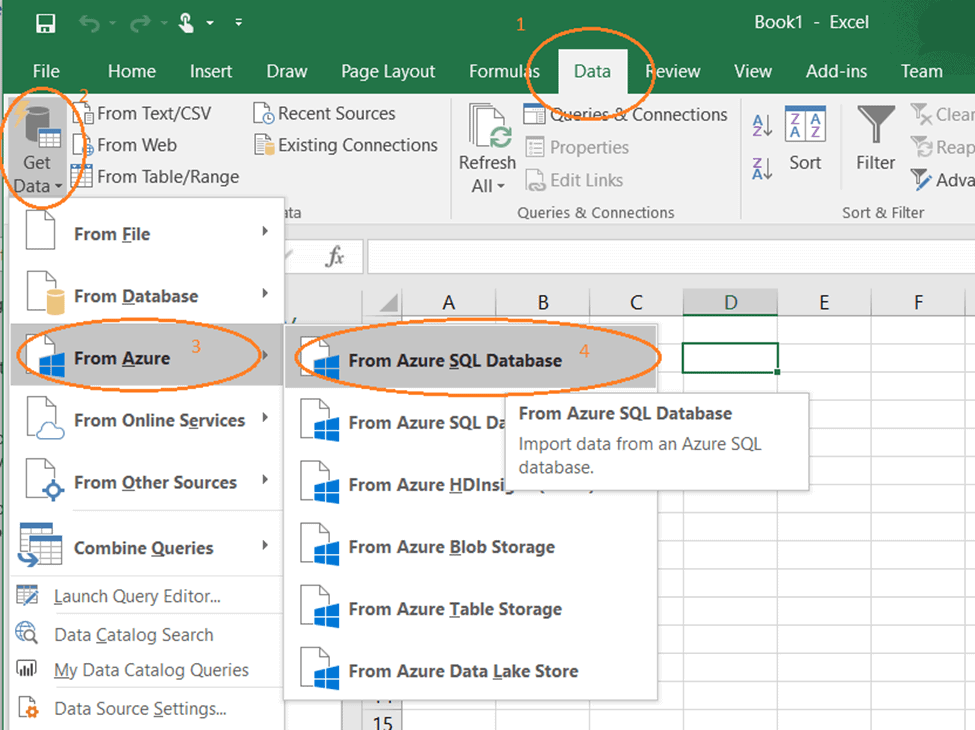
In the next window enter the SQL Server login details and the query:
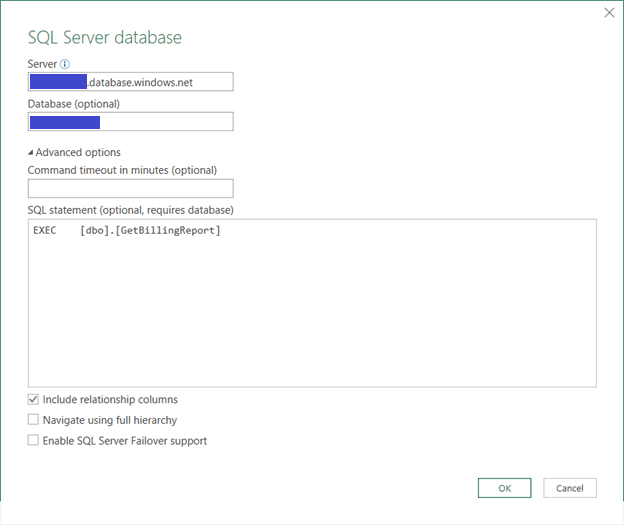
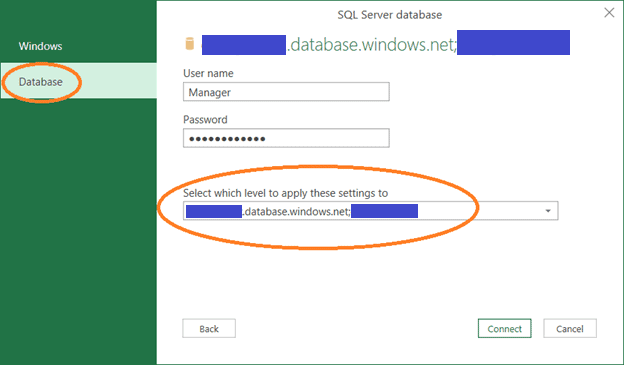
Then enter the login credentials
Preview the data and load it into a Excel sheet. From there on, the options are unlimited: graphs, pivot tables what-if scenarios and so on.

In this case we demonstrated the Manager’s view of the billing report. But if we repeat the above procedure for getting data into Excel and we use the ABC login together with the following query “SELECT * FROM [dbo].[vGetBillingReport] ” then the data only for the user ABC will be loaded in the Excel sheet (provided that the user ABC is mapped properly in the Mapping table, i.e. at least one record in the mapping table must have ABC in the RowLevelSecurityLogin column ).

Another great thing about using this approach is that once the Excel documents are created they can be sent to other users as templates. There is no need to re-create the Excel sheets. The data in them will be visible to the user who receives them (so make sure you clean up the data from the Excel sheets before sending them!), however they will be asked to enter their login credentials and as soon as they do that, the most recent data will be loaded for them based on their access.

Conclusion

So far in the series of articles on EA billing data management, we saw how to set up a centralized storage (Azure SQL Database) and use it as a repository for the EA billing data. We set up a Web App in Azure and a Web Job under it, so it can be scheduled and import new data as it comes to the EA portal.

This is an easy way to get access to the EA billing data, and it gives us the opportunity to query and mine it.

In this article we focused on the ways of giving granular access – each entity of users can access only their own data, and a Manager can access it all. We also explored the reporting possibilities and composing the Financial reporting for the Enterprise.

The post EA Financial reporting and granular access to data through the Enterprise appeared first on Simple Talk.


from Simple Talk https://ift.tt/2Cxvf1a
via

Azure and Windows PowerShell: Using VM Extensions

The series so far:

  1. Azure and Windows PowerShell: The Basics
  2. Azure and Windows PowerShell: Getting Information
  3. Azure and Windows PowerShell: Using VM Extensions

As I mentioned in the previous article, I will not explain how to create Virtual Machines in detail, because Robert Cain published a great series about Azure VMs: Create Azure VMs. But after deploying a Virtual Machine in your Azure subscription, you will probably notice that you must configure the VM in order to suit your needs. This step is normal because the Virtual Machine has been deployed based on a template, which is usually generic and without any customization.

Nowadays, deploying a Virtual Machine on premises or in your Azure subscription is very easy and can be done very quickly. Thanks to the DevOps methodology, SysAdmins and developers can work all together in order to automate the deployment process as much as possible. The main goal for the IT department is to be able to deliver the service as quickly as possible because time is money. This is the reason why the provisioning process must be simple, fast, and secure. One essential step you must automate is the configuration of each Virtual Machine. Working with Group Policy Objects is a good idea, but if your Azure Cloud platform is isolated from your on-premises datacenter, then you must consider other options. Azure VMs can be deployed and configured without post-deployment intervention based on a feature which is called ‘Azure VM Extensions,’ so you can use this feature to save time and to automate the configuration management process.

What are Azure VM Extensions?

In the Azure Cloud, a feature called ‘Azure VM Extensions’ can be used to do configuration management. With Azure VM Extensions, you can configure for example:

  • Monitoring
  • Security
  • Configuration management
  • Backup
  • And more…

This feature uses Windows and Linux Azure agents that are automatically installed during the provisioning process. This agent is named ‘Microsoft Azure Virtual Machine Agent,’ and it is the only prerequisite in order to use the Azure VM extensions. If the agent is not installed in the Virtual Machine, you can install it very easily. In this case, you can download the agent and double-click the Windows installer file.

Do not worry, you can manage these extensions outside of the Virtual Machine. You do not need to connect directly to the Virtual Machine to update the Extension. Note that VM Extensions can be bundled with a new VM deployment or run against any existing system.

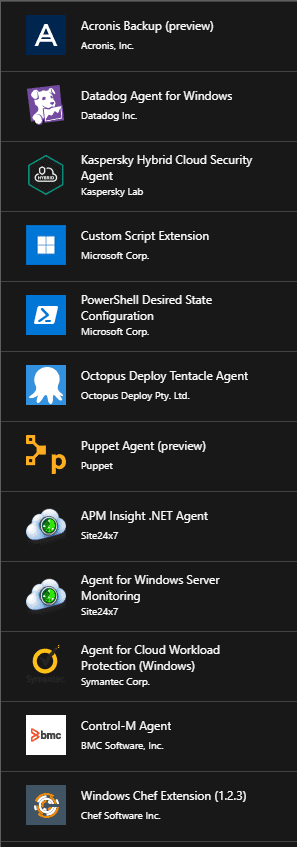
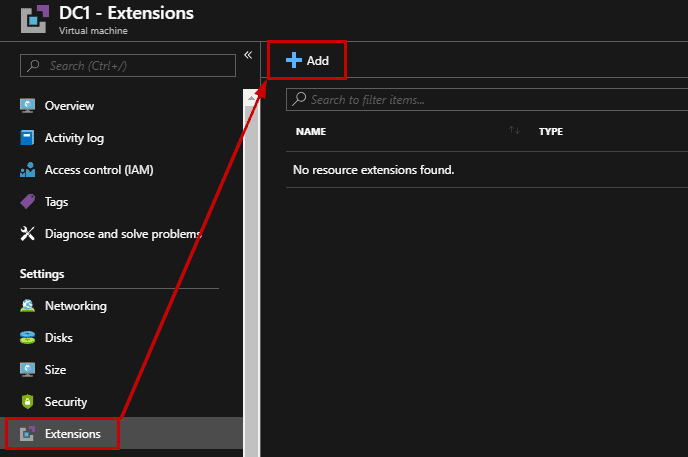
Many VM extensions are available for use with Azure Virtual Machines. As shown below, you can see the list from the Azure Portal by navigating to the Virtual Machine blade, and then by clicking Extensions. To see the available extensions, click the Add button:

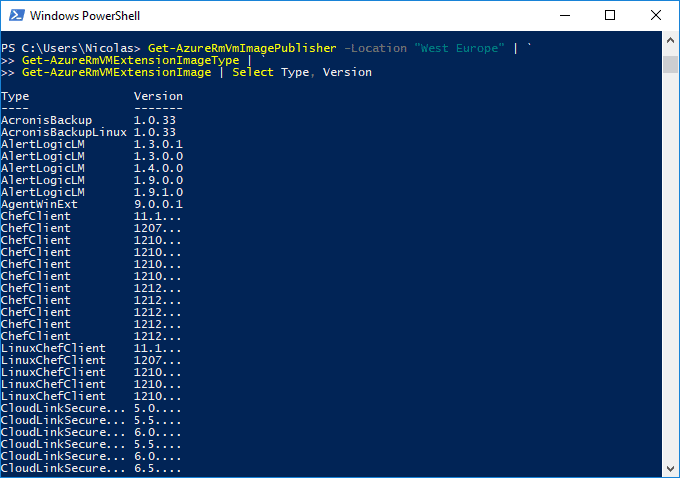
Depending on whether you deploy a Linux VM or a Windows VM, the possible VM Extensions will be different. You can also use Windows PowerShell to list the Azure VM Extensions using the following command. The Get-AzureRmVMExtensionImage cmdlet will list the VM Extensions available in the West Europe region. Replace the region where your Azure subscription is located:

PS > Get-AzureRmVmImagePublisher -Location <Azure_Region> | `
>> Get-AzureRmVMExtensionImageType | `
>> Get-AzureRmVMExtensionImage | Select Type, Version


The output has been truncated due to the large number of Azure VM Extensions. In the West Europe region, there are 810 VM extensions at your disposal.

PS > (Get-AzureRmVmImagePublisher -Location <Azure_Region> | `
>> Get-AzureRmVMExtensionImageType | `
>> Get-AzureRmVMExtensionImage | Select Type, Version).count

Why is it important to notice that VM Extensions are not available in each Azure Region?

Publishers will update their VM Extension and make them available to regions at different times, so keep in mind that it means you could have VMs in different regions on different Extension versions.

Who authors the VM Extensions?

The VM Extensions are supported by publishers who are registered with Microsoft. It means that you cannot publish your VM Extensions without being in a relationship with Microsoft.

Why use the VM Extensions?

You must use the VM Extensions to simplify the configuration management of Virtual Machines. When you use a VM Extension, you only need to provide mandatory parameters, and that is all. One of the great things is you can install VM Extensions through the Azure Portal, Windows PowerShell, and Azure CLI.

If you do not want to use VM Extensions, then common ways to automate the configuration of the lifecycle of the Virtual Machines are:

  • Group Policy Object when it is applicable
  • Login script when it is applicable
  • Using Remote PowerShell
  • Preinstalling software or components directly on the disk, so in other words, installing your tools in your gold image

If you work with DevOps methodology, trust me, you will have to use Azure VM Extensions.

Using Azure VM Extensions

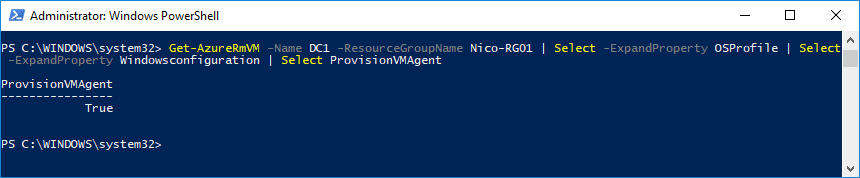
It is time to work with Azure VM Extensions in practice. In this guide, I will work with a Virtual Machine named DC1. First, I need to check the VM Agent status using the following command:

PS > Get-AzureRmVM -Name <VM_Name> -ResourceGroupName <RG_Name> | Select -ExpandProperty OSProfile | Select -ExpandProperty Windowsconfiguration | Select ProvisionVMAgent

The command returns True which indicates that the VM Agent is installed and running.

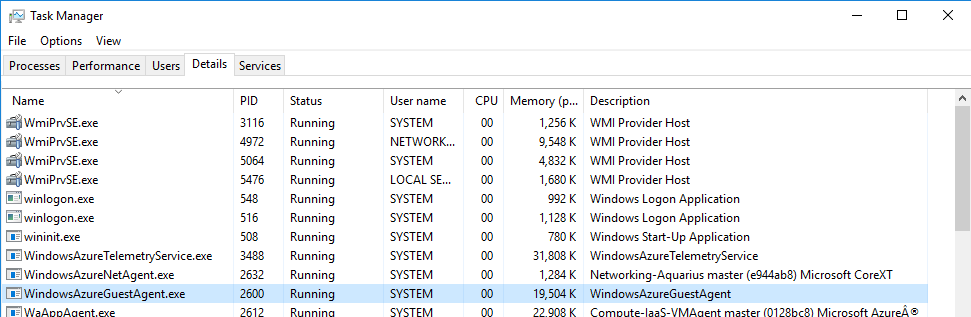
It is also possible to confirm if the agent is installed directly in the Virtual Machine. Log in to the VM and open the Task Manager to check the WindowsAzureGuestAgent.exe process. It means that the VM Agent is installed:

Note: if the VM Agent is not installed, you can download it from here.

VM Extensions using the Azure Portal

The first way to install a VM Extension is the Azure Portal. Navigate to the Virtual Machines blade, start the Virtual Machine, and click Extension to open a new blade. In my case, no extensions have been found, so I must click + Add and browse the list to select the extension I want to install:

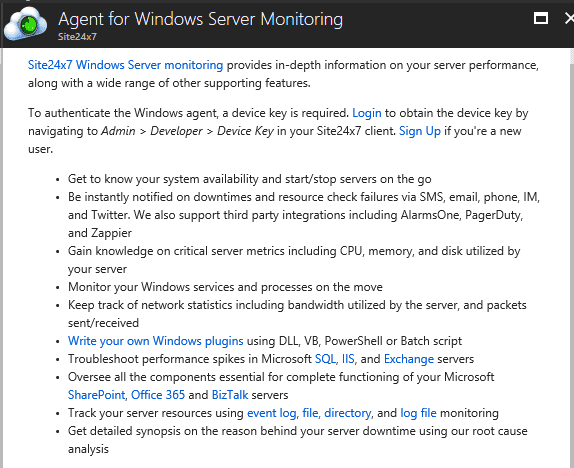
When you select a VM Extension, a new blade will appear and prompt for mandatory parameters. Here, I select the Site24x7 agent, which is a third-party monitoring application.

Information is provided telling you what the extension provides and shows you how to create an account and get a key for the service. After testing this extension, do not forget to remove the extension since this is a paid resource.

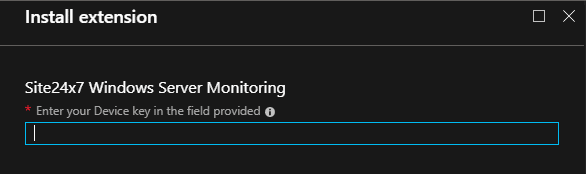
Once you have the key, click Create. You will be asked to supply the key here:

Wait a few minutes until the extension is installed on your VM. You’ll see it in the Start menu:

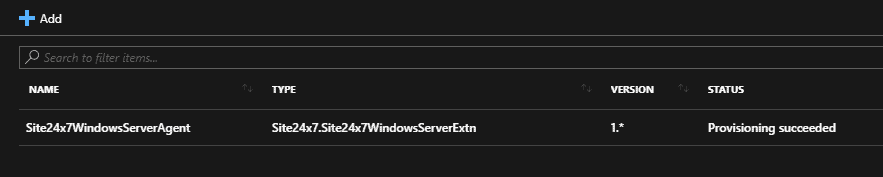
The VM Extension will also be visible in the list in the Azure Portal:

To uninstall the Extension, simply click on the name in your Azure Portal, and select Uninstall. The process is very simple, and it works very well so you can use it without any risk.

VM Extensions using PowerShell

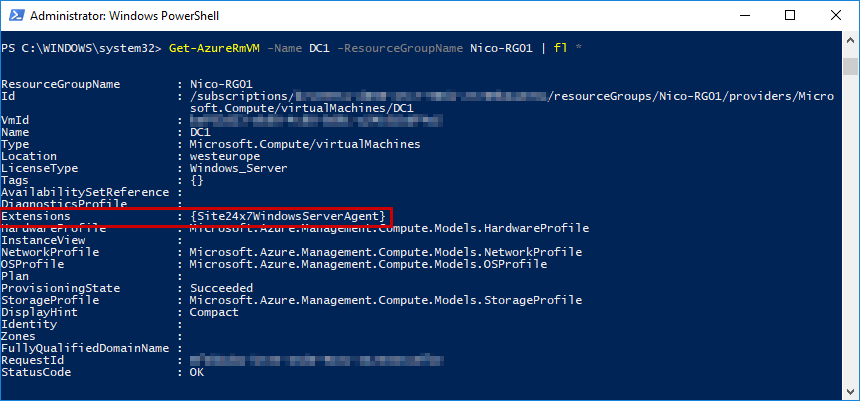
Of course, to automate the configuration management of the VM, it is essential to script some tasks to save time and avoid human mistakes. First, it is possible to check if there are VM extensions already installed on a Virtual Machine. Several properties can be retrieved using the Get-AzureRmVM cmdlet:

PS > Get-AzureRmVM -Name <VM_Name> -ResourceGroupName <RG_Name> | Format-List *

In my case, I can confirm that a VM Extension is already installed in the VM:

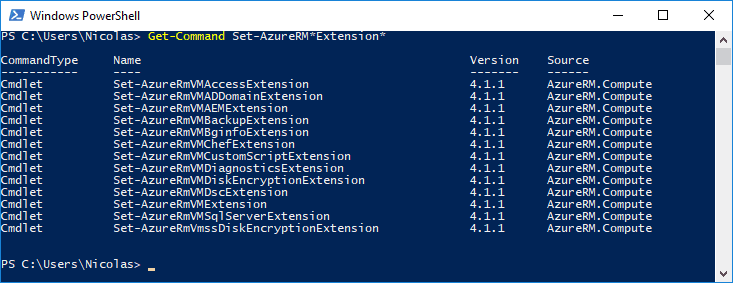
To install a new VM Extension, there are several PowerShell cmdlets at your disposal that you can list using the following command:

PS > Get-Command Set-AzureRM*Extension*

To understand how to use these cmdlets, I advise the Get-Help cmdlet followed by the examples parameter. In the example, the BGInfo tool can be installed in the VM using the following command after substituting your VM name and resource group:

PS > Set-AzureRmVMBGInfoExtension –VMName <VM_Name> -Name "BGInfo" -ResourceGroupName <RG_Name>

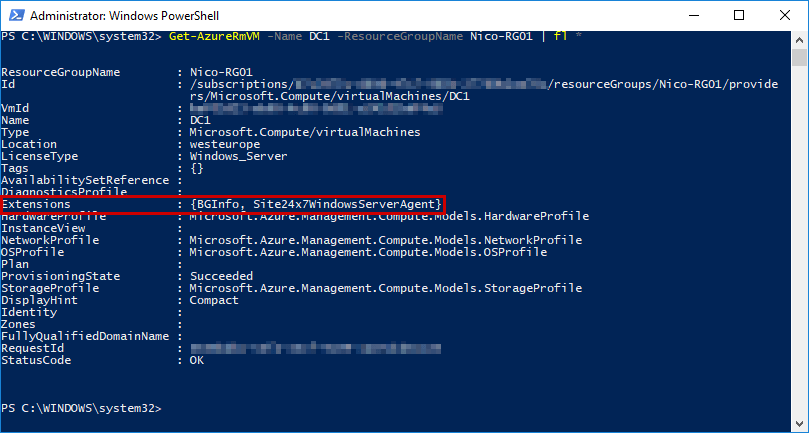
Confirm the new extension installed by listing the properties:

PS > Get-AzureRMVM -Name <VM_Name> -ResourceGroupName <RG_Name>  | fl *

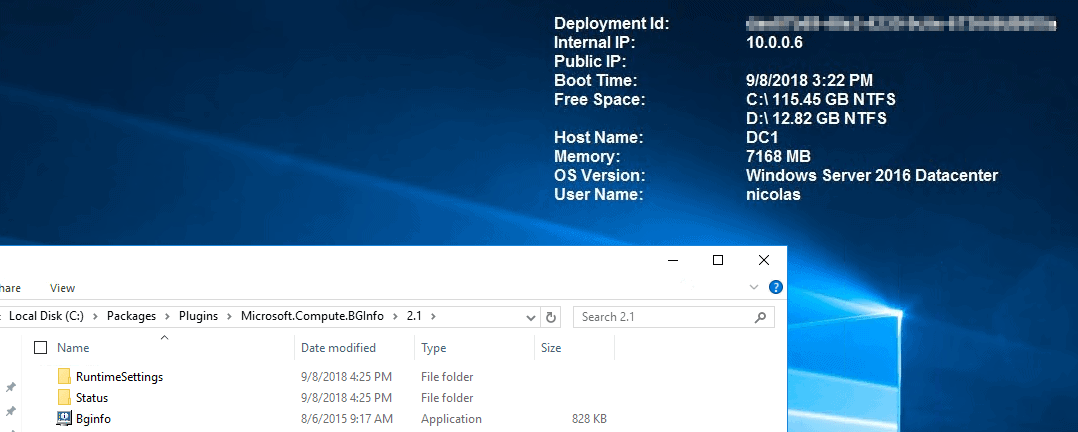
When logging to the Virtual Machine, BGInfo is up and running.

To troubleshoot any issue or deployment error, I advise you to run the following command, which returns the extension status:

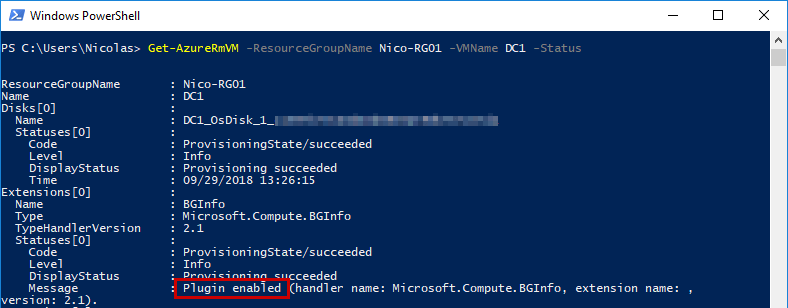
PS > Get-AzureRmVM -ResourceGroupName <RG_Name> -VMName <VM_Name> -Status

VM Extensions using Azure CLI

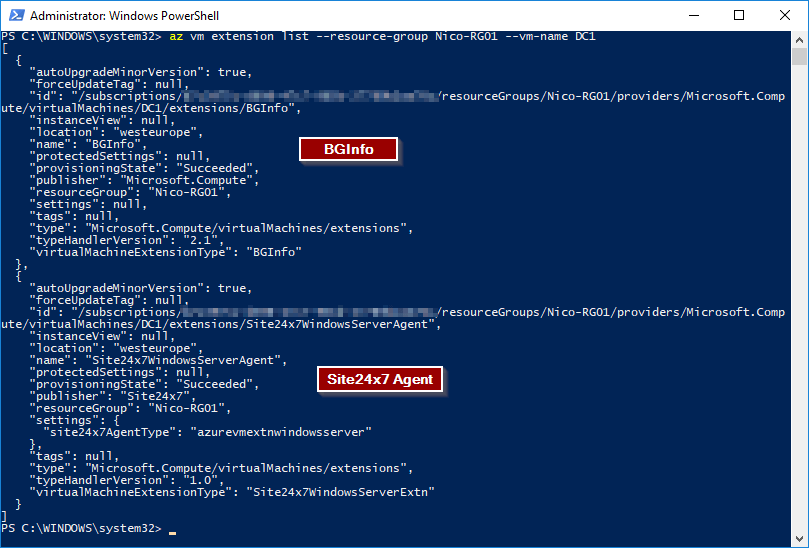
Another way to work with Azure VM Extensions, is to use Azure CLI as you did with PowerShell. To list the VM Extensions attached to a VM, use the following:

az vm extension list --resource-group <RG_Name> --vm-name <VM_Name>

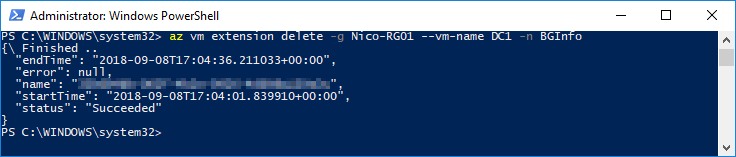
Remove an extension attached to the Virtual Machine with the following command:

Az vm extension delete –g <RG_Name> --vm-name <VM_Name> -n <VMExtension_Name>

Depending on the VM extension you are removing, it can be time-consuming.

To get more information about VM Extensions with Azure CLI, you can read this article.

Adding VM Extensions during the deployment

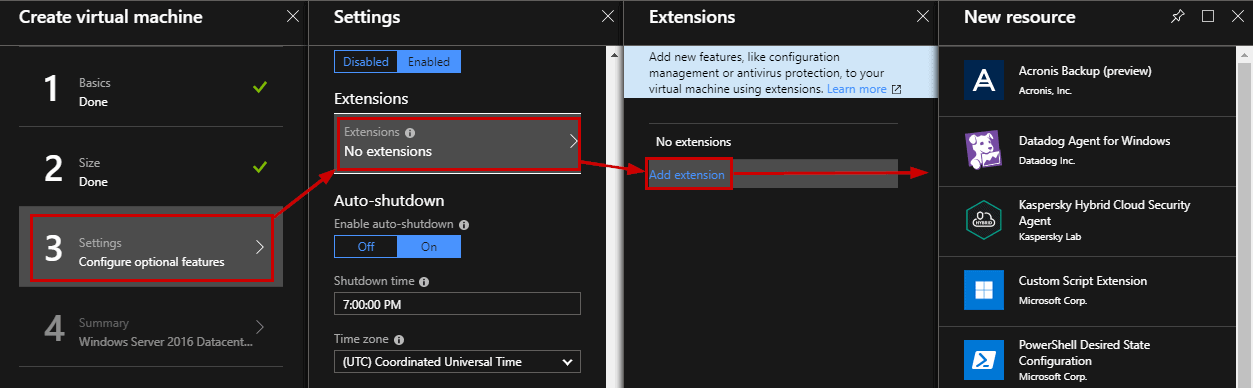
Until now, Azure VM Extensions have been installed after the provisioning process. It is important to know that configuration can be updated after the provisioning process, but it is also important to indicate which configuration will be applied before the provisioning. At the step number 3 of the creation process, click Extensions to open a new blade that will list the available VM Extensions:

Custom Scripts

Using Azure VM Extensions can be very helpful to configure new Virtual Machine, however, sometimes it is not enough to suit your needs, so it is essential to use custom scripts to perform specific tasks. There are few things to take into consideration, such as:

  • Script Location: The script can be stored on GitHub, Azure Blob Storage, or anywhere the VM can access the repository.
  • Internet Connectivity: If your script is located on the Internet, then the firewall rules must be opened.
  • Operating System: if you run a bash script, for example, you must run the script on supported OS’s (e.g. Linux OS)
  • Timeout: 90 minutes are allowed for the script to run.

To finish this article, here is an example of custom script implementation with PowerShell:

PS > Set-AzureRmVMCustomScriptExtension -ResourceGroupName <RG_Name> `
    -VMName <VM_Name> `
    -Location <Location> `
    -FileUri <Script_URL> `
    -Run <Command_to_execute> `
    -Name <Extension_Name>

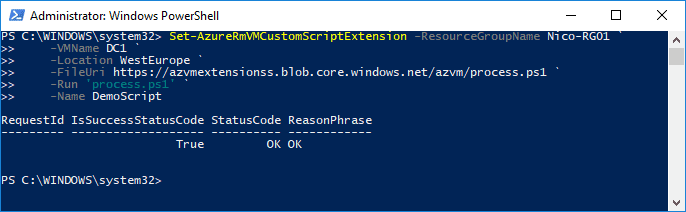
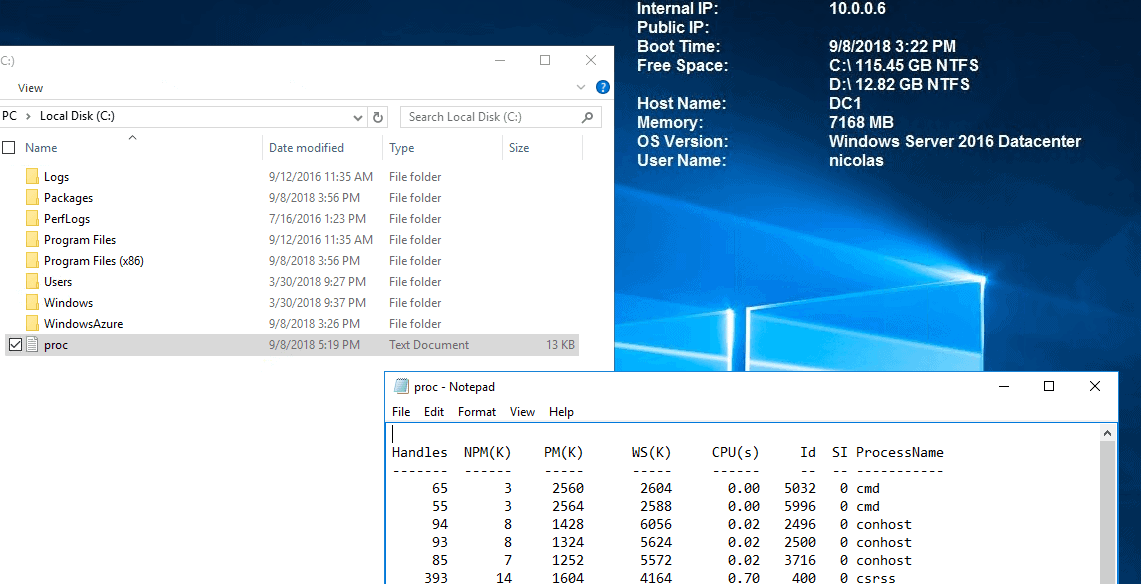
For instance, I can run a custom script stored on my Azure Blob storage. The script is very basic and will write the Get-Process cmdlet results in a text file:

PS > Get-Process | Out-File C:\proc.txt

Run the following command to deploy your custom script extension:

PS > Set-AzureRmVmCustomScriptExtension -ResourceGroupName <ResourceGroup> `
-VMName <VM_Name> `
-Location <location> `
-FileUri <url> `
-Run <Script> `
-name <FriendlyName>

To easily manage your Azure Storage Account, I advise you to read the following article which will help you to easily find the file URL.

Confirm that the script has been executed successfully from the Azure Portal or directly inside the Virtual Machine:

Conclusion

This third article in this series described steps to automate configuration management tasks of the lifecycle of Azure Virtual Machines using the following ways:

  • Azure Portal
  • Windows PowerShell
  • And Azure CLI

Configuring Azure VMs with VM Extensions can be done when the VM Guest Agent is installed in the Virtual Machine. If the agent is not installed and you cannot start the VM, then you can install it in an offline mode.

VM Extensions are software components that extend the functionality of the Virtual Machine. Note that you can add multiple extensions on the same VM. Azure VM Extensions supported Linux and Windows Virtual Machines. If you are limited with the default VM Extensions, do not forget to use the custom script extension to suit your needs.

The post Azure and Windows PowerShell: Using VM Extensions appeared first on Simple Talk.


from Simple Talk https://ift.tt/2yzKjqP
via

HIPAA and Database Administration – Part 2

The series so far:

  1. Introduction to HIPAA and SOX — Part 1
  2. HIPAA and Database Administration — Part 2

In the first article in this series, I introduced you to the Health Insurance Portability and Accountability Act of 1996 (HIPAA) and the Sarbanes-Oxley Act of 2002 (SOX). The article provided an overview of each standard and some of their more relevant requirements. In this article, I focus exclusively on HIPAA and what database administrators (DBAs) need to know if managing and securing electronic protected health information (PHI).

The HIPAA regulations comprise a set of rules that define a covered entity’s obligations for protecting PHI data. The Privacy Rule and Security Rule are the most relevant to organizations handling patient data in electronic form. However, a covered entity should understand all HIPAA rules inside and out—a point I can’t emphasize enough.

A covered entity is a health care provider, health plan, or health care clearinghouse that handles confidential patient data. The HIPAA rules also apply to business associates of the covered entity if they also handle PHI data.

To comply with the HIPAA regulations, DBAs must ensure the confidentiality, integrity, and availability of all electronic PHI data in their charge, whether the data is sitting at rest in their databases or being accessed across the network by users or applications. The DBA must prevent unauthorized individuals from viewing, altering, or destroying the data, while providing authorized users with the access they need when they need it, without giving them any more access than required. The DBA must also identify and protect against anticipated threats as well as impermissible uses or disclosures.

Although the HIPAA regulations are quite explicit about an organization’s responsibility to safeguard PHI, they leave it up to the individual organization to determine the best way to protect the data. That said, the regulations do state that, when formulating a plan, the organization should consider its own size, complexity, capabilities, and current infrastructure, along with the costs of implementing security measures and the likelihood that the PHI is at risk.

Complying with the HIPAA regulations is an organization-wide effort, and database teams need to work with other teams to ensure that all aspects of the HIPAA rules are being addressed. As part of that effort, DBAs can take a number of steps to protect the PHI data stored in their databases and to make certain that no database-related operations put patient data at risk.

Educating and Training the Workforce

Section 164.530 of the Privacy Rule includes a number of subsections that describe a covered entity’s obligation to develop a set of written policies and procedures that outline how the organization will ensure HIPAA compliance. In addition, the section states that the covered entity must designate a privacy official responsible for developing and implementing the policies and procedures as well as a contact person or office responsible for receiving complaints. The section also provides details about keeping the policies up-to-date and about handling changes that impact them.

Another important part of Section 164.530 is related to workforce training. A covered entity must train all workforce members on the policies and procedures with respect to protecting PHI data. In addition, the section describes how a covered entity should apply sanctions against workforce members who fail to comply with the policies and procedures.

Section 164.308 of the Security Rule also emphasizes the importance of developing policies and procedures, appointing a security official, and training workforce members, stating that the covered entity must implement a security awareness and training program for all workforce members, including management. In addition, Section 164.316 of the Security Rules re-emphasizes the need to implement written policies and procedures that must be made available to those individual responsible for implementing those procedures.

The extent to which the database team and DBAs will participate in the process of writing policies and procedures or training workforce members will depend on the organization and their circumstances. Regardless of their participation, DBAs should have access to these policies and procedures and understand them fully when managing PHI data or implementing systems that will support PHI data. They should also fully understand the risks associated with violating HIPAA regulations and what steps to take if they discover a violation.

Securing the Environment

One of the most important HIPAA requirements is to implement the safeguards necessary to protect the PHI data wherever it resides. Section 164.530 of the Privacy Rule states that a “covered entity must have in place appropriate administrative, technical, and physical safeguards to protect the privacy of protected health information.” This includes protecting the data from any “intentional or unintentional use or disclosure that is in violation of the standards.”

This is a fairly open-ended description of what an organization is required to do. For more specific information, you need to refer to the Security Rule, which provides more details about the required steps. For example, Section 164.308 specifies that the covered entity must assess the potential risks and vulnerabilities to the electronic PHI and then implement security measures to reduce those risks. In addition, the organization must implement procedures for guarding against malicious software as well as for managing and protecting passwords.

Section 164.310 of the Security Rule includes a number of regulations aimed at safeguarding the physical infrastructure. For instance, the organization must implement mechanisms for limiting and controlling physical access to systems and facilities that house PHI data, while providing for disaster recovery and emergency access. In addition, the organization must implement safeguards that protect workstations accessing PHI data, along with any other hardware or electronic media used for sensitive data. The entity is also responsible for the proper disposition of PHI data from any hardware or media on which it has resided.

Another important section in the Security Rule is 164.312, which states that the covered entity must protect electronic PHI from “improper alteration or destruction,” as well as guard against unauthorized access to or modification of the data when “being transmitted over an electronic communications network.” Finally, the section states that the data must be encrypted whenever “deemed appropriate.”

The bottom line is that DBAs must take whatever steps necessary to ensure that PHI data at rest or in motion (when in their control) cannot be accessed or altered in any way that would impact the integrity of the data or violate a patient’s privacy. These steps can include performing periodic risk assessments, implementing password and key management, applying service packs and security patches, encrypting database objects, backing up databases, minimizing attack surfaces, or taking any number of other steps to prevent security violations.

Controlling Data Access

Another important step that DBAs can take to comply with HIPAA regulations is to control access to the data. According to Section 164.308 of the Security Rule, the covered entity must ensure that workforce members have “appropriate access” to electronic PHI, based on their roles in the organization. To this end, the covered entity must implement procedures for authorizing workforce members, supervising their access to data, determining whether that access is appropriate, and terminating that access when required.

Section 164.312 of the Security Rule builds on these access requirements by specifying that the covered entity should implement procedures that “allow access only to those persons or software programs that have been granted access rights as specified in § 164.308(a)(4),” which further limits access to electronic PHI. For example, the subsection specifies that procedures should be implemented for making the data available “through access to a workstation, transaction, program, process, or other mechanism.”

Section 164.312 also states that a covered entity must assign a unique ID to each user for identifying and tracking that user’s activities. Plus, the organization must implement procedures for obtaining PHI data during an emergency, terminating electronic sessions after a predetermined time of inactivity, and encrypting and decrypting PHI data.

Using the principle of least privilege, DBAs should implement the mechanisms necessary to control access to PHI data at a granular enough level to minimize any security risks. In addition, DBAs should prevent shared accounts from being used to access data so user activity can be properly logged. They should also minimize the use of privileged accounts.

Many steps the DBA takes to control access to PHI data will be based on the technologies available to the database management systems that their organizations have implemented. For example, if they’re working with SQL Server, they might disable or rename the sa account, limit access to Windows Authentication mode, or implement Policy-Based Management. Regardless of the tools, however, the goal is the same: to ensure that only authorized users can access PHI data and that those users can carry out only the operations defined by their roles.

Auditing and Monitoring Systems

An effective auditing and monitoring strategy is essential to complying with HIPAA regulations. According to Section 164.308 of the Security Rule, a covered entity must “regularly review records of information system activity, such as audit logs, access reports, and security incident tracking reports.”

The section also requires that the covered entity implement procedures for monitoring log-in attempts and reporting discrepancies, as well as perform periodic technical and nontechnical evaluations that establish “the extent to which a covered entity’s or business associate’s security policies and procedures meet the requirements.”

Section 164.312 of the Security Rule takes this a step further by instructing the covered entity to implement “hardware, software, and/or procedural mechanisms that record and examine activity in information systems that contain or use electronic protected health information.” In addition, the covered entity must implement electronic mechanisms to verify that the PHI data has not been “altered or destroyed in an unauthorized manner.”

Covered entities must be able to verify that they’re monitoring all relevant systems and can account for all data access and modifications. In other words, organizations must demonstrate that they have the mechanisms in place to catch any potential or actual security breaches.

For the DBA, this means implementing comprehensive auditing mechanisms that track which users are accessing what data and how they’re modifying that data. The DBA needs to audit all accounts, including those with privileged access. The DBA must also ensure that all log files are protected and cannot be overwritten or manipulated.

Auditing must be an ongoing process, using tools such as alerts and key performance indicators (KPIs) to ensure that security issues are identified and addressed as quickly as possible.

Preparing for Security Incidents

The HIPAA regulations provide a number of guidelines for how to prepare for and handle compliance-related incidents. For example, Section 164.530 of the Privacy Rule states that a covered entity must provide individuals with a process for making complaints about the organization’s policies and procedures or about its compliance with those policies and procedures. The section also states that the covered entity cannot retaliate against individuals who exercise their rights, as provided by the Privacy Rule. In addition, the entity must take the steps necessary to mitigate any harmful effects that result from PHI data being compromised.

Unlike the Privacy Rule, the Security Rule includes regulations that apply more to the DBA’s day-to-day operations. For example, Section 164.308 states that the covered entity must identify and respond to “suspected or known security incidents; mitigate, to the extent practicable, harmful effects of security incidents that are known to the covered entity or business associate; and document security incidents and their outcomes.”

In addition, the section states that the organization must put into place procedures for responding to emergencies, such as fires, system failures, or natural disasters. As part of this process, the organization must create and maintain an exact copy of the PHI data, as well as implement a disaster recovery plan that allows the organization to carry out critical business operations during an emergency, while continuing to protect the data.

The Security Rule is full of references that directly or indirectly apply to security incidents. For example, Section 164.308 states that the covered entity must apply appropriate sanctions against a workforce member who fails to comply with security policies, Section 164.310 describes the need to create a “retrievable, exact copy” of the PHI data before moving any equipment, and Section 164.312 states that a covered entity’s business associates must report any security incidents to the covered entity.

For many DBAs, meeting at least some of these requirements should be fairly straightforward because they’re already backing up their databases and have disaster recovery plans in place. What’s most important, however, is that the DBA is able to respond to security incidents as soon as possible, which ties back to having an effective monitoring strategy in place.

DBAs should refer to the rest of the HIPAA documentation for more details about how to respond to data breaches.

Documenting Everything

Perhaps the simplest part of the HIPAA requirements to understand is the need to document everything. Throughout the Privacy and Security rules, you’ll find a variety of references to documentation requirements. For example, Section 164.530 of the Privacy Rule states that sanctions against workforce members must be documented, as well as all policies and procedures. In addition, documentation must be retained for six years from the creation date or when it was last in effect, whichever is later.

Section 164.310 of the Security Rule adds to these requirements, stating that the covered entity must maintain a “record of the movements of hardware and electronic media and any person responsible therefore.” Section 164.316 of the Security Rule goes on to reiterate the need to document policies and procedures and retain that documentation for six years. The section also states that the documentation should be updated as needed in response to environmental or operational changes.

The HIPAA regulations state that all required actions, activities, complaints, assessments, and security incidents must be documented. The degree to which these requirements will impact the DBA depends on the specific circumstances. The safest bet is to document all operations to ensure that any actions related to protecting the PHI data can be verified. As with most aspects of the HIPAA regulations, database teams need to work closely with other teams in the organization to ensure that they’re complying with those regulations.

Complying with HIPAA

As this article shows, DBAs must take into account a wide range of requirements when trying to comply with the HIPAA standards. They should also keep in mind that HIPAA regulations are far more complex than what’s been covered here. This information in this article is meant only as a starting point to give DBAs a sense of what they’re up against when trying to protect PHI data.

Fortunately, database management systems such as SQL Server include many of the features necessary to achieve HIPAA compliance. That said, such features are no substitute for a carefully planned and executed security strategy. DBAs must take every precaution necessary to ensure that only authorized members of the workforce can access PHI data, while preventing unauthorized access and minimizing the possibility that personal data will be compromised.

The post HIPAA and Database Administration – Part 2 appeared first on Simple Talk.


from Simple Talk https://ift.tt/2QCaswk
via

Thursday, October 4, 2018

Entrepreneurship Vs. Employment: Which Is the Best?

Being an entrepreneur isn’t for everyone; by the same token, being an employee is not either. There are serious pros and cons to each side that affect one’s stress level, work/life balance, and personal fulfillment.

People don’t so much choose to be an entrepreneur as they are called to be one. Entrepreneurs generally know from early in their career that they are destined to start a business of their own. They may feel that it is in their genes. Being an entrepreneur can be risky, but if executed correctly, can have big payoffs. One of the biggest perks that entrepreneurs enjoy is that there is no cap to their potential, but being an entrepreneur is risky as about 50% of all startups fail in the first 5 years. Your own business may require much more than 40 hours per week, and entrepreneurs run the risk of becoming “workaholics.” This addiction to work leads to a poor work/life balance, where friends and family are often neglected. Being 100% autonomous (e.g., no boss), they are free to make all decisions and reap the benefits or suffer the failures. Entrepreneurs also set their own schedules; if you are most productive at night, great, stay up all night and get your work done. Setting your schedule does not mean you work less, as 30% of entrepreneurs work 50-59 hours per week while making less money than if they had a regular job.

Top three benefits of running your own company

  • Earning potential is not capped
  • Flexible schedule
  • You steer the ship

Top three disadvantages of running your own company

  • More work and less pay (at least in the beginning)
  • More risk and stress
  • Work can be addictive

All this talk about being an entrepreneur may have you thinking that everyone should be one. This is very far from the truth. People have different talents. Some talents apply to starting a company, while some are best for regular jobs. Employees enjoy a steady income (while employed at least) and less stress. The employer is responsible for keeping the business profitable and dealing with business problems. Employees generally have a benefits package with perks like PTO (paid time off) and insurance and retirement options. On the downside, most employee pay is capped based on the position they hold at the company. Employees have managers (with agendas) which may limit an employee’s ability to follow their passion and do what they really want to do and love. In general, employers have the power to tell employees when they need to be at work and when they can take time off. While this is essential for a business to function, it can cause havoc for an employee’s personal responsibilities such as sick children and medical appointments.

Top three benefits of employment

  • Steady income
  • Benefits like PTO and insurance
  • Less stress

Top three disadvantages of employment

  • Typically, earnings are capped
  • Harder to fulfill your passion
  • Fixed schedule

Which path is better? There is no better; there is only the path which is best suited for you. If you are a risk taker, competitive and find a passion in business, you may want to look into starting your own company. If you like to play it safe, reduce stress in your life, and find passion in personal endeavors, employment may be your best option.

The post Entrepreneurship Vs. Employment: Which Is the Best? appeared first on Simple Talk.


from Simple Talk https://ift.tt/2Rp2GqH
via

SQL Server Execution Plans, Third Edition, by Grant Fritchey

Every Database Administrator, developer, report writer, and anyone else who writes T-SQL to access SQL Server data, must understand how to read and interpret execution plans. My book leads you right from the basics of capturing plans, through how to interrupt them in their various forms, graphical or XML, and then how to use the information you find there to diagnose the most common causes of poor query performance, and so optimize your SQL queries, and improve your indexing strategy. You’ll also learn how to take advantage of the Query Store and the latest optimizations, Adaptive Query Processing.

Free eBook download (PDF): Download here.
Download code samples: Download here.

Every day, out in the various online forums devoted to SQL Server, and on Twitter, the same types of questions come up repeatedly: Why is this query running slowly? Why is SQL Server ignoring my index? Why does this query run quickly sometimes and slowly at others? My response is the same in each case: have you looked at the execution plan?

An execution plan describes what’s going on behind the scenes when SQL Server executes a query. It shows how the query optimizer joined the data from the various tables defined in the query, which indexes it used, if any, how it performed any aggregations or sorting, and much more. It also estimates the cost of all of these operations, in terms of the relative load placed on the system.

Every Database Administrator, developer, report writer, and anyone else who writes T-SQL to access SQL Server data, must understand how to read and interpret execution plans. My book leads you right from the basics of capturing plans, through how to interrupt them in their various forms, graphical or XML, and then how to use the information you find there to diagnose the most common causes of poor query performance, and so optimize your SQL queries, and improve your indexing strategy.


The post SQL Server Execution Plans, Third Edition, by Grant Fritchey appeared first on Simple Talk.


from Simple Talk https://ift.tt/2OConoP
via

Monday, October 1, 2018

Adaptive Query Processing in SQL Server 2017

SQL Server 2017 now offers adaptive query processing, a new set of features aimed at improving query performance. Adaptive query processing addresses issues related to cardinality estimates in execution plans, leading to better memory allocation, join type selection, and row calculations for multi-statement table valued functions (MSTVFs).

Prior to SQL Server 2017, if a query plan contained incorrect cardinality estimates, the database engine continued to use that plan for each statement execution, as long as the plan remained cached, often resulting in less-than-optimal query performance. For example, the execution plan might allocate too much memory for some queries, while underestimating the memory requirements for others.

The adaptive query processing features attempt to resolve these types of issues by providing more accurate cardinality estimates when calculating query execution plans. SQL Server 2017 enables these features by default on databases configured with a compatibility level of 140 or greater.

If a database has a lower compatibility level, you can use an ALTER DATABASE statement to change the level. For example, the following statement changes the compatibility level of the WideWorldImporters sample database to 140:

ALTER DATABASE WideWorldImporters SET COMPATIBILITY_LEVEL = 140;

The WideWorldImporters database is used for all the examples in this article. If you have this database installed on your system, you should be able to try out the examples without making any changes. If you want to use a different database, you can create SELECT statements comparable to the ones shown in the examples. The same principles should apply to any database with a compatibility level of 140 running on SQL Server 2017.

You can verify a database’s compatibility level by running the following SELECT statement, passing in the name of the database in the WHERE clause:

SELECT compatibility_level FROM sys.databases 
WHERE name = 'WideWorldImporters';

If you run this SELECT statement after executing the preceding ALTER DATABASE statement, the SELECT statement should return a value of 140.

Setting the compatibility level on a database is the only step you need to take in SQL Server 2017 to enable the adaptive query processing features for that database. Currently, SQL Server 2017 supports three adaptive query processing types:

  • Batch mode memory grant feedback
  • Batch mode adaptive join
  • Interleaved execution

As already noted, these features are enabled by default. However, you can disable or enable each one individually, without changing the database’s compatibility level. The following sections cover the three features in more detail, including the steps necessary to disable or enable them.

Memory Grant Feedback

SQL Server uses memory to store row data during join and sort operations. When compiling an execution plan, the query engine estimates how much memory is needed to store those rows. If the memory estimate is too small, excess data will spill over to the disk, impacting performance. If the estimate is too large, memory is wasted, impacting the performance of concurrent operations.

The memory grant feedback feature helps remedy this situation by recalculating the row memory requirements when the statement is first executed. If the initial estimate is off, the cached plan is updated. Subsequent executions can then benefit from the new estimate, as long as the query plan remains in cache.

The best way to understand how memory grant feedback works is to see it in action, starting with how SQL Server has traditionally behaved when estimating memory requirements. To demonstrate this behavior, first disable the memory grant feedback feature by running the following ALTER DATABASE statement:

ALTER DATABASE SCOPED CONFIGURATION SET DISABLE_BATCH_MODE_MEMORY_GRANT_FEEDBACK = ON;

The statement sets the DISABLE_BATCH_MODE_MEMORY_GRANT_FEEDBACK configuration option to ON, which disables the memory grant feedback features without impacting the database’s compatibility level. To verify that the setting has been updated, run the following SELECT statement:

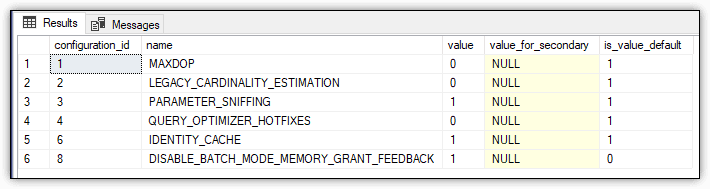
SELECT * FROM sys.database_scoped_configurations;

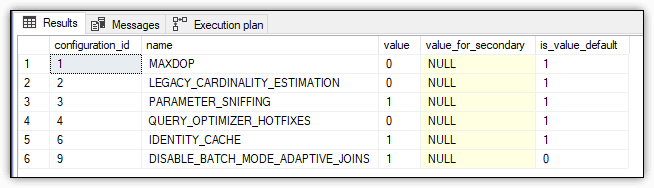
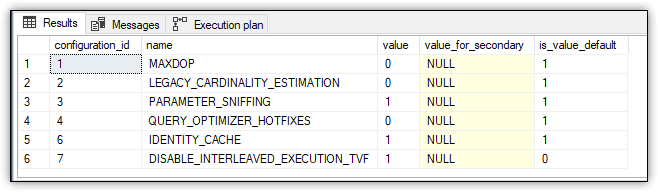
The SELECT statement returns data about the database’s scoped configuration settings, as shown in Figure 1.

Figure 1. Disabling memory grant feedback

Row 6 of the results includes the DISABLE_BATCH_MODE_MEMORY_GRANT_FEEDBACK option. Notice that the option’s current value is 1 (ON) and that the default value is 0 (OFF), indicating that memory grant feedback is enabled by default (but only for databases with a compatibility level of 140 or greater).

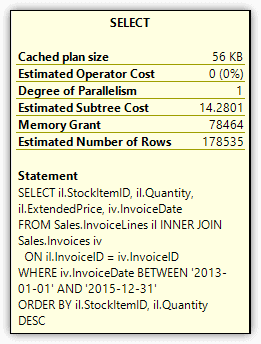
Next, run the following SELECT statement with the Actual Execution Plan enabled:

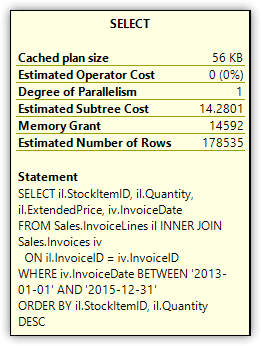
SELECT il.StockItemID, il.Quantity, il.ExtendedPrice, iv.InvoiceDate
FROM Sales.InvoiceLines il INNER JOIN Sales.Invoices iv
  ON il.InvoiceID = iv.InvoiceID
WHERE iv.InvoiceDate BETWEEN '2013-01-01' AND '2015-12-31'
ORDER BY il.StockItemID, il.Quantity DESC;

After the statement runs, go to the execution plan and hover over the Select operator to display the operator’s details, which are shown in Figure 2.

Figure 2. Memory Grant attribute of the Select operator

The Memory Grant attribute indicates that 78,464 KB of memory is required for the query’s row data. No matter how many times you rerun the SELECT statement, you should receive the same Memory Grant total, as long as the query plan remains cached. Even if you’re receiving a different total than the one shown here, the behaviour should be the same.

With this in mind, you can now test the memory grant feedback feature by re-enabling the feature and then re-executing the SELECT statement. To re-enable the feature, run the following ALTER DATABASE statement, which sets the DISABLE_BATCH_MODE_MEMORY_GRANT_FEEDBACK option to OFF:

ALTER DATABASE SCOPED CONFIGURATION SET DISABLE_BATCH_MODE_MEMORY_GRANT_FEEDBACK = OFF;

When you turn the DISABLE_BATCH_MODE_MEMORY_GRANT_FEEDBACK option to OFF, the option is no longer listed in the sys.database_scoped_configurations table. Only when you set the option to ON is it included in the table. This is true for all the scoped configuration options specific to enabling or disabling adaptive query processing features.

After you re-enable the memory grant feedback feature, you should rerun the example SELECT statement. Before you do that, however, clear the execution plan from cache. (If appropriate, you should clear the cache between each example to ensure you see the correct behaviour when you test these statements. But don’t do this on a production server. In fact, you should never be testing new features on a production server.) One approach to clearing the cache is to run the following T-SQL statement:

DBCC FREEPROCCACHE;

SQL Server provides several methods for clearing the cache, so pick whichever one works for you. The DBCC FREEPROCCACHE statement is a fairly straightforward approach, as long as it’s okay for all query plans to be cleared from the cache. If it’s not, you’ll have to specify the specific plan you want to remove.

After you re-enable the memory grant feedback feature and clear the cache, run the following SELECT statement two or more times (which is the same SELECT statement as above):

SELECT il.StockItemID, il.Quantity, il.ExtendedPrice, iv.InvoiceDate
FROM Sales.InvoiceLines il INNER JOIN Sales.Invoices iv
  ON il.InvoiceID = iv.InvoiceID
WHERE iv.InvoiceDate BETWEEN '2013-01-01' AND '2015-12-31'
ORDER BY il.StockItemID, il.Quantity DESC;

The first time you rerun this statement, you should receive the same results as before, with the Memory Grant attribute showing a total of 78,464 KB of memory, or something close to that. However, when you then rerun the statement, the total should be much lower. On my system, the subsequent executions resulted in a Memory Grant total of 14,592 KB, as shown in Figure 3.

Figure 3. Memory Grant attribute of the Select operator

When I tested the memory grant feedback feature on my system, I reran the above SELECT statement numerous times. Although I generally received the same Memory Grant total described here, in some cases I would get the original estimate or even another value. For the most part, however, the feature worked as advertised, despite the relatively few inconsistencies.

You can also disable the memory grant feedback feature on a per-statement basis by including an OPTION clause that specifies the hint DISABLE_BATCH_MODE_MEMORY_GRANT_FEEDBACK, as shown in the following SELECT statement:

SELECT il.StockItemID, il.Quantity, il.ExtendedPrice, iv.InvoiceDate
FROM Sales.InvoiceLines il INNER JOIN Sales.Invoices iv
  ON il.InvoiceID = iv.InvoiceID
WHERE iv.InvoiceDate BETWEEN '2013-01-01' AND '2015-12-31'
ORDER BY il.StockItemID, il.Quantity DESC
OPTION (USE HINT ('DISABLE_BATCH_MODE_MEMORY_GRANT_FEEDBACK'));

The Memory Grant attribute should once again show a total of 78,464 KB of memory (or something similar), no matter how often you rerun the statement, at least until the plan is recached.

Adaptive Joins

When a SELECT statement includes a join condition, the query engine attempts to determine the best join type to use based on the estimated number of rows. Prior to SQL Server 2017, if an execution plan chose a bad join type, there was little that could be done, outside of specifying a query hint or specific join type.

The new adaptive join feature helps to remedy this situation by choosing a different join type during statement execution, if necessary. After the first input has been scanned, the execution plan determines whether to change the join type to a hash join or nested loop join based on a calculated threshold.

You can see how this feature works by comparing the old method to the new, similar to the approach taken when testing the memory grant feedback feature. To disable the adaptive join feature, run the following ALTER DATABASE statement, setting the DISABLE_BATCH_MODE_ADAPTIVE_JOINS option to ON:

ALTER DATABASE SCOPED CONFIGURATION SET DISABLE_BATCH_MODE_ADAPTIVE_JOINS = ON;

Not surprisingly, the DISABLE_BATCH_MODE_ADAPTIVE_JOINS option is specific to adaptive joins. However, the adaptive query processing options all work the same. To disable a feature, set its related option to ON, and to enable the feature, set the option to OFF.

To verify that the option has been set to ON and the feature disabled, you can run the following SELECT statement:

SELECT * FROM sys.database_scoped_configurations

The SELECT statement returns the results shown in Figure 3, which indicate that the DISABLE_BATCH_MODE_ADAPTIVE_JOINS option has been set to 1 (ON) and that the default is 0 (OFF).

Figure 4. Disabling adaptive joins

Next, run the following SELECT statement, only this time enable Live Query Statistics:

SELECT iv.InvoiceID, il.InvoiceLineID, il.StockItemID, il.Quantity
FROM Sales.Invoices iv INNER JOIN Sales.InvoiceLines il
  ON iv.InvoiceID = il.InvoiceID
WHERE il.Quantity > 100;

The execution plan should look similar to the one shown in Figure 5, which shows a columnstore index scan, a nonclustered index scan, and a hash join.

Figure 5. Executing a non-adaptive join

Because Live Query Statistics were enabled, the plan also shows the counts for the number of rows compared to the number of estimated rows, all of which should look fairly straightforward. In fact, I’ve included this example only to compare it with the query plan when adaptive joins are enabled.

The next step, then, is to enable adaptive joins by running the following ALTER DATABASE statement:

ALTER DATABASE SCOPED CONFIGURATION SET DISABLE_BATCH_MODE_ADAPTIVE_JOINS = OFF;

After running this statement, rerun the preceding SELECT statement (again shown here for your convenience):

SELECT iv.InvoiceID, il.InvoiceLineID, il.StockItemID, il.Quantity
FROM Sales.Invoices iv INNER JOIN Sales.InvoiceLines il
  ON iv.InvoiceID = il.InvoiceID
WHERE il.Quantity > 100;

Now take a look at the execution plan. You’ll find a couple additions, including a Clustered Index Seek operator and, more importantly, the new Adaptive Join operator, as shown in Figure 6.

Figure 6. Executing an adaptive join

The Clustered Index Seek operator is included for use by a nested loop join if needed. Notice that 0 of 24370 is specified, indicating that this branch is unused, which implies that a hash join was selected for this operation.

The Adaptive Join operator determines what join type is used by calculating a threshold that determines whether to perform a hash join or a nested loop join, based on the row count. In this case, that threshold is 159.754, and the row count is 24,459. If the row count is greater than or equal to the threshold, the query plan uses a hash join. Otherwise, the plan uses a nested loop join.

If you hover over the Adaptive Join operator to display the details, you’ll see that they include three important attributes:

  • Estimated Join Type, which is set to HashMatch
  • Adaptive Threshold Rows, which is set to 159.754
  • Is Adaptive, which is set to True

Figure 7 shows the details for the Adaptive Join operator after running the SELECT statement with the adaptive join feature enabled.

Figure 7. Attributes of the Adaptive Join operator

Suppose you now run the following UPDATE statement against the InvoiceLines table:

UPDATE Sales.InvoiceLines SET Quantity = 361
WHERE InvoiceLineID = 41606;

Next, run the previous SELECT statement again, only this time specify a Quantity value of 360 in the WHERE clause:

SELECT iv.InvoiceID, il.InvoiceLineID, il.StockItemID, il.Quantity
FROM Sales.Invoices iv INNER JOIN Sales.InvoiceLines il
  ON iv.InvoiceID = il.InvoiceID
WHERE il.Quantity > 360;

This time, the details for the Adaptive Join operator will show the join type as NestedLoops and the threshold as 104.24.

If you want to return the WorldWideImporters database back to its original state, run the following UPDATE statement:

UPDATE Sales.InvoiceLines SET Quantity = 360
WHERE InvoiceLineID = 41606;

Be aware that the adaptive join feature comes with extra memory overhead and that it currently supports only SELECT statements (no data modification statements). In addition, the statement must be eligible for both hash joins and nested loop joins to use the adaptive join feature.

Similar to the memory grant feedback feature, you can disable adaptive joins on a per-statement basis by including an OPTION clause and specifying the DISABLE_BATCH_MODE_ ADAPTIVE_JOINS hint, as shown in the following SELECT statement:

SELECT iv.InvoiceID, il.InvoiceLineID, il.StockItemID, il.Quantity
FROM Sales.Invoices iv INNER JOIN Sales.InvoiceLines il
  ON iv.InvoiceID = il.InvoiceID
WHERE il.Quantity > 100
OPTION (USE HINT('DISABLE_BATCH_MODE_ADAPTIVE_JOINS'));

When you include the OPTION clause, the SELECT statement will run just like it would in a database with a compatibility level earlier than 140, but without affecting the current compatibility level.

Interleaved Execution

Prior to SQL Server 2017, when a statement included an MSTVF, the execution plan fixed the row estimate at 100, no matter how many rows the function might actually return. For small datasets, this usually wasn’t a problem, but when there was a wide difference between the estimate and the actual count, performance could suffer.

The interleaved execution feature helps address this issue by pausing execution long enough to capture a more accurate cardinality and then using that information for downstream operations. It should be noted, however, that using MSTVFs can still cause performance issues if they contain complex logic and will be joined against a large number of rows.

To see how this feature works, start by running the following CREATE FUNCTION statement, which defines a very simple MSTVF:

CREATE FUNCTION dbo.GetInvoiceLines (@qty INT)
RETURNS @tbl TABLE(LineID INT, InvoiceID INT, Quantity INT, Total DECIMAL)
WITH SCHEMABINDING
AS
BEGIN
  INSERT @tbl
  SELECT InvoiceLineID, InvoiceID, Quantity, ExtendedPrice
  FROM Sales.InvoiceLines
  WHERE Quantity > @qty
  RETURN
END;
GO

Next, disable the interleaved execution feature by running the following ALTER DATABASE statement, setting the DISABLE_INTERLEAVED_EXECUTION_TVF option to ON:

ALTER DATABASE SCOPED CONFIGURATION SET DISABLE_INTERLEAVED_EXECUTION_TVF = ON;

This is just like you saw in the earlier examples, except that it’s specific to interleaved executions. Also like before, to verify that the option has been set to ON and the feature disabled, you can run the following SELECT statement:

SELECT * FROM sys.database_scoped_configurations;

The SELECT statement returns the results shown in Figure 8, which indicate that the DISABLE_INTERLEAVED_EXECUTION_TVF option has been set to 1 (ON) and that the default is 0 (OFF).

Figure 8. Disabling interleaved execution

Next, run the following SELECT statement with the Actual Execution Plan enabled:

SELECT il.LineID, il.Quantity, il.Total, iv.InvoiceDate
FROM dbo.GetInvoiceLines(100) il INNER JOIN Sales.Invoices iv
  ON il.InvoiceID = iv.InvoiceID
WHERE il.Total > 1000;

The SELECT statement joins the GetInvoiceLines function to the Sales.Invoices table, passing in 100 as the function’s parameter value. Next, go to the execution plan and hover over the Table Valued Function operator. The operator details should show a value of 100 for the Estimated Number of Rows attribute, as shown in Figure 9.

Figure 9. Estimated Number of Rows attribute of the Table Valued Function operator

Although the Table Valued Function operator estimates 100 rows, the function actually returns 24,459 rows, a substantial difference between the two amounts. You can see this amount by viewing the details for the Table Scan operator (the Number of Rows attribute) or by querying the function directly.

To see how interleaved execution changes this behaviour, first re-enable the feature by setting the DISABLE_INTERLEAVED_EXECUTION_TVF option to OFF:

ALTER DATABASE SCOPED CONFIGURATION SET DISABLE_INTERLEAVED_EXECUTION_TVF = OFF;

Next, rerun the SELECT statement from above, passing in the same parameter value (100) when calling the function:

SELECT il.LineID, il.Quantity, il.Total, iv.InvoiceDate
FROM dbo.GetInvoiceLines(100) il INNER JOIN Sales.Invoices iv
  ON il.InvoiceID = iv.InvoiceID
WHERE il.Total > 1000;

Finally, go to the execution plan and hover over the Table Valued Function operator. The operator details should now show a value of 24459 for the Estimated Number of Rows attribute, as shown in Figure 10.

Figure 10. Estimated Number of Rows attribute of the Table Valued Function operator

Being able to return a more accurate row estimate for MSTVFs can help boost query performance, especially when the function returns a large number of rows. In some cases, however, you might want to disable this feature on a per-statement basis, as you saw with the other adaptive query processing features:

SELECT il.LineID, il.Quantity, il.Total, iv.InvoiceDate
FROM dbo.GetInvoiceLines(100) il INNER JOIN Sales.Invoices iv
  ON il.InvoiceID = iv.InvoiceID
WHERE il.Total > 1000
OPTION (USE HINT('DISABLE_INTERLEAVED_EXECUTION_TVF'));

When you include this OPTION clause and specify the hint DISABLE_INTERLEAVED_EXECUTION_TVF, the Table Valued Function operator will once again show an estimate of 100 rows.

Adaptive Query Processing

Depending on the type of queries you’re running, the adaptive query processing capabilities can deliver a noticeable boost in query performance, especially as the size of your workloads grow. It’s unclear at this point whether Microsoft will be enhancing these features anytime soon, but it seems likely we’ll see some improvements. For example, Microsoft might eventually extend the adaptive join capabilities to data modification statements or extend the interleaved execution capabilities beyond MSTVFs. In fact, Microsoft has already released the public preview of the new Table Variable Deferred Compilation feature in Azure SQL Database.

If you’re moving to SQL Server 2017, you should consider updating the compatibility levels of those databases that might benefit from adaptive query processing. Just be sure to fully test the databases to make sure you haven’t introduced any new issues. If you’re uncertain whether your organization will be moving to SQL Server 2017, you might try out the adaptive query processing features when testing other new features to help you determine whether an upgrade is worthwhile.

The post Adaptive Query Processing in SQL Server 2017 appeared first on Simple Talk.


from Simple Talk https://ift.tt/2xPoFza
via
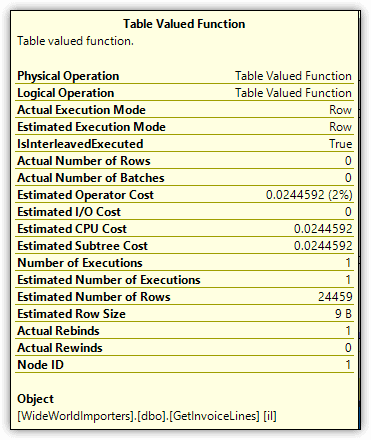
Speaking at SQL Saturday Memphis on October 6

There are several SQL Saturday events I have attended every event that has existed. Louisville, Nashville, Chattanooga (didn’t speak one of the years), and (I am pretty sure) Birmingham. On October 6, I will add one more to this list. The inaugural SQL Saturday Memphis! Having lived in Nashville for 20 or so years before moving to Cleveland (TN), I know many of the people who run or have run the Memphis SQL Server user group, and have been out to speak at their group a few times in the past (at least once on the same topic I will be speaking about early Saturday morning.

I will be speaking on my favorite topic: relational database design. Here is the (well used, but still very relevant,) abstract.

Database Design Fundamentals

Data should be easy to work with in SQL Server if the database has been organized as close as possible to the standards of normalization that have been proven for many years, but are often thought of as old-fashioned. Many common T-SQL programming “difficulties” are the result of struggling against these standards and can be avoided by understanding the requirements, applying normalization, as well as a healthy dose of simple common sense. In this session I will give an overview of how to design a relational database, allowing you to work with the data structures instead of against them. This will let you use SQL naturally, enabling the query engine internals to optimize your output needs without you needing to spend a lot of time thinking about it. This will mean less time trying to figure out why SUBSTRING(column,3,1) = ‘A’ is killing your performance, and more time for solving the next customer problem.

I look forward to hanging out in Memphis, hopefully getting some of that great Memphis BBQ, and perhaps a stop at Gus’s World Famous Fried Chicken, though worst case scenario, I can get that in Knoxville on my way to work in Virginia Beach the next week. 

(If you are not anywhere near Memphis, but are in the south, my friends in Orlando, FL are also having a SQL Saturday on the 6th as well! Not in the south? Minnesota is having theirs. Not in the continental US? Puerto Rico is having an event too! Denmark and Bucuresti as well. If none of those fit the bill, there are tons of other free events coming up, as well as the not free, but well worth it, PASS Summit early in January!)


The post Speaking at SQL Saturday Memphis on October 6 appeared first on Simple Talk.


from Simple Talk https://ift.tt/2NTwZI7
via