Tuesday, June 15, 2021

Embed Power BI in Jupyter Notebooks

Microsoft recently announced the ability to include Power BI reports inside Jupyter notebooks. After overcoming the dazzle of this exciting feature, what comes to my mind is: “Why do we need this?”

I’m far from being a Jupyter notebook expert, but as far as I know, they are used for interactive analysis. Why, in the middle of an interactive analysis, would I need to get a Power BI Report?

Even if the Power BI Report is not exactly what I need, I could continue the analysis in Power BI. Why should I move it to Jupyter and make this kind of integration with an existing report?

I decided to look for more opinions and asked this question on Twitter. This was the result:

Tweet from Dennes asking why you would want to embed Power Bi in Jupyter notebook

The question has one “Love”, three retweets (it was not from my mom; she is still learning about Twitter). This probably means there are more people with the same question but no reply. Others have the same question, and no one has the answer yet.

The best way to discover what we can be done with it is to investigate the feature.

Choosing the tool

As I explained, I’m not a Jupyter expert. Where could I create a Jupyter notebook?

I chose to use Visual Studio Code to create the Jupyter notebook. Experts in Jupyter notebooks might use other tools, so I’m unsure if VS Code is the best tool to deal with data, but it works.

Once deciding to use Visual Studio Code, the Jupyter extension must be installed. It’s easy to find the Extensions on the left toolbar and check for Jupyter.

Jupyter Notebook extension for VS Code

Once the extension is installed, you can use the Command Pallet to create a new empty Jupyter notebook:
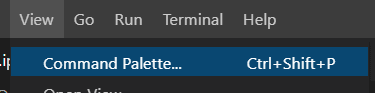

The command palette

Create a new jupyter notebook

This Jupyter extension in VS Code was released in April of this year and was demonstrated during the great Scott Hanselman keynote at Build. You can read more about the extension as well.

Installing the client

This feature is enabled by a new PyPI library called Power BI Client. It’s very easily installed using PIP, and the Visual Studio Code terminal supports PIP.

Navigate to View->Terminal or Terminal -> New Terminal in the VS Code menu to open the terminal and use PIP.
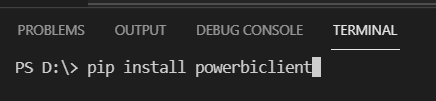
install the Power BI Client from command line

The Power BI Client is an open-source library. This is very helpful, because the source code provides a reference to use the Power BI api, and you could develop any feature missing from this library.

Building the notebook

Add a code block to the notebook. By adding the following code, you import the libraries used for this example. Here’s the code:

from powerbiclient import Report, models
from powerbiclient.authentication import DeviceCodeLoginAuthentication
import pandas as pd
if sys.version_info[0] < 3: 
    from StringIO import StringIO
else:
    from io import StringIO
import matplotlib.pyplot as plt

Go ahead and execute the code block. The next action is to authenticate with Power BI. There are four authentication options, and all these options make me think this library can have many other uses than embed Power BI inside Jupyter notebooks.

Authentication options

Two of the four authentication options will require interactive actions by the user on the app, while the other two will not require any interactive action.

Interactive Flow: This one starts an interactive authentication process opening a browser window for authentication. Once the authentication is done, the notebook receives the authentication token back from the browser window.

Device Flow: This is the one to use for this example. It starts an interactive authentication process, but the process keeps no relation between the notebook and the browser window. In the notebook, it provides a link and a code. You need to access the link in any browser window you like, input the code, and authenticate. The website will provide the authentication token back to the notebook. Only after this process, the execution can continue.

Service Principal Flow: This authentication method is basically an App authentication, usually used by services and applications. An App is registered in Azure AD and generates a client_id and secret for the authentication of a client app.

Master User Flow: In this one, you have a username and password, and you will use them for the authentication.

The authentication code block

The import needed for the authentication was already included on the first code block, so this second one has only a single statement:

# Initiate device authentication
device_auth = DeviceCodeLoginAuthentication()

After the execution of this cell, you will see the URL and code needed for authentication:

Interactive authentication inside the notebook

Open this URL on the browser, copy the code and complete authentication. Only after that will the execution continue.

Power BI object names

The next step is getting the report. This and the next few steps will need to use the name of the Power BI objects. The problem is that the name of the objects is not as apparent as one would expect and may be more difficult to find.

Let’s start with the workspace name and the report name, because we need to use both to retrieve the report.

Workspace name

Navigate to Power BI online found at https://app.powerbi.com. Navigate to one of your workspaces. Once accessing the workspace, the name is the GUID in the URL. The workspace is also called “Group”. It’s important to keep this in mind this so you can recognize the code.
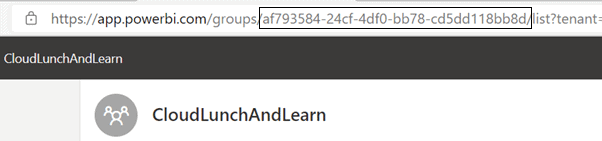
Navigate to your Power BI reports

Report Name

In the same way as the workspace, the report’s GUID appears in the URL when launching a report.

Variables cell

Now create a cell to set these values in variables, so they can be used again whenever needed:

group_id="af793584-24cf-4df0-bb78-cd5dd118bb8d"
report_id="c059c83d-41ee-4f11-9aaa-4c1ef8bdbf14"

Embedding the report

After finding the name of the workspace and the report, our next code cell can already embed the report.

First, we recover the report object. Many methods are available over the report object, but if our objective is only to embed it, we can just let the object do the work:

report = Report(group_id=group_id, report_id=report_id, auth=device_auth)
report

The image below is a very simple report embedded in a Jupyter notebook.
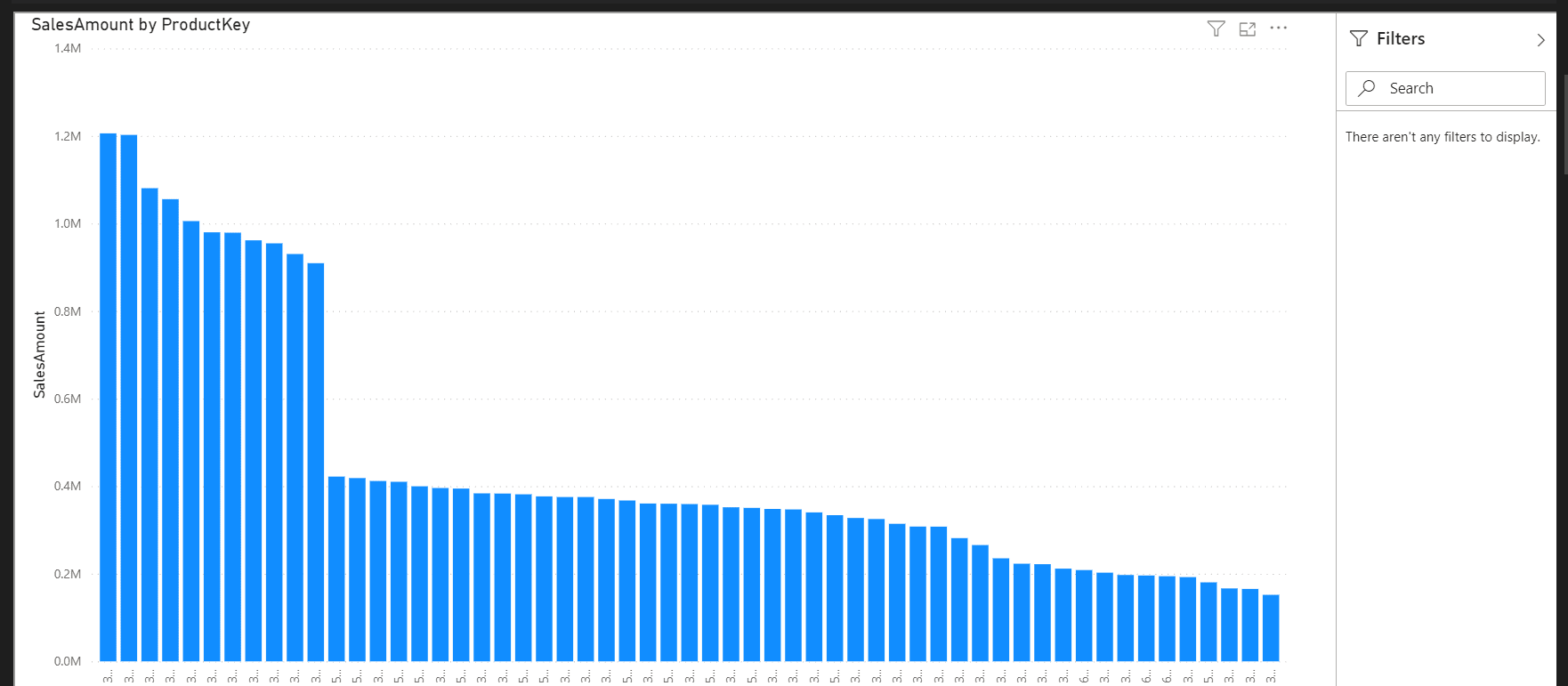
A simple report from Power BI embedded in a Jupyter Notebook

Beyond the report

The question remains: Why do you need a PBI report inside a Jupyter notebook?

If you can have access to the data, on the other hand, everything changes. You could retrieve the data from Power BI and do customized work with it, allowing Power BI analysts and Jupyter analysts to work on the same set of data. It would be way better to have direct access to a Power BI Dataset or Dataflow. However, what you can do with the Power BI Client is access the visuals and then get the underlying data from the visual as I’ll demonstrate in the subsequent sections.

If the purpose is to get the data, access a report, report page and visual to get the underlying data and be able to make further analysis with the data is a considerable work-around for this task. IMHO, I consider the word work-around very soft for these situations, that’s why we, Brazilians, are introducing into Europe the word “Gambiarra”.

Page and visual name

Once again, discovering the page and visual name can be a challenge. This time, it’s even a bigger challenge than before, because these two the names don’t appear in the URL.

To solve this problem, the Power BI Client enables retrieving this information from the list of pages of the report and list of visuals in a page.

Important: the methods to retrieve data from the report only work if the report is embedded on the page. The last statement from the previous code cell, executing the object Report to embed the Power BI report, was really needed. This is a limitation, and I will talk more about this later.

Pages list and page name

Begin with the list of pages in a report. A new code cell is needed for that. The methods for this task are available from the report object.

pages = report.get_pages()
page_name=pages[0]["name"]
pages
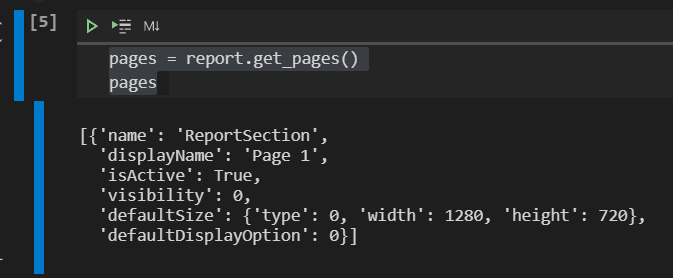
code to get pages

The first surprise is with the page: The name on the report is only the displayName. The real name of the page is something completely different, as you can see in the JSON returned.

The code defines a variable with the actual page name. The display of the page list is only for interactive view.

Visuals list and name

Now that you have the page name, you can retrieve the list of visuals in the page.

visuals = report.visuals_on_page(page_name)
visual_name=visuals[0]["name"]
visuals
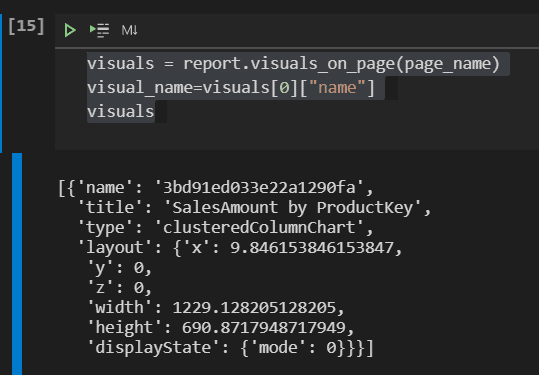
code to get visuals

The name of the visual is even more unpredictable than the name of the page. Once again, the script defines a variable to contain the name of the visual

Finally, the data

Joining the report, page and visual, now you can retrieve the data and transform it into a Pandas dataframe.

The data returns as a big comma-separated string. The Read_CSV method requires a file or a buffer to transform a CSV in a dataframe. The STRINGIO method creates a buffer for a simple string, allowing conversion of the string to a dataframe.

The code cell will be this:

exported_data = report.export_visual_data(page_name, visual_name, rows=1000, export_data_type=models.ExportDataType.UNDERLYING.value)
exported_data=StringIO(exported_data)
df=pd.read_csv(exported_data,sep=",")
display(df)
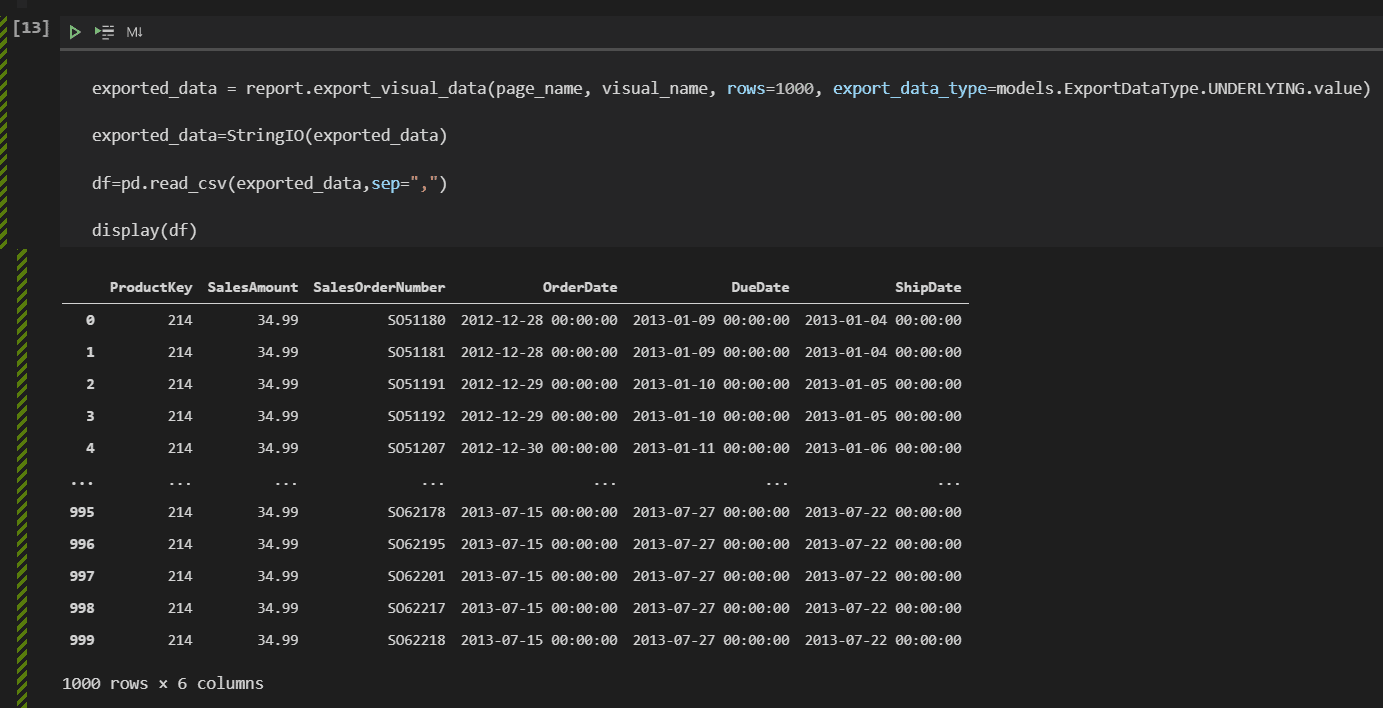
data behind the report

Besides the parameters we already know, there are two additional ones:

Rows

This parameter defines the number of rows to be recovered. That’s not good at all. The parameter is optional, but the default value is 10. This means we will need to know how many records there are in the underlying data, and that’s impossible.

Although it’s possible to recover the data and make transformations on the data, this parameter makes the feature very limited.

Export_Data_Type

This parameter supports two values:

ExportDataType.SUMMARIZED: Returns the data summarized by the visual according to the visual work.

ExportDataType.UNDERLYING: Returns the underlying data in relation to the visual.

Transforming the data

From this point and forward, you can transform the data using function on Python, Pandas or other libraries. I made some examples of these possible transformations:

df["Year"]= pd.DatetimeIndex(df['OrderDate']).year
df["Month"]=pd.DatetimeIndex(df['OrderDate']).month
df2=df.groupby('Year')["SalesAmount"].sum()
df3= df[df.Year==2013].groupby('Month')["SalesAmount"].sum()
df3

This code cell makes two different transformations:

  • Group the data by Year, totalizing the SalesAmount
  • Filter the data by Year 2013, group by Month and totalize by SalesAmount

Two new columns were created in the dataframe, Year and Month, calculated from the OrderDate field.
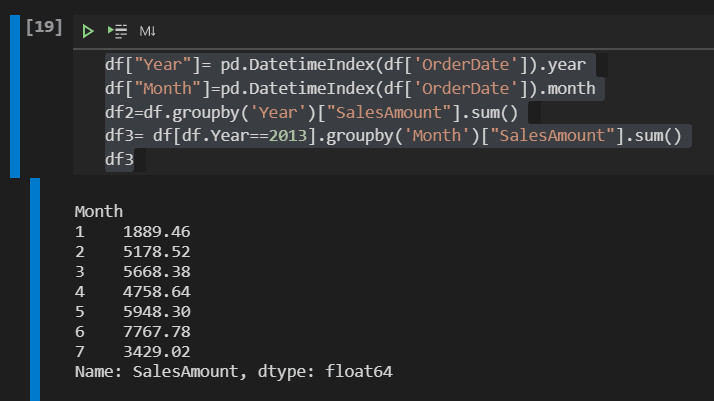
data aggregation

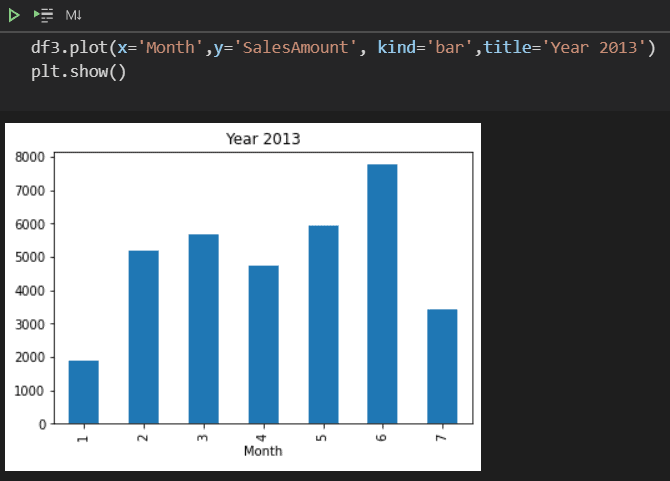
From these two new dataframes, you can plot new graphics to analyze the data.
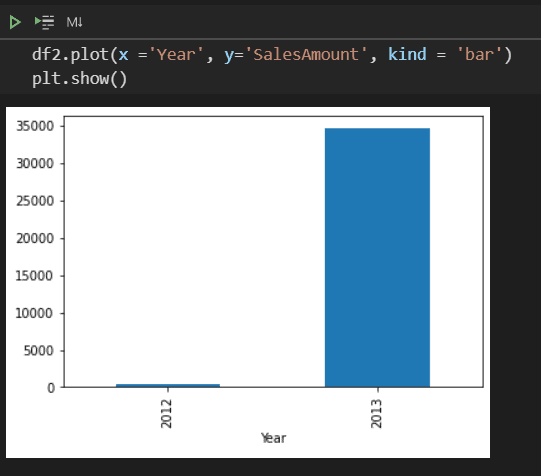
analyze the data

analyze the data over the months

What comes next?

The questions persist: Why do we need Power BI inside Jupyter notebooks? How should we use this? If you have additional ideas about how to use this feature, I woutld love to hear about it. Let’s talk; use the comment box on this blog.

Now it’s time to provide my guess. I made some correct guesses before; let’s see if it works now.

My guess

This feature was intended for other purposes. It’s being introduced in Jupyter notebooks because it’s easy, and it’s “pop”. However, we are struggling to understand how useful the feature is.

It would be great to have access to datasets and dataflows, creating teamwork between Jupyter analysts and Power BI analysts. However, even retrieving data from the reports is not enough to retrieve the data and make further analysis.

Let’s support these two guesses.

The features are not enough to analyze data

Retrieving the data from the report visuals instead of datasets or dataflows is a considerable work-around or gambiarra.

It’s not possible to retrieve the data without embedding the report. This means the analysis of data more limited.

The rows parameter makes any data analysis incomplete since you would need to guess the number of rows available.

Power BI Client has other purposes

  • The tool can add or remove filters to the report
  • The tool can manage bookmarks
  • Register callbacks on the report events, allowing an interaction between the report interactivity and whatever is around the embedded report

In Summary: These features are the beginning of great interactivity between the embedded report and any application where the report is embedded. Would this tool be handy for the creation of embedded reports on other kinds of Python applications? Do you have any idea about this? Please, let’s talk more; use the comments to provide additional ideas.

Power BI in Jupyter Notebooks

The tool works, and it’s very interesting, but after the dazzle, the result is the question: How should we use this tool in real scenarios?

Besides that, the tool is open source. Could we adapt the tool to work the way we would like?

Reference Links

Feature Announcement: https://powerbi.microsoft.com/en-us/blog/announcing-power-bi-in-jupyter-notebooks/?WT.mc_id=DP-MVP-4014132

Github Documentation: https://github.com/microsoft/powerbi-jupyter/wiki#Export-the-data-of-a-given-visual-of-the-report

GitHub Open Code Repo: https://github.com/microsoft/powerbi-Jupyter


The post Embed Power BI in Jupyter Notebooks appeared first on Simple Talk.


from Simple Talk https://ift.tt/2RUqg3X
via

Saturday, June 12, 2021

Introduction to generic Power BI themes

Power BI has taken the world by storm when it comes to creating attention-grabbing dashboards that empower users. It has come to dominate the analytics arena with its ease of use, wide range of connectivity options, and the variety of available visuals. However, formatting (and reformatting) dashboard visuals can prove time-consuming and repetitive – as can standardizing the presentation of multiple dashboards to create a unified look and feel for a suite of reports. Most users would rather spend their time analyzing and delivering meaningful insights as opposed to applying colors and font choices to charts and tables. This article explains how Power BI themes can avoid that tedious work!

This is where the creation and application of Power BI themes comes in. A theme is a standardized definition of some – or all – of the formatting of a dashboard. This can range from defining a color palette and a selection of font choices to the detailed specification of each and every visual. Applying a theme allows you to format virtually every visual in a dashboard instantly. What is more, any changes that you subsequently make to a theme can be reapplied in a few clicks to update your dashboard’s presentation. Themes can be created once, then applied to dozens or even hundreds of Power BI dashboards to guarantee a coherent and rigorously standardized presentation style across a department or even an entire organization.

Theme overview

Themes can be as simple – or as detailed – as you require. They can specify standardized fonts, text colors, and font sizes or set the tiniest details of how each individual type of visual is formatted. Indeed, themes are designed to work at multiple levels – starting with general elements and then progressing deeper and deeper into tightly specified definitions of the presentation of each element in a dashboard. This gives you a range of options when it comes to defining how you standardize Power BI dashboards.

At their heart, Power BI Themes are JSON files that define some – or even all – of the following presentational elements-most of which are, otherwise, set manually using the Power BI Desktop Format pane:

  • The colour palette.
  • The detailed formatting of every standard Power BI visual.
  • Generic style attributes – these are attributes that are common to many visuals that can be defined once (rather than having to apply them repeatedly for dozens of visuals).
  • Colour classes – these are a collection of predefined settings which can be used to apply colours across a range of visuals.
  • Text classes – another collection of predefined settings, this time used to apply text attributes to various text elements across a range of visuals.

Explaining each of these elements in detail would make for a vast subject extending over hundreds of pages. So the aim of this article is to introduce two aspects of theme creation – how to set the colours used in the colour palette and how to define generic themes. Learning these two aspects of theme file creation (one extremely simple, and the other a little more complex) should help to get you started on the path to much more intricate and powerful theme file preparation.

Setting the colour palette

In case the use of Power BI theme files is completely new to you, let’s look at an extremely simple Power BI theme file that defines the core colours that you use in a Power BI dashboard. Once this is understood, we can move on to the more complex subject of defining generic theme attributes.

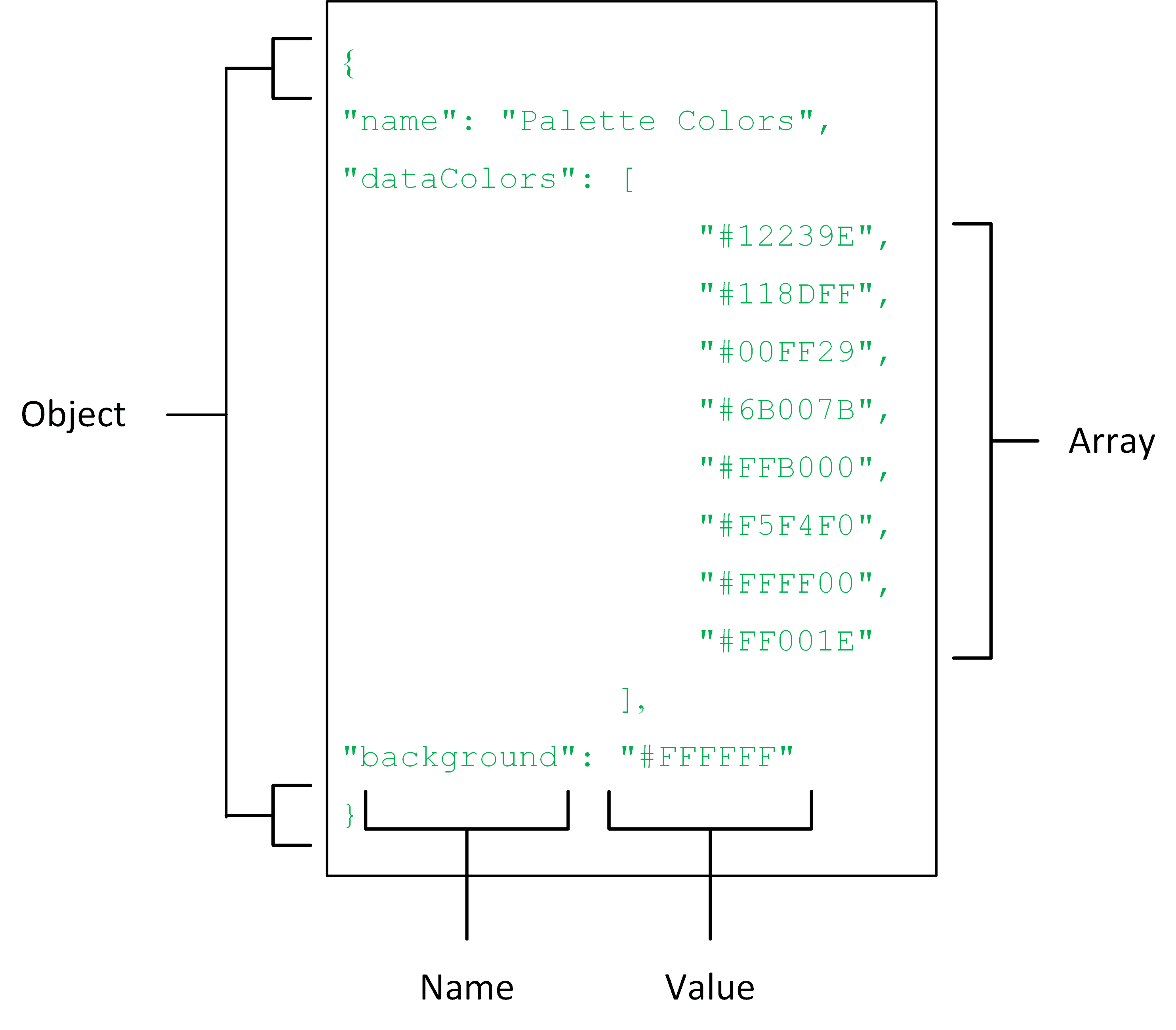
The JSON required to set the colors in a color palette looks like this:

JSON code that defines a color palette for a Power BI theme

The two sets of formatting attributes that are defined are:

  • dataColors: The color palette
  • background: The page background color

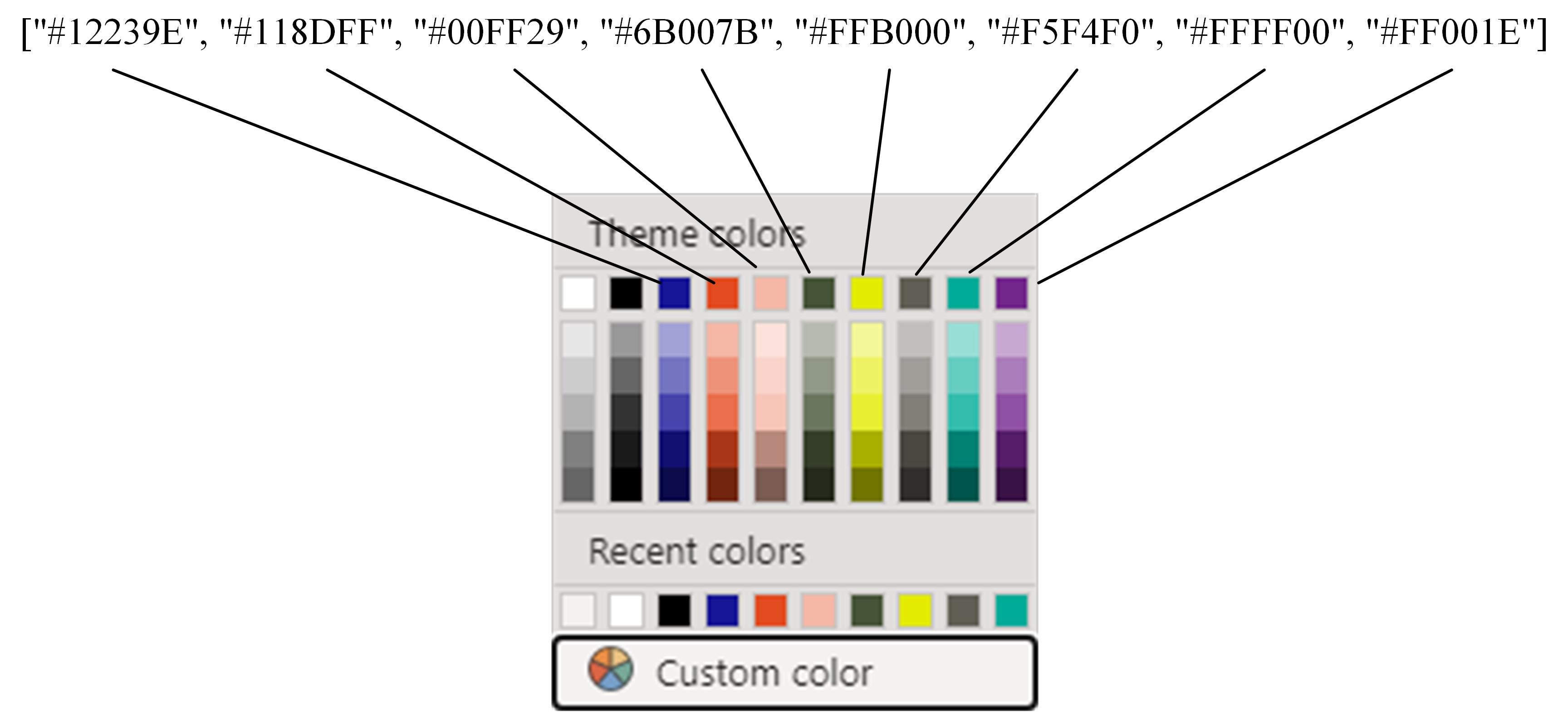
So, what have you created in this small theme file? Quite simply, you have defined the base color palette that will appear every time you want to apply colors in a Power BI dashboard. You can see this in Figure 3-2, below where the hexadecimal color definitions in the dataColors array in the theme file define the color palette elements.

Image showing the custom created theme colors

This JSON code is available in the sample file PaletteColors.json from the sample files that come with this article.

I realise that this theme is wildly simplistic, but it gets you started on the path to theme creation. You can now apply the theme file in Power BI Desktop by clicking View=>Themes=>Browse for themes and selecting the JSON file that you created. This will set the colours of the colour palette to the hexadecimal values that you defined in the JSON file.

Defining generic themes

Much of the documentation on theme creation covers the detailed intricacies of formatting every possible aspect of each and every available Power BI Visual. In practice, however, it can often be extremely effective to adopt another approach which is to define a handful of “default” stylistic elements that apply to a range of visuals rather than defining the exact specification for 30 or so separate visuals. This is made possible by the fact that Power BI has ensured that any aspect of a visual that it has in common to other visuals (think borders or backgrounds, for instance) uses the same formatting approach in Power BI Desktop format pane whatever the visual that you are tweaking – and this commonality is extended to the JSON theme files. What this approach means is that you can specify a format element once only in a theme file and nonetheless see it applied to any visual that supports it.

Suppose, for instance, that you want to define borders and titles for all visuals and then specify a handful of common elements (such as X and Y axis definitions) for charts as well as a few core table elements such as formatting totals and values. It is worth noting at this point that you do not even have to specify the entire gamut of formatting that is available for a visual in Power BI. In other words, if you only want to define that a title is required (without defining any other characteristics of the title), then you can limit the specification to this single attribute. This saves you from having to write (and test) dozens of unnecessary lines of JSON.

All of this is possible through a hand-crafted theme file where you define visual characteristics without specifying which visual type the formatting must apply to. The JSON format will be applied – instantly and automatically – to any visual that contains the attributes that you define. There are three great things about this approach:

  • It simplifies theme preparation, as you only define an element once (as opposed to defining it individually for each type of specific visual).
  • You can make the definition of the formatting as detailed or high level as you wish and then tweak individual format options in Power BI Desktop to add completeness.
  • You can add default formatting “in case.” This is because any formatting that you add that is not used by a visual type (such as defining certain detailed elements of a certain chart type) will not prevent other formats being applied where they are supported by a different chart type.

What is more, you can subsequently overwrite or extend these common attributes at the level of each individual visual if you so wish. Unfortunately, space constraints do not allow for me to explain the detailed formatting of specific visuals in the current article.

Common visual elements

There are a series of elements that are common to most – if not all – visuals in Power BI dashboards. These elements are

  • Background
  • Title
  • Border
  • Shadow Tooltip
  • Visual header
  • Lock aspect

You are probably used to setting these – time and time again, if the truth be told – using the Power BI formatting pane. These format elements are defined by the following JSON theme keywords:

  • background: Sets all the attributes in the Background card of the Format Pane for a visual as well as setting the background for the page
  • title: Sets all the attributes in the Title card of the Format Pane for a visual
  • border: Sets all the attributes in the Border card of the Format Pane for a visual
  • shadow: Sets all the attributes in the Shadow card of the Format Pane for a visual
  • visualTooltip: Sets all the attributes in the Tooltip card of the Format Pane for a visual
  • visualHeader: Sets all the attributes in the Visual header card of the Format Pane for a visual
  • lockAspect: Sets all the attributes in the Lock aspect card of the Format Pane for a visual

The time has come, then, to define these common elements using JSON in a theme. As is the case with most of the approaches to formatting Power BI dashboards using themes, it is best to take a look at the JSON code first and explain how it works once you have seen the code. So here is a code snippet that adds some core visual default formatting to elements that are common to most visuals. The complete code is in the file ColorWithCoreVisualDefaults.json.

{
"name": "Visual Defaults",
"dataColors": ["#171796", "#E34B20", "#F4B7A6", "#465437", "#E2EB00", 
    "#615E55", "#00AC98", "#73268c"],
"visualStyles":
    {"*":
       {"*":
         {
         "background":   [{
                         "color": {"solid": {"color": "#F5F4F0"}},
                         "transparency": 0
                         }],
         "visualTooltip":[{
                        "titleFontColor":{"solid":{"color":"#D7CACA"}},
                        "valueFontColor":{"solid":{"color":"#FFFFFF"}},
                        "background":{"solid":{"color":"#938888
                      }],
                  "title":    [{
                        "show": true,
                        "text": "Visual Title",
                        "fontColor": {"solid": {"color": "#ffffff"}},
                        "background": {"solid": {"color": "#171796"}},
                        "alignment": "Center",
                        "fontSize": 8,
                        "fontFamily": "Arial"
                        }],
                  "lockAspect": [{ 
                        "show": false
                          }],                            
                  "border":   [{
                        "show": true,
                        "color": {"solid": {"color": "#171796"}}
                        }],
                  "dropShadow":   [{
                        "show": true,
                        "color": {"solid": {"color": "#D7CACA"}},
                        "position":"Outer",
                        "preset":"TopLeft"
                        }],
                  "visualHeader":    [{
                        "show": true,
                        "background": {"solid": {"color": "#ffffff"}},
                        "border": {"solid": {"color": "#171796"}},
                        "foreground": {"solid": {"color": "#171796"}}
                        }]
                  }
              }
          }
}

In this code snippet, you can see that the keywords in italics correspond to sections in the Power BI formatting pane:

  • The title keyword corresponds to the Title section.
  • The lockAspect keyword corresponds to the Lock aspect section.
  • The border keyword corresponds to the Border section.
  • The dropShadow keyword corresponds to the Shadow section.
  • The visualHeader keyword corresponds to the Visual header section.

Now for some explanations concerning this particular piece of JSON. Each JSON attribute corresponds to an element in a specific section of the format pane in Power BI Desktop. The core JSON approach of defining key/value pairs is still respected. However, as you can see, each of these value settings is defined as an array that contains one or more objects. Some objects contain further nested objects – that is, inner sets of elements in curly brackets, sometimes up to three objects deep.

There is something else that is interesting in this JSON code. You are referring to selections made using popup menus in Power BI Desktop to format elements such as

  • Title alignment
  • Shadow position
  • Shadow preset

You need to be warned that, in these cases, the exact spelling of each JSON keyword is required – and this must always be enclosed in double quotes. Finding the exact keyword to use can necessitate a certain amount of trial and error.

The good news about these definitions is that they do not cause the JSON file load to fail if you misspell one of them. All that will happen is that the actual attribute will not be formatted and will remain as the default format once the JSON theme file has been loaded. Finally, the actual element definitions (background, title, etc.) are, themselves, nested inside two “anonymous” elements –When defining generic elements (i.e., formatting not strictly attributed to a specific type of visual), they have to be nested at this lower level. The asterisks mean that the formatting is generic – not tied to a specific object. This does admittedly make tracking the nesting levels (and all the pairs of curly brackets) a little more complex. However, it is something that you get used to the more that you work with JSON theme files. Also, it is worth reminding you that this code makes no attempt to format every possible aspect of this series of elements.

Elements common to most chart types

Now that you have seen how to define the formatting for shared (or common) elements, we can move on to the next level of “generic” formatting. This involves setting some of the formatting parameters of chart visuals. There are several aspects of chart formatting that are shared by multiple charts. For instance, stacked bar charts, stacked column charts, clustered bar charts, clustered column charts, line charts, area charts, stacked area charts, line and clustered column charts, and line and stacked column charts all contain the following elements:

  • The category (X) axis
  • The values (Y) axis
  • Data labels
  • Plot area
  • Legend

Indeed, certain of these elements are also common to a few other chart types such as ribbon charts, waterfall charts, and scatter charts (even if these chart types only contain some of the formatting options in the preceding list). There are even charts such as funnel charts, pie charts, and donut charts that use at least one of the formatting elements listed earlier. To save you the effort of having to define these similar or identical aspects of chart formatting to each individual chart type, you can specify standard formatting that will be applied to a chart element if it exists. This means that if you have created a chart that does not have one of these elements (say a donut chart that does not have category and values axes but does have a legend) but have nonetheless set these attributes in a theme file, then the definitions of any nonrelevant formatting elements are simply not applied to the chart in question. Once again, you do not have to define every format option that exists in an expanded tab of the Format Pane. That is, you can only decide to set one or two formatting options for the legend out of all the available options, if you so wish. In other words, you can predefine as many aspects of chart formatting as you want without worrying about actually having to use them. Power BI Desktop does not care about whether a JSON format is used – only if it is syntactically accurate. This means that you can define as much (or as little) generic formatting as you like as long as the JSON is correct. You can see this in the JSON file ColorWithCoreVisualDefaultsAndKeyChartTypes.json, shown below:

{
"name": "Visual Defaults",
"dataColors": ["#171796", "#E34B20", "#F4B7A6", "#465437", "#E2EB00", 
       "#615E55", "#00AC98", "#73268c"],
"visualStyles":
      {"*":
         {"*":
            {
            "background":   [{
                  "color": {"solid": {"color": "#F5F4F0"}},
                  "transparency": 0
                  }],
            "visualTooltip":[{
               "titleFontColor":{"solid":{"color":"#D7CACA"}},
               "valueFontColor":{"solid":{"color":"#FFFFFF"}},
               "background":{"solid":{"color":"#938888"}}}],
               "background":[{"color":{"solid":{"color":"#7A0A0A"}}
               }],
            "title": [{
                  "show": true,
                  "text": "Visual Title",
                  "fontColor": {"solid": {"color": "#ffffff"}},
                  "background": {"solid": {"color": "#171796"}},
                  "alignment": "Center",
                  "fontSize": 8,
                  "fontFamily": "Arial"
                  }],
            "lockAspect": [{ 
                  "show": false
                   }],                     
            "border":   [{
                  "show": true,
                  "color": {"solid": {"color": "#171796"}}
                  }],
            "dropShadow":   [{
                  "show": true,
                  "color": {"solid": {"color": "#D7CACA"}},
                  "position":"Outer",
                  "preset":"TopLeft"
                  }],
            "visualHeader": [{
                  "show": true,
                  "background": {"solid": {"color": "#ffffff"}},
                  "border": {"solid": {"color": "#171796"}},
                  "foreground": {"solid": {"color": "#171796"}}
                  }],
            "categoryAxis": [{
                  "show": true,
                  "axisScale": "Linear", 
                  "position": "left",
                  "labelColor": {"solid": {"color": "#949494"}},
                  "fontFamily": "Arial",
                  "fontSize": 8,
                  "showAxisTitle": true,
                  "titleText": "Add an Axis Title",
                  "titleFontSize": 8,
                  "titleFontFamily": "Arial",
                  "titleColor": {"solid": {"color": "#949494"}},
                  "gridLineShow": true,
                  "gridLineColor": {"solid": {"color": "#949494"}},
                  "gridLineThickness": 1,
                  "gridLineStyle": "Solid"
                }],
            "valueAxis": [{
                  "show": true,
                  "position": "Left",
                  "axisScale": "Linear",
                  "labelColor": {"solid": {"color": "#949494"}},
                  "fontFamily": "Arial",
                  "fontSize": 8,
                  "showAxisTitle": true,
                  "titleText": "Add an Axis Title",
                  "titleFontSize": 8,
                  "titleFontFamily": "Arial",
                  "titleColor": {"solid": {"color": "#949494"}},
                  "gridLineShow": true,
                  "gridLineColor": {"solid": {"color": "#949494"}},
                  "gridLineThickness": 1,
                  "gridLineStyle": "Solid",
                  "axisStyle": "ShowTitleOnly"
               }],
            "labels": [{
                  "show": true,
                  "labelPosition": "InsideEnd",
                  "color": {"solid": {"color": "#ffffff"}},
                  "fontFamily": "Arial",
                  "fontSize": 7,
                  "enableBackground": false,
                  "backgroundColor": {"solid": {"color": "#d9d9d9"}},
                  "backgroundTransparency": 0
                }],
            "plotArea": [{
                  "transparency": 0                  
                }],
            "legend": [{
                  "show": true,
                  "position": "Bottom",
                  "showTitle": true,
                  "titleText": "Add a legend title",
                  "legendColor": {"solid": {"color": "#949494"}},
                  "fontFamily": "Arial",
                  "fontSize": 8                  
                }]   
            }
         }
      }
}

Extending generic formatting for specific chart types

The previous JSON snippet showed how to define core formatting for five chart elements. There could be cases, however, where you want to add a few elements that only apply to a select few types of chart – or even a single chart type. Fortunately, this is a simple extension to the JSON code. Suppose, for instance, that you want to add the following two elements to the theme file:

  • The line and join formatting found in line charts, area charts, stacked area charts, line and clustered column charts, and line and stacked column charts
  • The central radius percentage used in donut charts

You can do this by extending the previous JSON with the following code snippet (and ensuring that there is a comma separating the two pieces of code in the JSON file).

The code that is added to the snippet that you saw previously is

"lineStyles": [{ "ShadedArea": true, 
              "strokeWidth": 1, 
              "lineStyle": "Solid", "showMarker": true, 
              "markerShape": "Triangle", 
              "markerSize": 2, 
              "markerColor": {"solid": {"color": "#949494"}}
           }],
"slices": [{ "innerRadiusRatio": 20 }]

The complete JSON theme file can be found with the sample files. It is called ColorWithCoreVisualDefaultsAndKeyChartTypesExtended.json.

This JSON will only be applied to charts that actually contain the following formatting sections in Power BI Desktop:

  • Shapes (represented by the lineStyles keyword in JSON for line and area charts)
  • Shapes/Inner radius (represented by the slices keyword for donut charts)

As you are starting to see, the correlation between the Power BI Desktop formatting section and the corresponding JSON keywords is not always completely intuitive. However, once the mappings are understood, creating and modifying JSON theme files becomes fairly straightforward.

Table elements

Not all visuals in Power BI, of course, are charts. There are core visuals that are very unlike charts that you probably rely on in your dashboards such as tables, matrices, and cards. Fortunately, it is also possible to define the core formatting of these types of visuals quickly and easily. The following code snippet adds the formatting specification for the following table (and matrix) elements:

  • Grid
  • Column headers
  • Values
  • Total

Fortunately, the JSON keywords correspond very closely to the section headers in the Power BI Desktop format pane for tables and matrices. Also, the format elements are simple key/value pairs that map closely to the actual format attributes in Power BI Desktop, so little additional explanation is necessary here.

"style":   [{"styleType": "Minimal"}],
"grid":    [{
                "gridVertical": false,
                "gridVerticalColor": {"solid": {"color": "#171796"}},
                "gridVerticalWeight": 1,
                "gridHorizontal": false,
                "gridHorizontalColor": {"solid": {"color": "#171796"}},
                "gridHorizontalWeight": 1,
                "textSize": 8,
                "rowPadding": 1,
                "outlineColor": {"solid": {"color": "#ffffff"}},
                "outlineWeight": 1
        }],
"columnHeaders": [{
                "fontColor": {"solid": {"color": "#ffffff"}},
                "backColor": {"solid": {"color": "#E34B20"}},
                "outline": "Frame",
                "alignment": "Left",
                "wordWrap": true
        }],                                       
"values": [{
                "fontColorPrimary": {"solid": {"color": "#3D4E57"}},
                "backColorPrimary": {"solid": {"color": "#F5F4F0"}},
                "fontColorSecondary": {"solid": {"color": "#3D4E57"}},
                "backColorSecondary": {"solid": {"color": "#E3DFD4"}},
                "outline": "Frame",
                "outline": "Frame",
                "alignment": "Left",
                "wordWrap": true
        }],
"total": [{
                "totals": true,
                "fontColor": {"solid": {"color": "#000000"}},
                "backColor": {"solid": {"color": "#D1CAB8"}},
                "outline": "Frame"
      }]

This file is available as ColorWithCoreVisualDefaultsAndKeyChartTypesAndTableElements.json in the set of JSON theme files that come with this article.

Power BI themes

This article introduced you to the concept of “stylesheets” for Power BI dashboards – called theme files in the Power BI universe. You saw how to create JSON files that allow you to specify a range of formatting options that will be applied to a range of visuals in a Power BI Dashboard. This technique not only can save hours of repetitive formatting, but ca become the basis for corporate standards in dashboard presentation.

Once you have mastered the core techniques you can then progress to the next level – the detailed formatting of every standard visual in Power BI Desktop.

This article is taken from Pro Power BI Desktop Theme Creation by Adam Aspin – Apress, May 2021.

If you like this article, you might also like Power BI Introduction: Building Reports in Power BI Desktop — Part 7 – Simple Talk (red-gate.com)

The post Introduction to generic Power BI themes appeared first on Simple Talk.


from Simple Talk https://ift.tt/3vdEZV1
via

Wednesday, June 9, 2021

SQL Server transaction log architecture

The transaction log is a file that each SQL Server database has. It can be thought of as a journal of update activity that has occurred to a database. The transaction log is used to maintain the integrity of the database. The information stored about a transaction can be used to roll it back if, for some reason, it is not successfully committed or a system failure occurs. In this article, I will cover the architecture of the transaction log.

ACID principle

The transaction log is used to maintain the integrity of the database. When transactions are performed against a database, they need to be written completely and accurately to the data files of a SQL Server database. If they are not completed 100% successfully, then the complete transaction would need to be rolled back to make sure the data in the database only contains complete transactions.

When a transaction is not written correctly or completely, the database might contain incorrect data and/or incomplete information. There are a number of different situations where a transaction might not be written correctly to the data file. Below are a few of the reasons why data in a database might be inaccurate and not complete:

  • Data entered into the system is inaccurate or doesn’t follow data integrity rules.
  • The database engine crashes during a critical moment before all updates have been committed to disk in the DATA files.
  • A disk system fails, causing only partial information for a transaction to be written to disk.

SQL Server maintains the integrity of the database by following what is known as the ACID principle. The term ACID is just an acronym that stands for Atomicity, Consistency, Isolation, and Durability. These four properties work together to maintain the consistency and integrity of a relational database.

Atomicity

The atomicity property means that a complete transaction will be written to disk, or none of the transaction will be written. It’s the “All or Nothing” approach. A simple example of how atomicity works is in how a bank processes transferring money when a written check is processed. The process of cashing a check requires both a debit and a credit transaction. The debit transaction removes the funds from the checking account on which the check is associated. The credit transaction deposits funds into an account to which the check was written. In order to maintain atomicity, both the credit and debit transaction needs to completed successfully. If either the credit or debit transaction fails for some reason, then the atomicity property ensures that neither transaction is processed. When only part of the transaction is performed, a rollback of all the transactions associated with the check cashing process is performed to maintain atomicity.

Consistency

Consistency property ensures that all data written to the database in a transaction enforces all constraints, triggers, and other database or application rules. If any part of the transaction doesn’t successfully update the database, then the data in the database would not follow the consistency rules, and the transaction would need to be aborted and rolled back to ensure consistency in the data within the database.

The check-cashing process requires both a debit and a credit transaction to occur to be successful. If only the “debit” process of the check cashing process occurs, then only 50% of the transactions would have been completed. Without the credit transaction being processed, all the rules for the check process would not have completed successfully, and the “debit” transaction would need to be backed out to make sure the data in the database didn’t contain incomplete information. The consistency property would ensure that all parts of a transaction are completed successfully, and, if not, partially completed transactions would be rolled back.

Isolation

The isolation property has to do with isolating uncommitted data modification in one transaction from being read or updated by another transaction. The isolation property ensures that a new transaction doesn’t read or update data from a transaction that has not yet been committed.

In the check cashing processing example, the isolation principle makes sure a second banking transaction doesn’t try to access the account in the middle of a check cashing transaction before the transaction has completed successfully. Imagine the financial implications if the funds associated with the check cashing process could be withdrawn prior to the successful completion of a check-cashing process. This might cause an overdraft situation if the check cashing process was rolled back.

SQL Server has several different isolation levels, some that allow more or less isolation than others. To understand more about the different SQL Server isolation levels, you can read this Microsoft documentation.

Durability

The durability property means that the data changes will be permanently made to the database when a transaction has been committed. Having durability means that changes will not disappear should the system crash after the transaction has been successfully committed. By having durability, SQL Server ensures that once the “debit” and the “credit” transaction of the check cashing example have been completed and committed, the changes will stick around, even if the database engine should crash. Without durability, changes might disappear if the system crashes, which would not be a good thing. By using the ACID principles and the information stored in the transaction log the database engine is able to maintain the integrity of information in SQL Server databases.

Transaction log architecture

The transaction log is a sequential file that holds transactions while they are being processed. The architecture of the transaction log has both a logical and physical architecture. The logical architecture described how the transaction works from a logical standpoint. The physical architecture shows how the transaction log is physically implemented and managed by the database engine.

Logical architecture

Logically, the transaction log can be thought of as a sequential file that contains a series of log records that record the different kinds of modifications performed to the database. Each time the database is changed, one or more log records are written to the logical end of the transaction log. The records written either describe the logical operation performed or contain the before and after images of the actual data changes. The before images are copies of the data in the database before it was changed. The after images are the images of the data after the database was modified. The logical operation and the before and after images are not only used to update the database but also to back out a transaction and/or recover the database in the event of a system crash.

Each log record written is identified by a log sequence number (LSN). The LSN identifies the order in which the log records are written to the log. Meaning a log record with an LSN value of 1 would have been written to the log prior to a log record that has an LSN value of 2.

Each of the LSNs associated with a transaction and could be active or inactive. An active LSN is associated with a transaction that has not been committed, whereas an inactive LSN is associated with a transaction that has been committed. The oldest LSN (lowest LSN number) that is active is known as the minimum recovery log sequence number or MinLSN. Figure 1 is a logical representation of the transaction log, where the LSN’s in yellow are the active LSN’s.

SQL Server transaction log file architecture

Figure 1: Logical Architecture

Physical architecture

Physically the transaction log is made up of one or more transaction log files. The log file is broken up into chunks known as virtual log files (VLF’s). A transaction log might have a few or many VLFs, depending on how big the transaction log is and its growth over time. Each time the transaction log needs to grow, additional VLF’s are created and added to the chain of VLFs. The amount of disk space added to the transaction log for each growth event will determine the number of new VLF’s created.

The transaction log can be considered a circular file, made up by chaining VLF’s together from one VLF to the next. Transaction log records are written from beginning to end, and then wrap back around and start writing at the beginning. The diagram in Figure 2 shows a transaction log with 4 different VLF files, which logically are chained together in a circular fashion. The red dashed line represents how the transaction log records are written from the first VLF to the last and circles back and starts writing at the first VLF again.

the SQL Server transaction log file acts "circular"

Figure 2: Circular log file

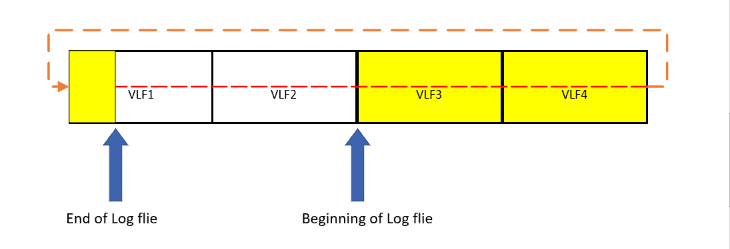
The beginning of the circular log file could be any one of the VLFs in the transaction log. When SQL Server hits the end of the sequential log file as it is writing transaction log records, it will circle around and start writing log records at the beginning of the sequential log file, as long as the end of the log file never reaches the logical beginning of the log file, as shown in Figure 3.Figure 2: Circular log file.

If the end of the log file ever reaches the beginning of the log file, then SQL Server will stop writing to the database until some transaction log file records are removed by truncating the log or the physical file is expanded. If all of the VLF’s are active when the end of the log meets the beginning, then the transaction log file will be expanded, and more VLF’s will be created. If some VLF’s are inactive when the end of the log meets the beginning, then the database engine will truncate the log to empty out inactive VLF’s to free up more space for writing transaction log records. Emptying out inactive VLF’s are done automatically when a database is in simple recovery mode, but requires a transaction log back when databases are in full or bulk-logged recovery mode.


the partially filled transaction log showing end and beginning of log file

Figure 3; Partially filled transaction log

Log truncation

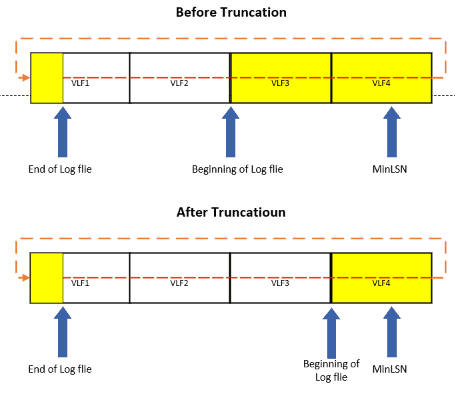
The log file must be periodically truncated to keep it from filling up. The log truncation process empties VLF files that contain only log records that have already been committed. This emptying out process starts from the VLF at the beginning of the log file until it reaches the VLF that contains the minimum recovery log sequence number (MinLSN). MinLSN is the oldest log record that is needed to successfully rollback the oldest uncommitted transaction. Before the log can be truncated, a checkpoint command needs to be performed. Figure 4 shows how full VLF’s are emptied during the truncation process, and the beginning of the log is reset when VLF’s are cleaned out. Figure 4 shows that the log file starts at VLF3, and the MinLSN is contained in VLF4 prior to the log truncation. When the truncation process occurs, it empties the VLFs that only hold committed log records between the beginning of the log file and the VLF that contains the MinLSN. In my example, VLF3 was emptied, and the beginning of the log file was repositioned at the beginning of VLF4.


image showing before and after truncation

Figure 4: Truncating Transaction Log

The log will be truncated automatically after the following events:

  • After a checkpoint when the database is running under simple recovery model.
  • After a log back up if full or bulk-logged recovery models are used, provided a checkpoint has been performed since the previous backup (more information about recovery models can be found in my August 2020 article).

What performs a checkpoint?

Changes to the database are first written in-memory to the buffer cache, and for performance reasons, are only committed to disk when a checkpoint operation occurs. When a page has been updated in memory and hasn’t yet been written to disk, it is known as a dirty page. When a checkpoint occurs, dirty pages that only contain committed transactions are written to disk.

Checkpoints can be written automatically, manually, indirectly or internally. Checkpoints are issued automatically when the database engine estimates it has enough transactions that can be written to disk, based on the “Recovery Time Interval” configuration setting. They can also be performed manually by issuing a CHECKPOINT command. If you are running on SQL Server 2012 or higher, indirect checkpoints can be issued. Indirect checkpoints are written based on the number of dirty pages in the log that can be written to disk in a specific period of time, controlled by the “target recovery time” database setting. This setting identifies an upper bound for how long SQL Server should take to recover a database. Checkpoints can be written internally when specific server events occur. The events that cause internal checkpoints are below, as noted in the Microsoft Database Checkpoints:

  • Database files have been added or removed by using ALTER DATABASE.
  • A database backup is taken.
  • A database snapshot is created, whether explicitly or internally for DBCC CHECKDB.
  • An activity requiring a database shutdown is performed. For example, AUTO_CLOSE is ON and the last user connection to the database is closed, or a database option change is made that requires a restart of the database.
  • An instance of SQL Server is stopped by stopping the SQL Server (MSSQLSERVER) service. This action causes a checkpoint in each database in the instance of SQL Server.
  • Bringing a SQL Server failover cluster instance (FCI) offline.

SQL Server transaction log architecture

The transaction log is a journal of update activity for a database. SQL Server holds this database update information until they are permanently committed and written to disk. The log is also used to back out incorrect or uncompleted transactions due to application or system issues. It also can be used to roll forward the database to a point-in-time should a recovery be needed. If the transaction log is not managed, it will fill up. To keep the transaction log from filling up, checkpoints and transaction log backups need to be taken periodically. As a DBA, you need to understand the architecture of the transaction log, how to manage the size and growth of the log, and periodically take transaction log backups of databases that are not in simple recovery mode.


The post SQL Server transaction log architecture appeared first on Simple Talk.


from Simple Talk https://ift.tt/3g5s6Iq
via

Tuesday, June 8, 2021

How Essential Are Azure Policies

Policies in Azure are like Wally. They are there, but not obvious to find, hidden in the middle of many services, waiting for someone recognize their importance.

Why do we need Policies

Billing

The billing control in Azure has by itself many different reasons to enforce policies. You, with your single Azure subscription, may think it’s simple to control billing. Imagine how it is for a worldwide corporation with a single tenant and branches in all continents to control the billing of each cloud project.

Avoid Unnecessary Expenses

Auto-Turnoff

Virtual Machines have an auto-turnoff setting. Should virtual machines that are classified as not being 24/7 be using the auto-turnoff?

The company could create different subscriptions, one for the non-24/7 VMs and another for the 24/7 VMs and apply policies to ensure these configurations.

Serverless SQL

If we configure a Serverless SQL, which could turn itself off, to use Azure Defender for SQL, the requests from Azure Defender can prevent the database to ever go offline and provide no cost benefit.

The policies could ensure this is turned off for serverless SQL and keep the Azure Serverless SQL DB provisioned in safe internal virtual networks that doesn’t require Azure Defender for SQL.

BYOL

In order to better manage the licensing of the software, the policies could ensure the use of different subscriptions for services with BYOL enabled and for services without BYOL enabled. The procedure and permissions to make a deployment to each of these subscriptions could be different, exactly to ensure the correct allocation of financial resources

Dev/Test Subscription

The Dev/Test subscription is a great feature provided by Azure to save our money with our development and test environments. The policies can ensure everything related to development and test is only created in Dev/Test Subscriptions.

You can learn more about Dev/Test Subscriptions here

Keep Billing Control

In a big corporation, keep the control about who is spending money in the cloud and if the money is being worth may be difficult. That’s why Cost centres and project isolation and analysis may be a good idea.

Each Azure object allow many Tags, additional information attached to the object.

Using Tags and the policies we can ensure:

  • All resources are “Tagged” for billing purposes
  • All resources are allocated on the correct place according the billing tags

Security

It’s surprising how often we make implementations in the cloud we would never make in an on premise environment.

When we provision a service, such as an Azure storage account or an Azure SQL Database, most people end up leaving the service with a public internet endpoint.

Would you implement a SQL Server in your on-premise environment and leave it open to the internet? Why would you do this in the cloud?

The policies can ensure that these situations don’t happen or, if they do, they are isolated on a subscription/region intended for test purposes and never in a production environment.

Monitoring and Compliance

Almost all services on Azure implement a diagnostic feature that can enable the service to capture logging information and send to a centralized log analytics. Using policies, we can ensure these options will be correctly configured on all services.

We can also control the region of deployment of our services. In a corporation with many branches all around the world, the subscriptions can be broken down in management groups. This can be done according to the region of the branch and each branch may be restricted to implement solutions on specific locations.

Creating a Policy in JSON

The policies are created using JSON. The more we parameterize the policies, more reusable they will be.

This is an example of a policy to control the naming convention of azure resources

{

"parameters": {
"ResourceType": {
"type": "String",
"metadata": {
"displayName": "Resource type",
"description": "Resource type to enforce naming pattern.",
"strongType": "resourceTypes"   }
},

"NamePattern": {
"type": "String",
"metadata": {
"displayName": "Resource Name Pattern",
"description": "The pattern to be applied to the resource"
}
}
},

"policyRule": {

"if": {

"allOf": [

{
"field": "type",
"equals": "[parameters('ResourceType')]"
},

{
"field": "name",
"notLike": "[parameters('NamePattern')]"
}
]
},

"then": {
"effect": "deny"
} } }

You may notice the policy JSON code has two distinct areas: Parameters and PolicyRule. We could build this policy without parameters, for sure, but in this case, it would be a specific policy for one type of object and one naming convention.

Using the policy with parameters allow us to save the policy definition and re-use it for any object type and naming convention.

Effect

Another important option to check on the JSON is the effect . Our example uses only the deny effect.

Each Policy can have multiple effects and Azure uses an order of evaluation of the effects. Some of the effects when on the beginning of the evaluation can cancel the later effects.

These are the available effects for the policies:

  • Deny: Refuses the object creation if not compliant with the policy.
  • Audit: Record auditing messages about the policy result
  • AuditIfNotExists: After the successful creation of the resource, checks of another resource existence. If the resource doesn’t exist, it records an auditing message and mark the deployed resource as non-compliant.
  • DeployIfNotExists: This effect will deploy a template in case of the objects of the template don’t exist.
  • Append: Creates additional fields on the object being deployed
  • Disabled: This effect disables the policy evaluation.
  • Modify: The modify effect is used to change objects, adding, or modifying field values. A single modify effect can have many actions

These effects use the following evaluation order:

  • Disabled
  • Append and Modify
  • Deny
  • Audit

You can take a look on more details about the effects here

Applying the policies

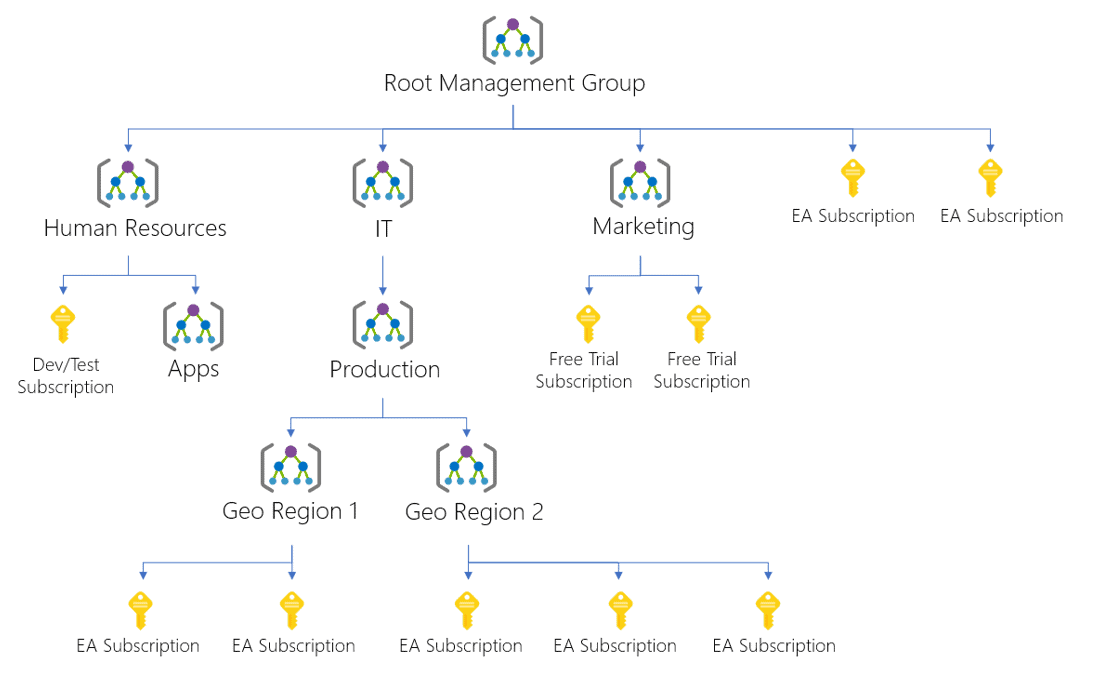
We organize the cloud of a big corporation using Management Groups and Subscriptions, creating a hierarchy of management groups and subscriptions using the criteria we think it will fit better.

We can apply the policy on any management group, and the policy will be valid to all subscriptions and managed groups below it. Another option is to apply the policy to a subscription, in this case the policy will be valid only to that subscription.

In any of these choices, the process for the policy application is the same.

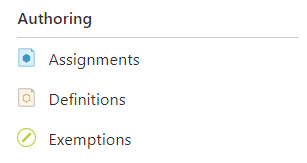
After selecting Policy option in the menu on any of these objects, on the following screen we will find the authoring menu options on the left side, like the image below.

We will use these three options to create and apply the policy:

Definitions: We use this option to create the policy. Usually we store the policy on the object we first used to create its definition and it can be used on this object and below. If the object is a management group, you will be able to apply the policy on any subscription or management group below this one. However, if the object is a subscription, you will only be able to apply the policy to that subscription and resource groups under that subscription.

Assignments: These are the assignments of the policy to the current object. The object can have assignments of policies stored in itself or in any object above, but not in objects below it.

Exemptions: These are objects to define exceptions to the policies. When applying the policies to the subscription/management group we can define a set of exceptions that should not be checked by the policy.

Creating the Policy Definition

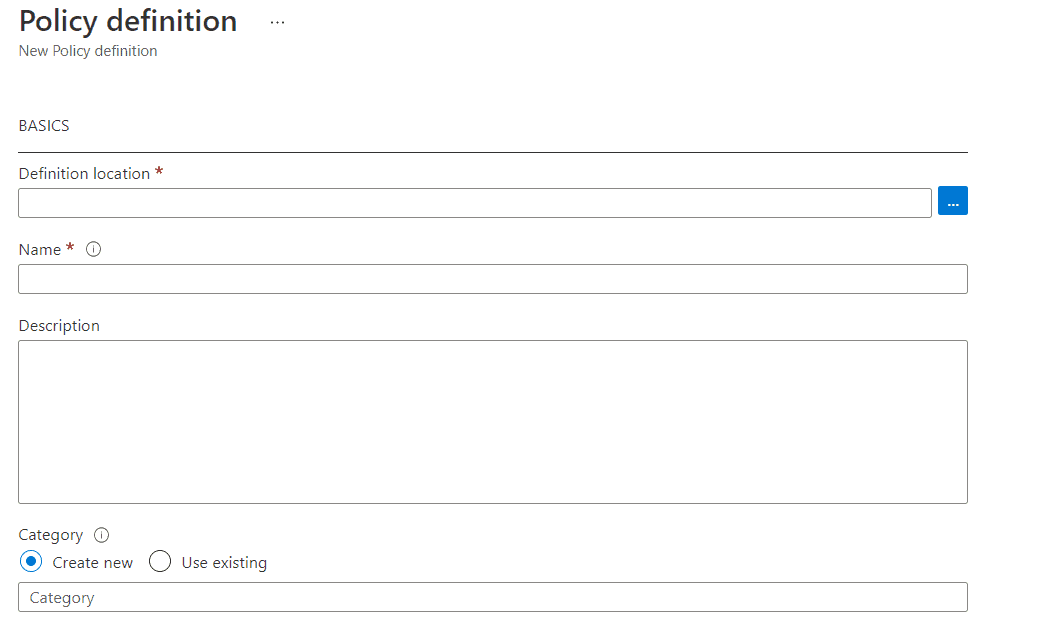
  1. Once you are already on the object selected for the policy (Management Group or Subscription, doesn’t matter) click on Definitions


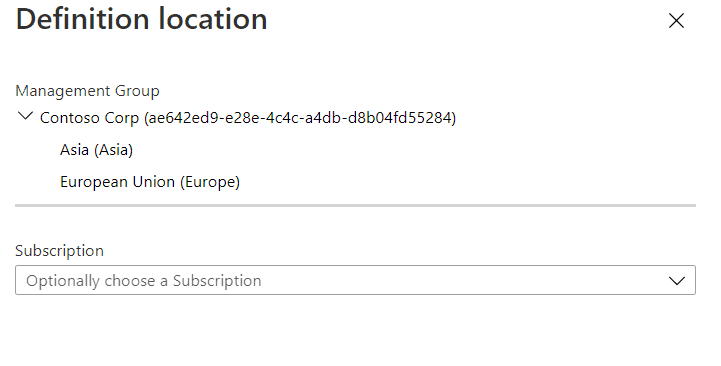
  1. In Definition Location, click the “…” button

  1. Choose the location to store the policy. Usually, you should choose the object you are managing at the moment. Mind the subscription is optional, you can choose a management group to store your policy
  2. Click Select button
  3. In the Name textbox, type “Naming Convention”, it will be the name of our policy definition
  4. In the Description textbox, type a description, such as “Create a Naming convention for objects”
  5. On the Category radio buttons, you can choose between use an existing policy category or create a new category. Leave as Create New
  6. On the Category textbox, type “Naming Convention”
  7. On the Policy Rule textbox, past our policy JSON, as you can see above on this blog
  8. Click Save button

Assigning the Policy

  1. Under Authoring, click Assignments.
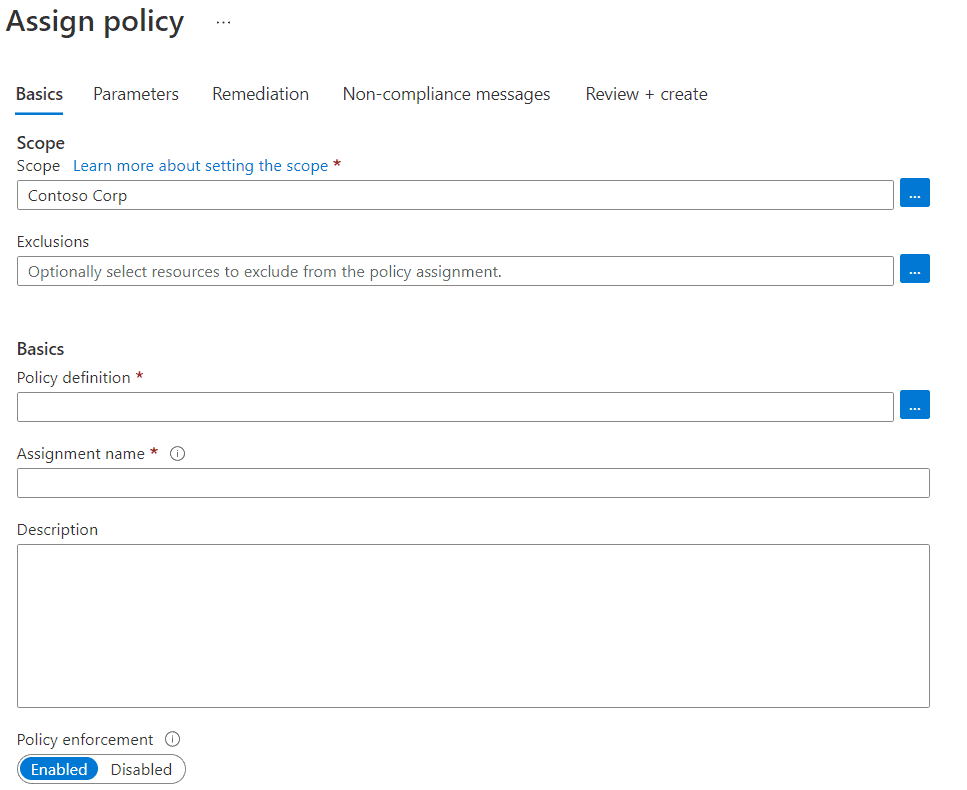
  2. Click the Assign Policy button

  1. Click the “…” button besides the Policy definition box
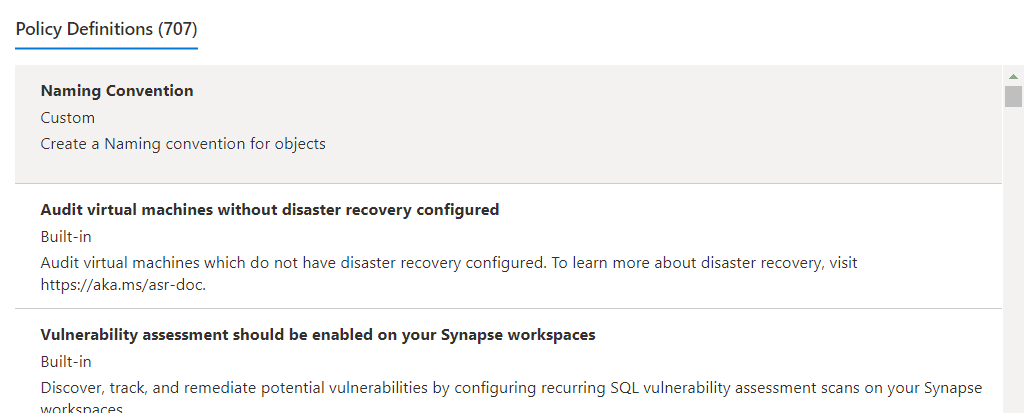
  2. Click the policy we just created

  1. Click the Select button
  2. On the box Assignment Name, type “Resource Group Name Convention”

The parameterized policy is generic and can have many applications. Each assignment will have one specific application, we will define it by setting the parameters.

  1. Click Next button
  2. The Resource Type box became a combo where we can choose what resource type we will apply this policy to. In our example, subscriptions/resourcegroups
  3. On the Resource Name Pattern text box,  type “rg-*” as an example. We can use wildcards, creating the name pattern for resource groups. 
  4. Click Next button
  5. The remediation allows us to configure the policy to execute actions when needed, but we will not use this option, so click Next button
  6. On the Non-Compliance Message textbox, you can customize the message for non-compliant resource groups
  7. Click Next button
  8. Click Create button

Applied Policy

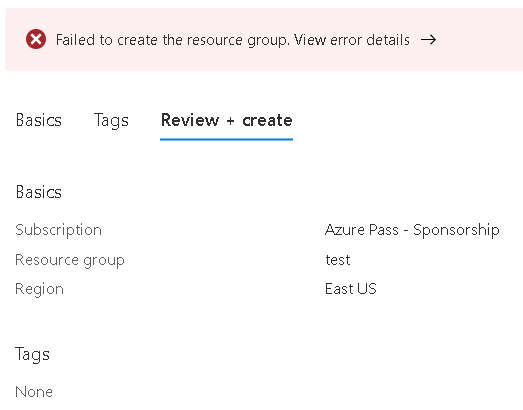
It may take 1 or 2 minutes until the created assignment makes effect. Once it does, you will not be able to create resource groups anymore unless they use the naming convention rg-*

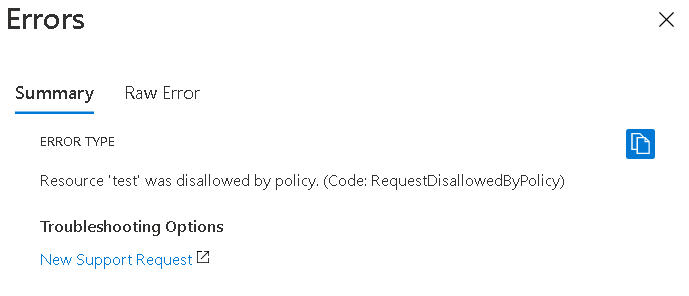
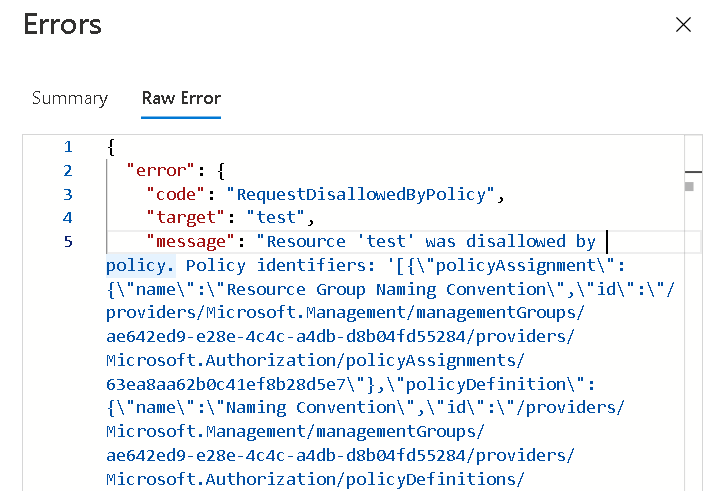
The customized error message is a bit more hidden. Once you receive the error when creating the resource group, you click the message “View error details”.

Click the Raw Error tab and you will see a JSON document. This document has the custom message you configured in the policy.

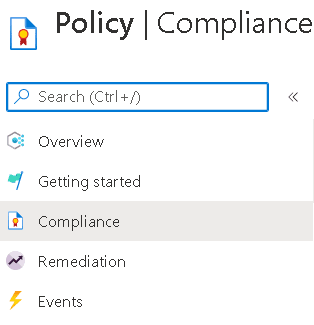
We can use the left menu to check the compliance of the policy on each object that have policy assignments.

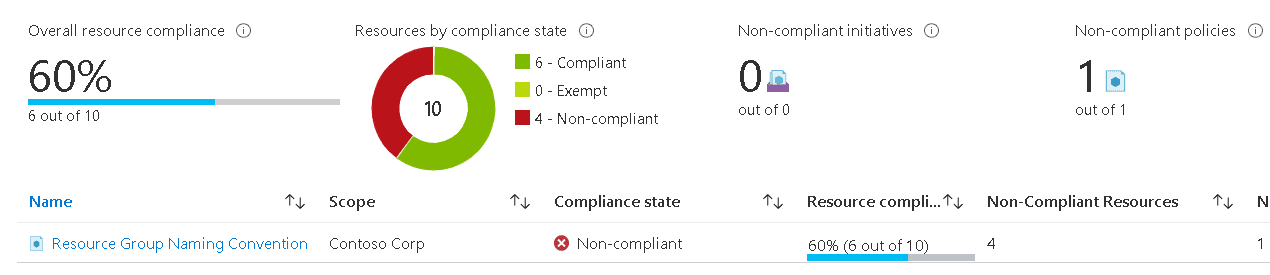
Once you click on the Compliance option, you will see the overall compliance of all policies assigned to this object. On this example we have a single policy assigned, so the overall numbers are the same as the single policy.

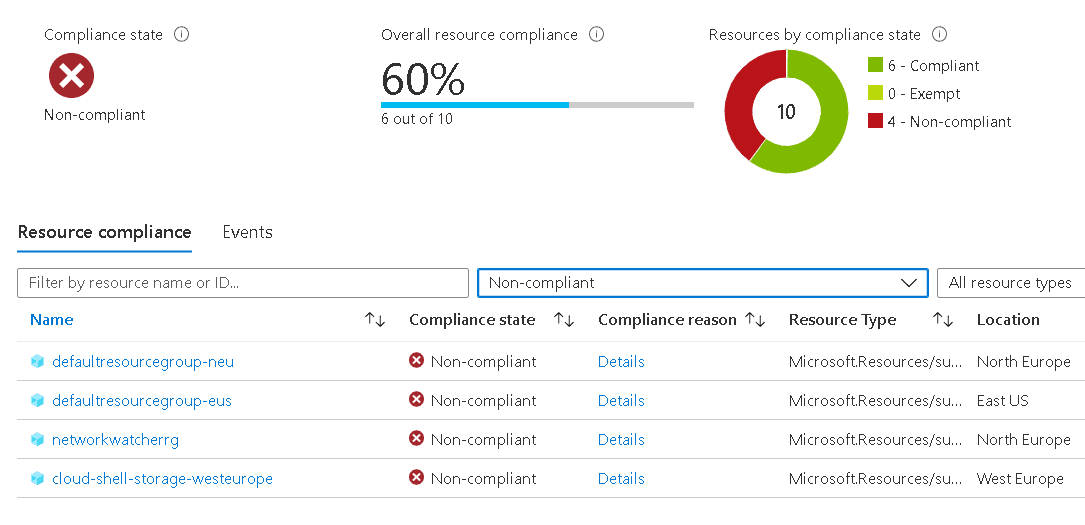
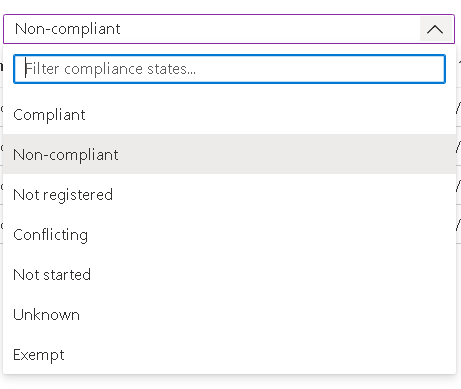
If you click on one policy you will be able to check all the objects by Policy Compliance State. For example, you can see all non-compliant objects.

This is the Policy State filter available on the 2nd dropdown:

Useful Policies

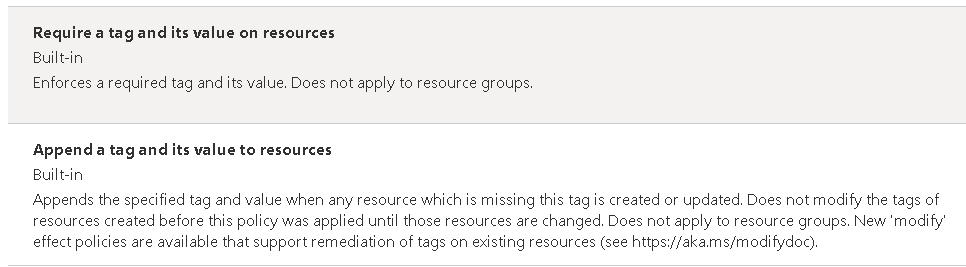
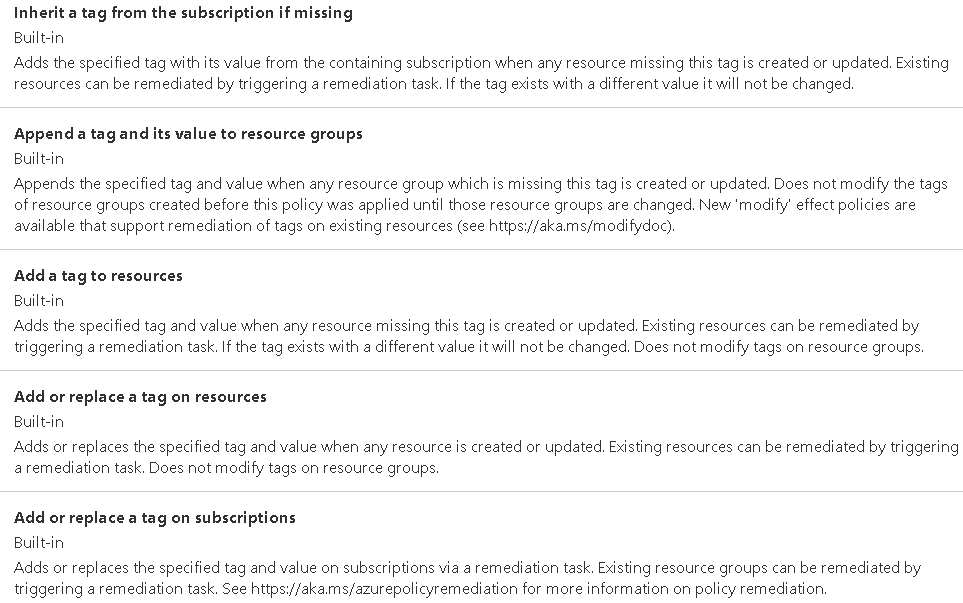
Azure has many useful pre-defined policies. For example, we mentioned on this blog how the tags on each resource can be useful. Many of these policies are planned to manage tags in different ways.

Useful policies will be subject of many other blogs because there are many of them to talk about.

Conclusion

The policies are not very well-known on azure environment, but we require them to keep our cloud environment in order.


The post How Essential Are Azure Policies appeared first on Simple Talk.


from Simple Talk https://ift.tt/34XwPWg
via

Convert from XML

I have to deal with XML data with PowerShell. That’s fine, but I always find myself sighing when I need to read an XML object. I have a copy of ‘XML in a Nutshell’. It is over six hundred pages of essential information on XML. Some nutshell. XML is, I believe, a way of representing data that should be kept at arms-length, especially if the arm is reaching out of the window.

I want to convert reasonably small XML files to hash tables and PowerShell objects. PowerShell never had a ConvertFrom-XML Cmdlet because gulping a large XML file into a PowerShell data object is expensive in resources. It is the sheer time it takes to consume a large XML file. Instead, you have to use the XMLDocument object to navigate to the data you want or use an Xpath query. It is all well and good to handle XML in this way, but it is inconsistent to have no ConvertFrom-XML cmdlet. After all, there is a ConvertFrom cmdlet for CSV, JSON, and a variety of text-based data. It would be good to have one for XML as well. Usually, I just want to consume relatively small XML files and just pick out the data I want. I hoped that one that worked would turn up but somehow it never did. So I wrote my own.

There are certain problems with tackling a routine that has to successfully convert all the permutations of XML into arrays and hashtables. XML doesn’t handle arrays natively but implies them by assigning them the same keys, it allows empty elements, or elements that contain only other elements. There is no built-in concept of NULLs. It can have elements that contain only text, or that mix text and elements. Additionally, attributes don’t have any intrinsic order whereas elements do. It is interesting to see how the online conversion utilities fare. There is little consensus about this.

In addition, the requirements of users vary. How do you distinguish attributes? Do you prefix them with a character such as ‘@’ or ‘-‘. Do you show the document element? You will soon understand and appreciate how difficult it is to consistently interpret XML.

XML is better understood as a document language that can be used as a data description language but it is too open-ended to be optimal for data-interchange. Because it is so open-ended, there are fewer certainties as to how it is used for storing data. This makes it more difficult to produce a function that renders any XML file as PowerShell. Hopefully, this is one of those routines that can be improved by experience.

function ConvertFrom-XML
{
        [CmdletBinding()]
        param
        (
                [Parameter(Mandatory = $true, ValueFromPipeline)]
                [System.Xml.XmlNode]$node, #we are working through the nodes
                [string]$Prefix='',#do we indicate an attribute with a prefix?
                $ShowDocElement=$false #Do we show the document element? 
        )
        process
        {   #if option set, we skip the Document element
                if ($node.DocumentElement -and !($ShowDocElement)) 
            { $node = $node.DocumentElement }
                $oHash = [ordered] @{ } # start with an ordered hashtable.
        #The order of elements is always significant regardless of what they are
                write-verbose "calling with $($node.LocalName)"
                if ($node.Attributes -ne $null) #if there are elements
                # record all the attributes first in the ordered hash
                {
                        $node.Attributes | foreach {
                                $oHash.$($Prefix+$_.FirstChild.parentNode.LocalName) = $_.FirstChild.value
                        }
                }
                # check to see if there is a pseudo-array. (more than one
                # child-node with the same name that must be handled as an array)
                $node.ChildNodes | #we just group the names and create an empty
        #array for each
                Group-Object -Property LocalName | where { $_.count -gt 1 } | select Name |
                foreach{
                        write-verbose "pseudo-Array $($_.Name)"
                        $oHash.($_.Name) = @() <# create an empty array for each one#>
                };
                foreach ($child in $node.ChildNodes)
                {#now we look at each node in turn.
                        write-verbose "processing the '$($child.LocalName)'"
                        $childName = $child.LocalName
                        if ($child -is [system.xml.xmltext])
                        # if it is simple XML text 
                        {
                                write-verbose "simple xml $childname";
                                $oHash.$childname += $child.InnerText
                        }
                        # if it has a #text child we may need to cope with attributes
                        elseif ($child.FirstChild.Name -eq '#text' -and $child.ChildNodes.Count -eq 1)
                        {
                                write-verbose "text";
                                if ($child.Attributes -ne $null) #hah, an attribute
                                {
                                        <#we need to record the text with the #text label and preserve all
                                        the attributes #>
                                        $aHash = [ordered]@{ };
                                        $child.Attributes | foreach {
                                                $aHash.$($_.FirstChild.parentNode.LocalName) = $_.FirstChild.value
                                        }
                    #now we add the text with an explicit name
                                        $aHash.'#text' += $child.'#text'
                                        $oHash.$childname += $aHash
                                }
                                else
                                { #phew, just a simple text attribute. 
                                        $oHash.$childname += $child.FirstChild.InnerText
                                }
                        }
                        elseif ($child.'#cdata-section' -ne $null)
                        # if it is a data section, a block of text that isnt parsed by the parser,
                        # but is otherwise recognized as markup
                        {
                                write-verbose "cdata section";
                                $oHash.$childname = $child.'#cdata-section'
                        }
                        elseif ($child.ChildNodes.Count -gt 1 -and 
                        ($child | gm -MemberType Property).Count -eq 1)
                        {
                                $oHash.$childname = @()
                                foreach ($grandchild in $child.ChildNodes)
                                {
                                        $oHash.$childname += (ConvertFrom-XML $grandchild)
                                }
                        }
                        else
                        {
                                # create an array as a value  to the hashtable element
                                $oHash.$childname += (ConvertFrom-XML $child)
                        }
                }
                $oHash
        }
}

Testing this routine has been an interesting experience. The method I’ve used is to take a range of XML files, an pass them through some online XML to JSON translation systems. I pick the one that seems the best fit. Then I take the output of this routine and check that it produces the same JSON, using the ConvertTo-JSON cmdlet.

Here is a sample of the tests, which are placed in an array and executed in turn. Any problems, and a warning appears.

@(
        #A complex XML element which contains both elements and text:
        @{
                'Test' = ' #A complex XML element which contains both elements and text:'
                'TheXML' = '<description>
It happened on <date lang="norwegian">03.03.99</date> ....
</description>';
                'TheJSON' = '{
    "#text":  [
                  "\nIt happened on ",
                  " ....\n"
              ],
    "date":  {
                 "lang":  "norwegian",
                 "#text":  "03.03.99"
             }
}'
        },
        #A complex XML element, "food", which contains only text:
        @{
                'Test' = 'A complex XML element, which contains only text'
                'TheXML' = '<food type="dessert">Ice cream</food>';
                'TheJSON' = '{
    "type":  "dessert",
    "#text":  "Ice cream"
}'
        },
        #empty  element
        @{
                'Test' = 'empty  element'
                'TheXML' = '<product pid="1345"/>';
                'TheJSON' = '{
    "pid":  "1345"
}'
        },
        #A complex XML element, "employee", which contains only other elements:
        @{
                'Test' = 'complex element,which contains only other elements'
                'TheXML' = '
<employee>
  <firstname>Jane</firstname>
  <lastname>Smith</lastname>
</employee>';
                'TheJSON' = '{
    "firstname":  "Jane",
    "lastname":  "Smith"
}'
        }) | <strong>foreach</strong>{
        $Reference = $_.TheJSON;
        $Difference = [xml]$_.TheXML | convertFrom-XML | <strong>convertto-json</strong>
        if ($Reference -ine $Difference)
        { <strong>Write-Warning</strong> "An anomaly testing $($_.Test). The $Reference was different to $Difference" }
        else
        { "passed test $($_.Test)" }
}

The post Convert from XML appeared first on Simple Talk.


from Simple Talk https://ift.tt/34Z7Stx
via

Wednesday, June 2, 2021

Data, N-Tiles & Medians

Many decades ago, when I was an honest programmer, I had a consulting job at the Atlanta headquarters of the Coca-Cola Company. Structured programming was the current fad, and the company was trying to switch over from COBOL to PL/1. We were trying to move historical records about Coca-Cola syrup sales into some kind of database. When I say “historical records”, I mean invoices and sales records that were written with beautiful penmanship, delivered on horse-drawn wagons and measured in firkins (a unit of liquid volume equal to half a kilderkin or 40.91481 litres, in case you forgot).

While this information made a nice exhibit at the Coca-Cola Museum in Atlanta, it had absolutely no value for making sales predictions and marketing. A lot of things had changed since the company was founded in 1892 (we will ignore removing cocaine from the product).

Most data has value based on how current it is. In some situations, like an avionics system, the data has to be immediate to be useful. That immediacy is enforced by blinking red lights and screaming sirens. When the sexy robot voice says “The wings are a sheet of flames! The bomb is stuck in the bomb bay! There are incoming enemy missiles! We have run out of toilet paper!” The last item in this list is really not that important, because of everything else going on. You can and will worry about toilet paper later. If you’re still alive.

Cost of getting data

There is also a cost to getting immediate data. The avionics system is expensive, but it makes sense in that situation. If you have not worked in the gaming industry, you might not be aware that slot machines are networked. In large casinos, management can send a query to this network and find out what the slot machines are doing on the floor. These networks are set up so that management can sample data at any given point in time. This lets the casino move the guests to where they want them to be with promotional offers, see which machines are being played, how many players are on the machines, etc.

Obviously, the avionics real-time system needs more immediate data than a slot machine network. But more than that, the casino systems have to answer to more people. One of the problems with these systems was that if anything interesting was happening on the floor (a lot of really happy big winners jumping up and down, or people walking off in groups, etc.), and everyone in management could log on to get the full reports. Because the displays were pretty and easy to invoke, Management that had no real need to try to look at everything promptly did so. This, of course, choked the system with “Lookie Lou” traffic. This meant that the rate of coins being fed into the slot machines slowed and cost the casino money. The trick in this case was to limit access to people who really needed the data to make a decision.

Cost of keeping data

My third and final anecdote has to do with the fact that in America we have one lawyer for approximately every 400 people. We are a very litigious society. If you keep data to long, it spoils and goes from being valuable to being dangerous. This is why you need to have lawyers and professional records managers working for your company. Everyone knows, vaguely, what a lawyer is. But I found the database and computer oriented people don’t have any idea what a records manager does, or that such a profession even exists.

These are the people who set up the retention schedules and rules for companies’ data. Database people don’t want to give up any data at all and that’s how Coca-Cola wound up with all of those paper invoices in an obscure warehouse. But life has gotten worse because we now have to worry about privacy rules. You’ll want to look at https://ift.tt/2HZhnii, which quickly discusses the General Data Protection Regulation (GDPR), Sarbanes-Oxley (SOX), the Payment Card Industry (PCI) compliance, the Health Insurance Portability and Accountability Act (HIPAA), and the Family Educational Rights and Privacy Act (FERPA) as legal restrictions and obligations created by bureaucrats who have no idea how IT works.

The general rule of thumb is that if your records are subpoenaed, you have to produce them, If you have them. It doesn’t matter if they have expired. So if you fail to get rid of the incriminating evidence, you can be criminally liable. The term ROI has come to mean “risk of incarceration” Instead of “return on investment” these days.

Discrete partitioning

A year-month combination is called an interval data type in ANSI/ISO Standard SQL, but Microsoft does not yet support these things, so we need to fake it.

CREATE TABLE Month_Intervals
(month_name CHAR(10) NOT NULL PRIMARY KEY
 CHECK (month_name LIKE '[12][09][0-9][0-9]-[01][0-9]-00'),
 month_start_date DATE NOT NULL,
 month_END_date DATE NOT NULL,
CHECK(month_start_date < month_END_date));

The next trick is to reference it from other tables.

CREATE TABLE Bikini_Sales
(sales_month CHAR(10) NOT NULL
  REFERENCES Month_Intervals (month_name),
account_code CHAR(4) NOT NULL,
ytd_sales_count INTEGER NOT NULL,
CONSTRAINT PK_Bikini_Sales
PRIMARY KEY (sales_month ASC, account_code ASC)
);

When the referenced table in a REFERENCES clause constrains a column to a key (PRIMARY KEY or UNIQUE) in the referenced table, those are the only values you can use. This is a lot better than doing something like adding

CHECK(Bikini_Sales.month_name IN (SELECT month_name FROM Month_Intervals)

or

CHECK (EXISTS (SELECT * FROM Month_Intervals, Bikini_Sales WHERE Month_Intervals.month_name = Bikini_Sales.month_name))

Neither of these approaches will allow the DRI referential actions to be added to them.

I am using the MySQL convention of putting double zeros in the date fields (the field is a part of a column that has partial meaning in itself, and it is not a column). This is not an ANSI/ISO standard yet, but it is up for consideration and is found in use because the popularity of MySQL. The advantages are that it is language independent, and sorts with the ISO-8601 formatted dates.

INSERT INTO Month_Intervals
(month_name, month_start_date, month_end_date)
VALUES
('2019-01-00', '2019-01-01', '2019-01-31'),
('2019-02-00', '2019-02-01', '2019-02-28'),
('2019-03-00', '2019-03-01', '2019-03-31'),
('2019-04-00', '2019-04-01', '2019-04-30'),
('2019-05-00', '2019-05-01', '2019-05-31'),
('2019-06-00', '2019-06-01', '2019-06-30'),
('2019-07-00', '2019-07-01', '2019-07-31'),
('2019-08-00', '2019-08-01', '2019-08-31'),
('2019-09-00', '2019-09-01', '2019-09-30'),
('2019-10-00', '2019-10-01', '2019-10-31'),
('2019-11-00', '2019-11-01', '2019-11-30'),
('2019-12-00', '2019-12-01', '2019-12-31');
INSERT INTO Bikini_Sales
VALUES
('2019-01-00', 'acc1', 1),
('2019-02-00', 'acc1', 2),
('2019-03-00', 'acc1', 4),
('2019-04-00', 'acc1', 5),
('2019-05-00', 'acc1', 7),
('2019-06-00', 'acc1', 10),
('2019-07-00', 'acc1', 12),
('2019-08-00', 'acc1', 13),
('2019-09-00', 'acc1', 14),
('2019-10-00', 'acc1', 16),
('2019-11-00', 'acc1', 17),
('2019-12-00', 'acc1', 19),
('2019-01-00', 'acc2', 3),
('2019-02-00', 'acc2', 10),
('2019-03-00', 'acc2', 11),
('2019-04-00', 'acc2', 12),
('2019-05-00', 'acc2', 15),
('2019-06-00', 'acc2', 18),
('2019-07-00', 'acc2', 20),
('2019-08-00', 'acc2', 21),
('2019-09-00', 'acc2', 22),
('2019-10-00', 'acc2', 24),
('2019-11-00', 'acc2', 25),
('2019-12-00', 'acc2', 26);

One of the rules of a good database design is that you don’t store computations, especially computations that go over different levels of aggregations. You will find that you have to redo them or undo them to retrieve the atomic values that built them. Here’s a simple query that will unpack the year-to-date sales totals into monthly sales.

CREATE VIEW Monthly_Bikini_Sales
AS
SELECT account_code, sales_month,
ytd_sales_count - LAG (ytd_sales_count, 1, 0)
OVER (PARTITION BY account_code ORDER BY sales_month) AS sales_qty
FROM Bikini_Sales;

This is what we should have had in the first place, and not the year-to-date totals, which depend on a different level of aggregation as well as a temporal ordering.

The Pareto Principle

The Pareto Principle is an aphorism which asserts that 80% of outcomes (or outputs) result from 20% of all causes (or inputs) for any given event. In business, a goal of the 80-20 rule is to identify inputs that are potentially the most productive and make them the priority. You can put the formula for the distribution into an algebraic expression. But it’s best not used as an exact formula. Informally, this heuristic also goes by the name “80-20 rule”. The first name comes from the heuristic that 80% of your profit comes from 20% of your customers, 80% of your expenses come from 20% of your personnel, etc. This is not a firm law of the universe, but only a heuristic.

You’ll see this idea also worded as the “90-10” rule or “Sturgeon’s Law”, named after science fiction/fantasy author, Theodore Sturgeon. It comes from a remark he made during an interview where he was asked why man with his talents wrote for pulp magazines and other “lowbrow” publications. His response was that 90% of everything written is crap; that’s how

you know the good stuff when you see it.

You can use Bikini sales for 2019, for an example. We know that account #1 has a total of 19 sales. 80% of this would be 15.2 bikinis, which would fall somewhere between ‘2019-09-00’ and ‘2019-10-00’. Essentially what this says that by the end of 2019 October, you’ve sold about as many bikinis as you’re going to sell for the year.

Now look at account #2. Doing the same math, we get to 80% of our annual volume when we’ve sold 20.8 bikinis. This would fall during 2019 August, which makes more sense intuitively than the October we had in the prior account.

The NTILE() function

NTILE() is a window function that distributes rows of an ordered partition into a specified number of approximately equal groups, or buckets. It assigns each bucket a number starting at one. It takes its somewhat unusual name from the statistical of partitioning a set of values. Look for the terms “quartile” (four buckets), “quintile” (five buckets) and “dectile” (10 buckets). It depends on having an ORDER BY clause.

For each row in a group, the NTILE() function assigns a bucket number representing the group within its partition to which the row belongs. The goal is that each bucket will be the same size or differ by one.

The syntax is:

NTILE(<bucket count>)
OVER (PARTITION BY <partition_expression>
 ORDER BY <sort_expression ASC | DESC list>)

The <bucket count> is the number of buckets into which the rows are divided. The bucket count can be an expression or subquery that evaluates to a positive integer. It cannot be a window function.

The PARTITION BY clause and the ORDER BY clause behave in the usual way that they do in other window functions. The ORDER BY clause is not optional because this function would not make sense otherwise.

The real trick in this function is in the bucket count. If the count of rows in the partition is a multiple of the bucket count, life is good, and each bucket gets the same number of rows.

If the number of rows is not evenly divisible by the bucket count, the NTILE() function returns groups of two sizes with the difference by one. The larger groups always come before the smaller group in the order specified by the ORDER BY in the OVER() clause. For example, if you had 10 rows with a bucket size of three, then the first bucket will have four rows in the following two buckets will be three rows each.

It’s obvious that you can have up to (bucket size -1) extra rows. Here’s a simple example demonstrating the use of the NTILE() function:

CREATE VIEW Quarterly_Sales
AS
SELECT sales_month, account_code,
 NTILE(4) OVER( PARTITION BY account_code
ORDER BY sales_month)
 AS sales_quarter
FROM Bikini_Sales;

Since you want to be able to get to the bucket numbers, this windows function is probably going to be called in a CTE, so it will materialize and be available to the following functions.

The median

The median is a value separating the higher half from the lower half of a data sample. It does not have to actually be in the set. The median is a better description of a typical value or central tendency than the simple mean (average) because it is not skewed so much by a few extreme values. Think about what happens to the average income in your neighborhood if Bill Gates moves in. For example, consider the data set {1, 2, 3, 4, 5}, which will have a median of 3, but if we have the set {1, 2, 3, 4, 5, 6} the usual rule is to find the two middle values and average them; in this case, it gives us {3, 4}, which will average out to (3+4)/2 = 3.5. However, this is still not really good, and a still better measure of central tendency is the weighted median. Consider the data set {1, 2, 2, 3, 3, 3}. The usual median computation would be (2+3)/2 = 2.5. The weighted median will include the duplicates from the set of central values in the averaging. In this is example that would be (2+2+3+3+3) = 13/5 = 2.6, which shows the data set is slightly skewed toward three.

You can obviously use the NTILE() function to compute a median. This is a very quick version, and you might make some objections to the way it handles values in the middle. I’ll leave it as an exercise to the reader to improve this code

WITH Median_Sales (account_code, sales_month, sales_qty, ntile2)
AS
(SELECT account_code, sales_month, sales_qty,
 NTILE(2) OVER (PARTITION BY account_code
 ORDER BY sales_qty) AS ntile2
 FROM Monthly_Bikini_Sales)
SELECT account_code,
 COUNT(*) AS sales_count,
--- highest value of n-tile#1:
(MAX(CASE WHEN ntile2 = 1 THEN sales_qty END)
 --- lowest value of tile 2:
+ MIN(CASE WHEN ntile2 = 2 THEN sales_qty END)) /2.0
AS median_sales_qty
FROM Median_Sales
GROUP BY account_code;

Just a note, you can also get this from PERCENTILE_CONT:

WITH Sales
AS
(SELECT account_code,
        PERCENTILE_CONT(.5) WITHIN GROUP(ORDER BY sales_qty)
        OVER(PARTITION BY account_code) AS median
   FROM Monthly_Bikini_Sales)
SELECT DISTINCT account_code, median
FROM SALES;

A bit of history

Back in 1992 and 1993 there were two popular newsstand magazines devoted to databases; DBMS and Database Programming And Design. Window functions did not exist in the language at this time, so computing a median was not immediately obvious. Chris Date was writing in one magazine and I was writing in the other. Computing the median became the “interview question” for advanced SQL programmers. Both Chris and I did three variations each, but also Philip Vaughn, Anatoly Abramovich along with Yelena Alexandrova and Eugene Birger, and the late Ken Henderson also made contributions to this problem over the next few years. If you really want to look at the solutions, you can either go back to the archives of those magazines or you can look at a section in the third edition of my SQL for Smarties. But I will be honest and tell you that the code in these stories is of historical interest, not practical programming today.


The post Data, N-Tiles & Medians appeared first on Simple Talk.


from Simple Talk https://ift.tt/3yRUzJ7
via

Tuesday, June 1, 2021

What Counts for a DBA – Deadlines

Everyone needs deadlines. Even the beavers. They loaf around all summer, but when they are faced with the winter deadline, they work like fury. If we didn’t have deadlines, we’d stagnate. ― Walt Disney

I hate deadlines. Really. I truly hate them. The problem is: they are usually unrealistic, often not much more than a wild guess. They restrict the amount of time that I can spend in preparation and research so that I can do things right; they squeeze the artistic quality out of my work as a DBA and Data Architect.

In many ways, though, this is the younger me speaking. Part of me still hates them, but as I get older (and older,) I live through more and more examples of the true value of deadlines. The trick is to get the right deadline for the right task, and then live up to it.

A recent event in my personal life provides a perfect illustration, both of why deadlines are necessary, and how they pan out in most projects. We moved to a new home. In phase 1 of the project, between putting our current home on the market and selling it, we worked steadily but without urgency. We contacted a moving company, described the project, agreed what we’d pack and what they’d pack, a timescale and a budget. After that, we did a lot of planning and talking. We seemed to have all angles covered. There was a lot of euphoria about just how well the project would go.

Suddenly, we received and accepted an offer on the house and agreed on a moving date; phase 2 began. We looked around at what we’d achieved so far and it wasn’t much (though it was done immaculately). I jokingly suggested that if we continued packing at this pace, we’d have to skip this house and just move everything straight into a retirement home. Still, the deadline galvanized us. We split the remaining work between us. We worked hard, and packed faster. Sure, some of our work got a little sloppier, but we got ourselves on track to complete our share of the work, on time.

As phase two came to an end, we received a call from the moving company. Did we have enough boxes to do all the packing? Um, no, we’ve almost packed what we agreed with the project manager; you’re supposed to do these rest! This was the ‘boom’ that presaged the usual final stage chaos. Too few movers arrived, needing to do too much work in too little time. Initially, they maintained a modicum of professionalism, but that started to slide quickly, as the deadline seemed impossible. As the hour of the move approached, the remainder of our breakable items were being piled up messily, like thousands of lines of hastily written, and never tested, code.

We hit our deadline, but were left so exhausted that we incapable of doing anything much, in our new home, for weeks. The movers lost in damages over 30% of what they made on the move. So, I suppose, in comparison to many IT projects, it was wildly successful!

Deadlines are necessary for motivation, but a proper deadline is an achievable goal that helps you pace yourself properly. As a DBA, you need to learn to stand up against deadlines that feel impossible to achieve, without cutting unreasonable corners. As you gain experience, you learn how long it really takes to build a server, install SQL, set up backups, write the SQL, and how much time to wire in to account for the inevitable hardware glitches, poorly written requirements, and changes in team members.

If you find you are constantly always fighting deadlines that can never be met, consider other opportunities. There are far too many other organizations out there needing their databases backed up and optimized to spend your life implementing bad practices, and fearing that the work you do isn’t the best it can realistically be.

Commentary Competition

Enjoyed the topic? Have a relevant anecdote? Disagree with the author? Leave your two cents on this post in the comments below, and our favourite response will win a $50 Amazon gift card. The competition closes two weeks from the date of publication, and the winner will be announced in the next Simple Talk newsletter.

The post What Counts for a DBA – Deadlines appeared first on Simple Talk.


from Simple Talk https://ift.tt/2RV55ii
via